 This is a quick WordPress Installation guide with screenshots to get your blog up and running quickly. After reading this WordPress Installation guide you will know exactly how you can install WordPress quickly on your domain in a few steps.
A detailed WordPress Installation Instruction can be found at WordPress.org too. I install WordPress frequently for my friends and myself and I find the detailed installation instructions on WordPress.org to contain too much details for me, so I needed a cut down and more streamlined version of WordPress installation instructions and hence the birth of this tutorial.
If you are installing WPMS then read the WordPress multi-site installation guide.
This WordPress installation guide mainly takes into account the most common web hosting solution (example: access to ‘cPanel’). I install WordPress this way because it allows me to work on concurrent installation related tasks at the same time (e.g. Add database while the WrodPress files are being uploaded to my server) resulting in a reduced total WordPress install time.
You can also use the one click WordPress install option via cPanel if your host offers it.
WordPress Installation Steps
Step 1: Transfer the WordPress files to your web server
- Download and unzip the latest WordPress package from WordPress Download Page.
- Upload the WordPress files (all the directories and files that is inside the extracted WordPress Directory) to the root directory (In most cases this will be the ‘public_html’ directory) of your web server or to a sub directory if you want to host your blog in a sub directory of your site. I use FileZilla (free ftp software) to upload my files but any ftp program can be used. You can also check the video tutorial on how to use FileZilla.
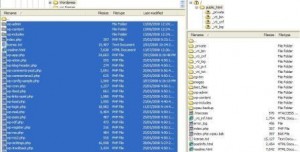
‘ftp’ WordPress files to the web server
Step 2: Add Database and User for WordPress
- Log in to your cPanel. (http://www.your-site.com/cpanel)
- Click MySQL Databases.
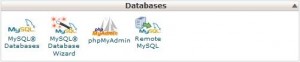
MySQL Database - Create a user for WordPress from the Users section:
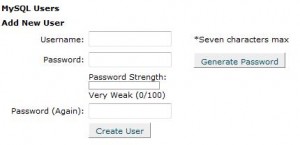
MySQL Database User Creation - Choose a user name (e.g. ‘user’) and enter it in the User name field.
- Choose a password for this user. Write down this password on a piece of paper or on a text file.
- Click Add User.
- Click on ‘Go Back’ to go to the MySQL Database Page Write down this user name and password on a piece of paper or on a text file.
- Create a database for WordPress from the Databases section.
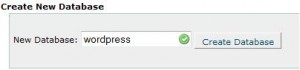
MySQL Database Creation - Enter a name for your WordPress database (e.g ‘wordpress’) and click ‘Create Database’.
- Click on ‘Go Back’ to go to the MySQL Database Page.
- Go to the ‘Add User To Database’ section on this page and select the Database and user name you just added from the drop down menu if not selected already.
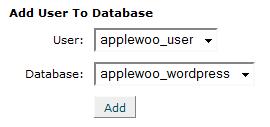
Add WordPress User to the Database - Click ‘Add’.
- Select “ALL PRIVILEGES” and click ‘Make Changes’.
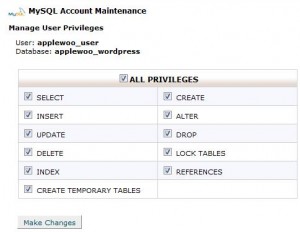
WordPress User - Click on ‘Go Back’ to go to the MySQL Database Page.
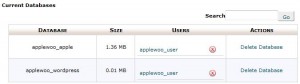
List of Current Database and Users
Note down the WordPress Database and user name that you just created from this (MySQL Database) page. There may be a prefix present on your Database and user name e.g “applewoo_wordpress”, “applewoo_user”, this is to ensure that no name conflicting occurs on a shared hosting.
Step 3: Edit the Configuration File
- Rename the “wp-config-sample.php” file to “wp-config.php”.
- open the “wp-config.php” in your favorite text editor and update the DB_NAME, DB_USER, DB_PASSWORD fields with the details captured in step 2. It should look similar to the following:
// ** MySQL settings ** //

define('DB_NAME', 'applewoo_wordpress'); // The name of the database

define('DB_USER', 'applewoo_user'); // Your MySQL username

define('DB_PASSWORD', 'myPassword'); // ...and password

define('DB_HOST', 'localhost'); // 99% chance you won't need to change this value

define('DB_CHARSET', 'utf8');

define('DB_COLLATE', '');
- Upload this updated “wp-config.php” file to the root directory (‘public_html’) of your web server or to the sub directory if you are installing WordPress in a sub directory of your site.
Step 4: Install WordPress
- Run the WordPress Installation script by visiting the ‘wp-admin/install.php’ link of your site. Basically enter “http://www.your-site.com/wp-admin/install.php” in the address bar of your web browser and follow the one click installation process.
WordPress should now be installed and ready to go. Log in to your WordPress admin section by visiting the ‘wp-admin’ link of your site using the user name and password sent to your inbox.
Total Expected WordPress Install Time
The total WordPress install time will vary depending on your internet connection speed but below is a graph showing the average install time for my WordPress Install.
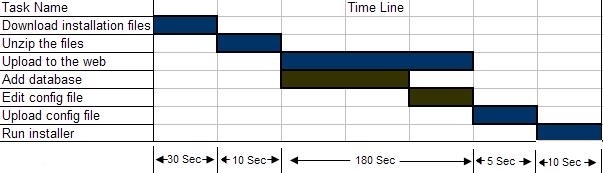
The WordPress installation is fairly straight forward but If you are having a problem then leave a comment below and I will try to answer if I can.
You can also check the WordPress re-installation tutorial if you need to reinstall it.
Thanks for sharing this awesome article, it helped me a lot while installing WordPress on OVH server and for the rest, I am using Cloudways WordPress optimized hosting and fixed through their managed platform.
I don’t recommend this process to anyone, because this process is hard for new bloggers who don’t have much knowledge. I recommend select a good web hosting like Bluehost, hostgator which have one click Softaculous installations for newbies.
Thanks
Thanks. The guide is easy to follow and understandable. I installed WordPress on my server and now I am ready to start blogging. Thank you very much.
If you don’t know how to install WordPress, you could choose a Managed WordPress Hosting Service, where WordPress is installed automatically.
Thank you very much 🙂 excellent
Right here is the right website for everyone who wants to understand this topic. You understand a whole lot its almost hard to argue with you (not that I really would want to…HaHa). You definitely put a fresh spin on a topic that has been written about for a long time. Wonderful stuff, just wonderful!
Thank to you … 😛 😛
Hi, thanks for your nice tutorial. i just installed WordPress on my server. its seems easy for me to install in Cpanel. but my previous host was in EHCP Control panel. so. i was confused.
Thank you so very much! I had done a ‘quick install’ and nothing was happening. Did a full uninstall and followed these steps. FIXED! Thank you again.
Wow! That’s so easy to setup. You saved my time. Thanks for sharing this mate.
Probably one of the biggest reasons people don’t get into blogging and affiliate marketing is that they don’t know how to set up a blog. Nice resource !
If you have fantastico then you don’t need to worry about any of these. Fantastico lets you install WordPress with a few clicks.
What about Fantastico? I am confused, I didn’t go trough these steps when I installed my WordPress sites. Can you please explain what is the difference. Thank you, this is a very informative blog.
Thanks for the guide. this is very easy to install wordpress.
The video tutorial is a lot simpler to follow and understand. Sometime, unless you are computer savvy in internet optimization following instructions via video is easier for the newbies.
Thanks for the tutorial. I got the video on youtube but doesnt show indepth implementations as this. The video is good to get beginners an idea of how to install it the basic way but when you need to implement mysql and mydata base it really doesnt show much
Good learning and easy to understand
Hi, I found your web site when i was searching Google for web sites related to this content. I must tell you, your site is good. I like the theme too, its pleasing. I don’t have the time now to fully read your web site but I have bookmarked it and I also signed up for your RSS feed. I will be back in a night or two. Thanks for an informative blog.
this is awesome! thanks for your help and support. one thing i did notice is that if i have a wordpress database already because i’m installing multiple blogs on my server, then i named it wordpress2 and will probably do the same for the others wordpress3 and so on.
this is a great guide really and it is crystal clear
sure newbies can easily follow this and install WP
Thanks for the great guide. I’ll definitely be installing word press tonight.
@David, Yes, I can help you install wordpress on your domain… I will send you an email to discuss this further.