I am sure most of us use the 'Ctrl+c' and 'Ctrl+v' shortcuts to copy and paste in word but here are some extra word shortcuts for word users that will significantly improve the editing efficiency when using Microsoft Word. This list is not comprehensive but these shorcuts save me the most time. 1. … [Read more...] about 15 Most Useful Microsoft Word Shortcuts that You Probably Don’t Use
Equivalent of UNIX Grep command in Dos/Windows
You can use the 'type' and 'find' command in Dos/Windows to get the equivalent output of the UNIX 'cat' and 'grep' commands. The 'find' command can be very useful when you are trying to search for a specific text or phrase over multiple files. The 'find' command also comes in handy when searching … [Read more...] about Equivalent of UNIX Grep command in Dos/Windows
List of useful and frequently used DOS Commands
This list of DOS commands is very useful when repairing Windows after a system crash when Windows doesn't load and the only option you have is a Dos command prompt. Use the "help" command to find the usage and details of any particular command e.g. C:\>help copy … [Read more...] about List of useful and frequently used DOS Commands
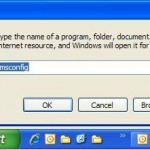
Minimize the start up time of your Windows computer
If your computer is taking too long to start up and you want to minimize that time then here is a tip as to how you can control the applications that Windows starts at Startup time and make your computer boot fast. You don't have to be a computer expert for this either. … [Read more...] about Minimize the start up time of your Windows computer