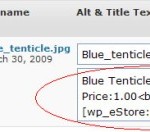
WordPress eStore and WordPress Paypal Shopping Cart Plugins can now be integrated with the NextGen Gallery Plugin to create a Digital photo store similar to the demo given below: [nggallery id=10 template=wp-eStore] The Shopping cart will appear below this line when you add an item to the cart. The shopping cart can also be found on the sidebar. The images have been resized to 800x600 resolution using the NextGen Gallery resize utility. An watermark has also been applied to the image using the NextGen Gallery 'Effect' option to prevent stealing. Once the purchase is complete the encrypted download link for the original image (1920x1200 resolution and no watermark) is emailed to the buyer. Just to clarify... You don't necessarily have to sell digital photos to use the gallery. You could be selling anything and still use the Gallery as a means of displaying the products where each thumbnail is the icon of the product you are selling. How to Integrate NextGen Gallery and WordPress eStore Plugins What Plugins do you need? You will need the WordPress eStore v1.4 or above and NextGen Gallary Plugins. This guide assumes that you have used NextGen Gallery Plugin and know how to use it. If you don't know how to use ...
I have had a few requests from some of the users of the WordPress eStore plugin (to Sell digital content from your blog securely) to write up a step by step startup guide so they can be up and running and selling their products in less than five minutes... So here it is. If you prefer a video tutorial then take a look at the WP eStore quick installation and usage video tutorial Before you dive into playing around with all the various settings of the WP eStore plugin I recommend getting up and running first by following the simple startup steps outlined below. 1. Once you get the product download link in your email go ahead and download the zip file. 2. Extract the zip file and upload the 'wp-cart-for-digital-products' directory to your '/wp-content/plugins/' directory. 3. Activate the plugin through the Plugins menu in WordPress. 4. After you activate the WordPress eStore Plugin, the settings/options menu can be found on the left hand side menu similar to the following screenshot (on WordPress version 2.7 or above) 5. First go to the 'Settings' menu and configure the general, email and digital product delivery options. Most of the default settings should be enough to get you going but ...
Choose a category below to browse and subscribe to specific content.
Here are some recent comments from our users.
Tech tips, WordPress plugins, WordPress tweaks and Technical tips to build a better blog.
