The UNIX vi commands listed on this page which handles navigation, cursor movement, searching, editing, inserting text, using auto-complete, cut copy and paste operations etc in vi are useful for taking advantage of the UNIX vi editor.
vi (Visual Editor) is the default editor that comes with the UNIX operating system.
The UNIX vi editor has two modes of operation:
1.Command mode (commands which cause action to be taken on the file – Press the ‘i’ character to change to Insert mode).
2.Insert mode (entered text is inserted into the file – Press the <Esc> (Escape) key to go to the command mode).
When using vi, keep in mind that vi is case sensitive. Over time I have learned that the ‘Escape’ key is king in vi editor.
Start and exit commands
To open a file in the vi editor to start editing, simply type in ‘vi <filename>’ in the command prompt.
e.g. prompt>vi tmp.txt
To quit vi, type one of the following commands in the command mode and press ‘Enter’.
Exit vi, writing out modified file – : x
Exit vi, writing out modified file – :wq
Simply quit vi – :q
Force exit from vi even though changes haven’t been saved – :q!
Cursor Navigation in vi editor
By character – h, j, k, l
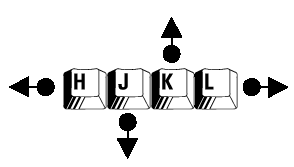
First/Last character in a line – 0/$
First non-blank character in a line – ^
First non-blank character on last line – G
First non blank character on line n – nG
Move to matching comment/Bracket/Brace – %
Forward to beginning of next word – w
Back to beginning of current/previous word – b
Forward to beginning of next sentence – )
Back to beginning of current/previous sentence – (
Forward to next blank line – }
Back to previous blank line – {
Screen Navigation in vi editor
Move window one line down – CTRL-E
Move window one line up – CTRL-Y
Move window one page down – CTRL-F
Move window one page up – CTRL-B
Mark position as n – mn
Go to marked position n – ‘n
Search and Substitute in vi editor
Search forward for pattern – /pattern
Search backwards pattern – ?pattern
Substitute next pattern with string – :s/pattern/string
Substitute pattern with string on current line – :s/pattern/string/g
Substitute pattern with string in file – :%s/pattern/string/g
Search Patterns
Match beginning of line – ^
Match end of line – $
Match start of word – \<
Match end of word – \>
Match any single character – .
Match character in range – [a-z]
Match character not in range – [^a-z]
Match 0 or more of the preceding atom – *
Changing to Insert Mode in vi editor
Insert text after cursor – a
Insert text before curser – i
Append text at end of line – A
Insert text before first non-blank character – I
Insert text above the current line – o
Insert text below the current line – O
Cut, Copy and Paste operation in vi editor
Cut text from curser to motion – dmotion
Copy text from curser to motion – ymotion
Cut current line – dd
Copy current line – yy
Paste after curser – p
Paste before curser – P
To join the next line – J
Advanced commands
Start shell – :shell
Execute command within a shell – :! Command
Read in another file – :r file
Read in results of a command – :r! command
Filter motion through command – !motion command
Misc vi Commands
Change current line – cc
Undo last change – u
Repeat last command – .
Please feel free to leave your favourite vi commands in the comments area below if it’s not on this page.
I absolutely love vi. With vi editor, I generally notice only two types of reactions – people either absolutely love it or they absolutely hate it. There is rarely any middle ground.
Vi has a big learning curve and it is only after considerable time and effort does one one realize the magic of vi.
hey, its very useful and easy to understand article…
many thanks..
I absolutely love vi. With vi editor, I generally notice only two types of reactions – people either absolutely love it or they absolutely hate it. There is rarely any middle ground.
Vi has a big learning curve and it is only after considerable time and effort does one one realize the magic of vi.
hey, its very useful and easy to understand article…
many thanks..
Thanks for your detailed list of commands for vi editor. Will you also write an article on emacs editor?
i want vi to search a key word and delete the whole line…
I would like to have the shopping cart just like your first screenshot. A list where people can add the quantity they want. But I don’t see a way to set this up? Can you please advise?
@Sanjay, To get out of the Vi mode you simply need to press the ‘Esc’ key then enter ‘:’ and ‘q’. What do you mean by “without executing my commands”?
Hi,
I want to know how can i get out of the vi mode to the command prompt, when i had come from the command prompt(pressing esc key,v @ command prompt) without executing my commands.
pls. reply.
Rgds,
Sanjay Sule