Wordpress Easy Paypal Payment or Donation Accept Plugin
Categories: Featured, Wordpress Plugin
‘Wordpress Easy Paypal Payment or Donation Accept Plugin’ is an easy to use Wordpress plugin to Accept Paypal payment for a service or a product or Donation in one click. Can be used in the sidebar, posts and pages.
After receiving numerous requests, I have added multiple currency support and a donate button option to this WordPress plugin. See the change log section below. Now WordPress admins can configure this plugin with a ‘Donate’ button to receive donations through PayPal. If you want to accept payment for products and want shopping cart functionality then check the WordPress Simple Paypal Shopping Cart plugin. If you are just after a simple donation only plugin then check out the WordPress Simple Donation Plugin Page.
A while back I was looking for a Wordpress plugin to use on one of my sites to accept payment for a simple service without the Customers having to log in to my site or become a member and stuff. I couldn’t find a simple enough WordPress plugin that does the job so I wrote one myself. One of my friends used it and suggested that I should make this plugin available for others to use. So I tidied up some code and decided to release it.
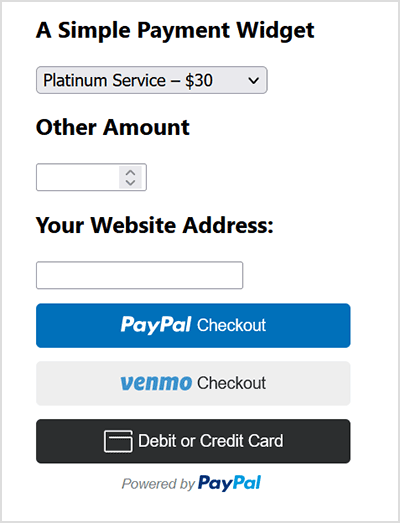
The Plugin can be configured to accept payment for a service or a product in one click. See the screenshot for example:
The Plugin can also be configured to accept donation too. See the screenshot for example.

Donation in Pound Sterling Example

Donation with Other Amount
This plugin does not give you a shopping cart or e-commerce functionality. Those features may be added in the future releases. Check out the WordPress Simple Paypal Shopping Cart plugin, If you are looking for an e-commerce plugin for your Wordpress site.
Installation
1. Unzip and Upload the folder ‘WP-accept-paypal-payment’ to the ‘/wp-content/plugins/’ directory.
2. Activate the plugin through the ‘Plugins’ menu in WordPress.
3. Go to Settings and configure the options eg. your email, Subject text etc.
4. Add the following trigger text to a post or page where u want it to appear in HTML view or use the Widget. see the Usage section for more details.
Usage
There are three ways you can use this plugin:
1. Add the following trigger text to a post or page in HTML view.
![]()
2. Call the function from a template file:
3. Use the ‘WP Paypal Payment’ Widget from the Widgets page.
This Plugin in Action
See this plugin in action on Antique-HQ’s Online Antique Appraisal Page.
If you like this plugin then support my coffee habit by buying me a coffee. You can also see the Plugin in action too
Download Latest Version (v2.4)
Download the Plugin.
Change Log
- Version 2.4
- Fixed an issue whereby the decimal numbers were getting stripped from the paypal payment amount.
- Version 2.3
- Added the optional “Other Amount” donation capability
- Added a “Return URL from PayPal” field.
- Made the Reference Text customizable and optional.
- Some widget display tweaks.
- Version 2.2.1
- Removed the link to settings option from the widget panel.
- Version 2.2
- Added multiple currency support.
- USD US Dollar
- GBP Pound Sterling
- EUR Euro
- AUD Australian Dollar
- CAD Canadian Dollar
- NZD New Zealand Dollar
- HKD Hong Kong Dollar
- Added Multiple Button Types.
- Pay Now button
- Donate button
- Added multiple currency support.
- Version 2.1
- Added Widget Support.
- Added more payment options (up to six).
- Fixed up some minor ‘html’ bugs.
Feel free to leave your comments. I like comments
If you need help wth this plugin (such as additional currency support etc) or if you find an issue with the plugin then leave a comment and I will try to address it as soon as I can and don’t forget to check out the WordPress Simple Paypal Shopping Cart plugin which also allows you to sell proucts and services sitewide and has shopping cart functionality or the WordPress Donation Plugin which allows you to receive donation.
Tags: Paypal, Web development, Wordpress, Wordpress Plugin


November 6th, 2008 at 2:26 pm
Hi,
How can i make some modifications to the plugin in order to accept payments in Euros?
Thanks,
paco
[Reply]
November 6th, 2008 at 7:14 pm
Do the following to accept payments in Euros or any other currencies:
1. Open the “WP_Accept_Paypal_Payment.php” file in your favourite php editor. You can use Windows Notepad too.
2. Search for “USD” in the file and Replace it with “EUR”.
3. Save the file and upload it to your website and you are done.
Do the same for “GBP” or “AUD” if u want to accept payment in those currencies.
I intend to include these currencies in the options menu in the next release of this plugin.
[Reply]
November 7th, 2008 at 12:08 am
Great plugin! Installed lickety split! Havent test it yet but so far so good!
[Reply]
November 12th, 2008 at 12:20 pm
How can I multiply it,
I want to use it in another post with different values.
thanks
[Reply]
November 12th, 2008 at 5:43 pm
Nice plugin, easy installation. Haven’t gotten a cappuccino yet, but I guess we’ll find out if it works when I do. *grinning*
[Reply]
November 16th, 2008 at 10:54 pm
just wondering if there is a way to add more than 4 payment amounts?
[Reply]
November 17th, 2008 at 4:59 am
I want to have 5 Payment options. How can i do it?
[Reply]
November 20th, 2008 at 12:16 am
Adding more payment option is really easy but does require some code changes though.
I intend to add more options on the next version of this plugin but for now this is what you have to do (should only attempt this if you understand php code):
1.Open the “WP_Accept_Paypal_Payment.php†file in your favourite php editor.
2. Go to line 66 and observe the 4th option. Basically you need to introduce more of that. So copy the 4th option code block and paste it just immediately under the closing braces. Then change the variables to 5 and so forth. You can hard code the payment amounts here so you don’t have to update the settings menu option.
[Reply]
November 20th, 2008 at 1:52 am
Many thanks, i will use it on my blog.
[Reply]
November 28th, 2008 at 10:52 pm
The php worked great, but I am not sure how to use the trigger text. Do I just create a page and drop
as the only text of the page? (that was my guess, but no luck)
[Reply]
November 29th, 2008 at 5:51 am
You can use the trigger text anywhere in the page or post(it doesn’t have to be the only text in the page).
You need to make sure that you are putting the trigger text on the page in “HTML” view and not from the “Visual” view. You can switch between the “HTML†and “Visual†view by clicking the button on the upper right hand corner of the post or page editing menu.
[Reply]
December 17th, 2008 at 12:15 am
Nope, just not getting it, it doesn’t seem to work
Anyone have a screen shot of what it is supposed to look like (the trigger text) just so I can confirm I am not missing something obvious? Seems totally straight forward, but it just displays as text
“Add the trigger text to a post or page”
[Reply]
December 17th, 2008 at 12:16 am
Ignore my last – works perfectly now. No clue what I was doing wrong
[Reply]
January 8th, 2009 at 10:31 pm
Greetings! The plugin looks awesome, but i have two issues:
1.) I cannot save ANY information on the setup page. When i click “update”, it simply takes me to my general settings page, and when I go back to the WP Paypal payments settings page, all defaults have been restored.
2.) Even after adding the trigger text in the html view, it still will not show up on any of my pages. Any ideas?
[Reply]
January 9th, 2009 at 12:15 am
@Regerar, This is interesting… I have had a similar problem like this with one guy ages ago but he manually updated some php code in the plugin and that broke it. Did you change any php code of this plugin? I would suggest deactivate the plugin then delete it and download a fresh copy and reinstall it. Let me know how you go.
[Reply]
January 12th, 2009 at 5:57 am
Easy paypal payment plugin isn’t working on my site. On page when I add the trigger text < !– wp_paypal_payment –>, it appears instead of payment form. What can be wrong?
[Reply]
January 12th, 2009 at 6:01 am
Looks like the trigger text you are using has one hyphen ‘-’ instead of double hyphen ‘–’
[Reply]
January 12th, 2009 at 10:15 pm
This looks like it will do what I want.
Are there simple changes I can make to the code to test it with the PayPal sandbox? If so, what are the changes?
[Reply]
January 13th, 2009 at 11:08 am
Never mind. To test this with the PayPal sandbox, one need only change the form action from http://www.paypal.com/... to http://www.sandbox.paypal.com/...
In a future release, maybe you can put in a configuration option for using the sandbox.
[Reply]
January 13th, 2009 at 12:44 pm
This looks like the perfect solution for my needs… one thing though, is there a way I can have the button go to a certain page after payment (like is done with the regular PayPal buttons)?
[Reply]
January 14th, 2009 at 11:04 pm
@Jon, sorry couldn’t get back to you in time. Thanks for the recommendation… I will definitely incorporate Paypal Sandbox option into the Paypal payment accept plugin in the next release.
[Reply]
January 15th, 2009 at 10:20 pm
Great plugin, easy installation. I’ll be using it on a few ore sites thanks
[Reply]
January 15th, 2009 at 10:21 pm
looks good too
[Reply]
January 15th, 2009 at 11:00 pm
Hi Michelle, At the moment you can’t have the button go to a certain page after payment without a little bit of code change. If you are familiar with php then it should be really easy… you just gotta add a return input with the value being the target webpage address to the form.
Its on my list of things to add to the next release of the WordPress Paypal plugin.
If you really really really need it then I guess i could allocate some time and do the update work now
[Reply]
January 19th, 2009 at 4:46 pm
Hi,
Can this be used for multiple paypal accounts on the one blog. As an example if I have 4 artists who each have their own merchandise, can I action 4 various triggers, each going to thier respective paypal accounts?
[Reply]
January 19th, 2009 at 6:01 pm
@Bryce, at the moment this plugin cannot be used in the way you explained.
[Reply]
January 26th, 2009 at 12:19 pm
Great plugin. Would you comment about changing the font size of the title and leaving space after the widgit, so that I can fit it seamlessly into my theme?
[Reply]
January 27th, 2009 at 11:25 am
Setting up a new page was easier and less messy, so that’s what I did. Now let’s see if it works on the Paypal end.
[Reply]
January 28th, 2009 at 11:11 pm
I am using this on my church website to collect payments for tickets to a conference. Is there a way I can tweak it so that when they go to paypal to complete payment that it allows them to add to the “quantity”?
[Reply]
February 2nd, 2009 at 2:15 am
Hi Cotton, unfortunately the wordpress paypal payment plugin doesn’t have the ‘quantity’ modification capability but I am working on a version that will have it.
[Reply]
February 10th, 2009 at 1:26 am
Hi there. I’m very hopeful about your WP Easy PayPal plugin. Looks like it’s going to meet my fairly simple needs quite nicely. My next step is to give it a test run and use the form to order something via PayPal. I do have one hopefully simple question–How easy would it be to center the form on the page rather than having it be left-justified? (I tried to do this from the edit/page of my WP 2.7, but no luck.) The rest of the content on the page is center-justified and I’d love to be able to center-justify the PayPal info as well. Thanks! for providing us with this plugin.
[Reply]
February 10th, 2009 at 1:59 am
Hello Robert, To center the Wordpress Paypal Payment Plugin simply put in the following in your post or page in the HTML view:
<p style=”text-align: center;”><!– wp_paypal_payment –></p>
[Reply]
February 14th, 2009 at 12:37 pm
How can I change the font size of the title text?
[Reply]
February 14th, 2009 at 2:27 pm
How can I multiply it,
I want to use it in another post with different values.
thanks.
Ditto on this comment??
[Reply]
February 16th, 2009 at 6:08 am
@Brett, you can’t multiply this plugin. Please use the wordpress paypal shopping cart plugin on this page if you have multiple products http://www.tipsandtricks-hq.com/wordpress-simple-paypal-shopping-cart-plugin-768
[Reply]
February 20th, 2009 at 12:27 pm
your response to anonymous on 1-20 suggests using a double hyphen instead of single….which i tried….as well as cut and paste the trigger….i even tried a new page….but the trigger just won’t load on a page…..again it does on a sidebar widget….but it bleeds into the main part of the posting page
[Reply]
February 20th, 2009 at 2:45 pm
i give up….. i guess an online store isn’t going to happen
[Reply]
February 20th, 2009 at 4:47 pm
Hi Tom, Don’t give up just yet… it’s working on thousands of other blogs so I am sure it will work on yours. When you add the Trigger to your post or page make sure you add the trigger text in “HTML†view and not from the “Visual†view. You can switch between the “HTML†and “Visual†view by clicking the button on the upper right hand corner of the post or page editing menu.
[Reply]
February 20th, 2009 at 6:04 pm
Hi Admin–I’m just getting back to tweaking your plug-in on my site. I’ve just about got it the way I want it. But I’m still hoping to center the PayPal info on my page. I tried the HTML that you suggested on 2/10, but it remains justified left rather than center. I’m wondering if I’m still doing something wrong? (I tried adding a after the HTML but that didn’t do anything.) If you’d like to look at the page/code here is the link — http://lightmorning.org/hp_wordpress/publications/
Any suggestions would be much appreciated. Thanks a lot. ~Robert
[Reply]
February 20th, 2009 at 6:08 pm
The last note I just posted seemed to delete the piece of HTML I inserted. I’ll try again. The sentence in parens should read–(I tried adding a after the HTML [that you suggested] but that didn’t do anything.)
[Reply]
February 20th, 2009 at 6:16 pm
Interesting. The comments doesn’t like HTML code. So, using text, “I inserted a [end paragraph tag]…” etc
[Reply]
February 20th, 2009 at 9:32 pm
Hi Robert, Just use the following code in HTML view to place the WordPress Paypal payment module in the center.
<div align=center>
<!– wp_paypal_payment –>
</div>
It may not come out nicely in this comment but that’s a double dash (- -) in the tag. Let me know if this helps.
[Reply]
February 22nd, 2009 at 8:28 am
Thanks!! With a bit more tweaking I was able to get the PayPal info centered. It’s a good nudge to extend my very rudimentary HTML (and CSS) skills. One more question–is it possible (yet?) to have the plugin be Wordpress Easy Paypal Payment AND Donation Accept Plugin? I haven’t tried it yet, but I’d like to have the Payment option on one page of my site and the Donation option on another page of my site. Can it be both/and or is it either/or? Thanks once more for your simple, useful plugin!
[Reply]
February 24th, 2009 at 6:52 am
Is there a way to remove the drop down altogther, and also to remove the box for the email address? I just want a Make a Donation button. There doesn’t need to be any options.
[Reply]
February 25th, 2009 at 6:29 am
@Barb, If you just want a simple donation button without any email address box or anything then use the WordPress Simple Donation Plugin.
[Reply]
February 25th, 2009 at 4:26 pm
Hi there.
Is it possible to have two seperate buttons? I have one for one page with a bunch of products, but I need another for the same blog but a different page with different products.
Could this be done?
Really look forward to your answer!
[Reply]
February 25th, 2009 at 5:53 pm
@Mahi, This plugin cannot do exactly what you are asking for as it doesn’t have a shopping cart functionality to allow selling of multiple products from multiple pages or posts. Thats why I wrote the WordPress Shopping Cart plugin. Try and see if that helps.
[Reply]
February 27th, 2009 at 5:53 am
Hi there,
Cannot understand step 2
2. Call the function from a template file:
Where do I put this, which template file? Sorry for my ignorance, but hope you can help.
I already have the trigger text sitting on an unpublished page ready to go.
Thanks in advance
[Reply]
February 27th, 2009 at 5:58 am
Ah ha! Sorted it. I suppose its worth mentioning that if you enter the trigger text on a page then the code goes on the Page Template.php – - a newbie like me just wasn’t sure.
Thanks anyways, works a dream now
[Reply]
February 27th, 2009 at 6:12 am
Hi Ghada, if you want to use this plugin from a post or page using the trigger text then all you need is just step1. step 2 is needed if you want to use it from your template (php) files. Template files are the files that comes with your WordPress theme. So if you wanted to show this plugin say for example in the footer of your blog then you could just call the function specified in step 2 from your ‘footer.php’ file. Remember step 1, 2 and 3 are alternative ways to provide flexibility. Hope this helps… let me know how you go.
[Reply]
February 27th, 2009 at 10:58 am
Hey, I installed plugin and it works, But…. I can not see setting is my Deactivate | Edit …. I am using 2.7.1 WP
[Reply]
February 27th, 2009 at 8:08 pm
@Argass, if I understand you correctly then here is the answer… The settings option can be accessed from the left hand side menu in your Wordpress admin panel. Look for ‘WP PayPal Payment’ under the ‘Settings’ menu on your left hand side.
[Reply]
February 28th, 2009 at 3:57 pm
I’m using the widget and I didn’t use a widget title so there’s a blank line above the payment information. Is there a way to get rid of this? Thanks
[Reply]
March 1st, 2009 at 3:49 am
How do i make changes to the product i want to sell and how do i set the payment to come to my paypal acct?
[Reply]
March 1st, 2009 at 4:56 am
You can set all those options from the plugin settings menu. Click on the ‘WP Paypal Payment’ under the ‘Settings’ Menu on your left hand side of the WordPress admin panel. See the screenshot below:
Screenshot of Paypal Payment Plugin Settings
[Reply]
March 2nd, 2009 at 6:21 am
Admin thxs It works fine now
[Reply]
March 3rd, 2009 at 6:37 am
Hello webmaster
I would like to share with you a link to your site
write me here preonrelt@mail.ru
[Reply]
March 3rd, 2009 at 9:56 pm
How do I get the widget to look like the examples at the top of the page with the border around it? Mine does not have a border
[Reply]
March 4th, 2009 at 7:12 am
To add a border you can just define a div similar to the following in your stylesheet (style.css) file:
#paypal_payment_plugin{
border: 1px solid #ccc;
}
Then use that div in your post or pages like the following to get a border
<div id=”paypal_payment_plugin”>
<!– wp_paypal_payment –>
</div>
The above is just a simple example. you can get really creative with stylesheet.
[Reply]
March 4th, 2009 at 5:06 pm
Cool plug in. Any way to create an open field where someone can fill in the amount they want to donate?
[Reply]
March 4th, 2009 at 5:17 pm
Just use the Wordpress Paypal Donation plugin which allows your visitors to be able to enter the donation amount.
[Reply]
March 4th, 2009 at 5:26 pm
But your plugin is a lot nicer!
The other one sounds like it has some problems and I like the idea of having the flexibility to switch things around…
[Reply]
March 4th, 2009 at 5:57 pm
LOL… I am flattered… the other one is my plugin too
When I go home after work today, I will have a look at the code and then tell you what needs to be done to introduce an open field so someone can enter the donation amount.
[Reply]
March 4th, 2009 at 6:12 pm
Who says flattery doesn’t get you anything :p
[Reply]
March 5th, 2009 at 10:19 am
Hi again. Is it possible (yet?) to have your plugin be Wordpress Easy Paypal Payment AND Donation Accept Plugin? I haven’t tried it yet, but I’d like to have the Payment option on one page of my site and the Donation option on another page of my site. Can it be both/and or is it either/or?
[Reply]
March 5th, 2009 at 11:41 am
You’re going to think I’m insane but is there any way to change it so it has more options/radio buttons to be more like this:
https://secure.ujcfederations.org/ft2/form.html?__id=6039
Like:
ONE TIME PAYMENTS
O $10
O $20
O etc
O OTHER AMOUNT
IF OTHER AMOUNT: $___________
MONTHLY PAYMENTS
O $10
O $20
O etc
O OTHER AMOUNT
IF OTHER AMOUNT: $___________
Something like that. That would be sweet as heck.
[Reply]
March 5th, 2009 at 11:43 am
The link I posted might not work. Just go here and hit Donate on the left: http://associated.org/
[Reply]
March 5th, 2009 at 8:55 pm
I just released a new version of this plugin. In this version you can configure the plugin so that the visitors can donate an amount they wish. I made some other modifications too… please see the change log section for details.
[Reply]
March 5th, 2009 at 10:49 pm
@RobertF, Unfortunately it’s still either/or.
[Reply]
March 6th, 2009 at 4:13 am
This is amazing! MANY THANKS!
I can not get this to werk? I am using v2.3
“1.Open the “WP_Accept_Paypal_Payment.php†file in your favourite php editor.
2. Go to line 66 and observe the 4th option. Basically you need to introduce more of that. So copy the 4th option code block and paste it just immediately under the closing braces. Then change the variables to 5 and so forth. You can hard code the payment amounts here so you don’t have to update the settings menu option.”
I want to create a few more options from the pull down. Any suggestions?
Aloha
[Reply]
March 6th, 2009 at 10:10 pm
Thanks for the clarification about Either/Or and not Both/And. (See my March 5th, 2009 at 10:19 am post) Two questions: 1) Any chance of Both/And becoming possible anytime soon? 2) When I click on the Pay Now button, it takes me to the PayPal page, which shows my email address twice–once in the header and then down below in a line of text. I want our company name to appear there rather than the email address. Is it possible to tweak the plugin to make this possible? Many thanks for the plugin and for your active presence on this forum! (In case it’s helpful, here’s a link to my page that the plugin’s on — http://lightmorning.org/publications/.)
[Reply]
March 6th, 2009 at 10:46 pm
@RobertF, PayPal will automatically show your business name to your visitors when you upgrade your account to a business account. If you click on the ‘Pay Now’ button on this site you will see it shows my business name and not my personal email address. So bottom line… you just have to change your account to a business account in PayPal and it will show your business name.
Regarding your question1… I am a little busy at my day job so I am not getting much time to release new version of this plugin but I will look into it later… so yeah there is a chance that I will make it Both And.
[Reply]
March 7th, 2009 at 2:42 pm
Thanks for the tip on changing my PayPal settings to a business account. / I definitely understand “a little busy” at the day job. I’ll hold out hope for a Both/And option for the next revision of your plugin. / A bit belatedly, but with much appreciation, I just bought you a coffee. Enjoy!
[Reply]
March 7th, 2009 at 7:53 pm
Cheers RobertF
[Reply]
March 10th, 2009 at 12:36 pm
Hi,
I really want my donate widget to look identical to ‘paypal_donation_screenshot_2.jpg’ at the top of this page but just cant get it working, would there be any chance you could please email me the code required to make it look like this.
Thanks
[Reply]
March 11th, 2009 at 11:20 am
Thank you! Exactly what we were looking for. You rock.
[Reply]
March 11th, 2009 at 6:37 pm
Total newbie here so please bear with me. I used your cool plug-in and it works fine but I can’t figure out how to set it not to charge sales tax or shipping. My products are non-taxable, non-shipping services. Thanks.
ps – Where is the Donate button for your site?
[Reply]
March 11th, 2009 at 7:31 pm
Hello Lee, by default the plugin doesn’t include any sales tax or shipping charges. So the amount you put in as the price is what the customer pays you through PayPal. They don’t get charged extra for shipping or tax.
[Reply]
March 11th, 2009 at 9:34 pm
Thanks. Interesting, I had a student who was charged both sales tax and shipping which I had to refund. I tried to tell him it was a tip jar but he wasn’t buying! LOL
I think you should have a Donate botton on your site. This plug-in saved me a lot of time and hassles.
Lee
[Reply]
March 11th, 2009 at 11:00 pm
LOL… I don’t know what that student is upto but there is no way paypal would have charged shipping if you used this plugin! I am glad the WordPress Paypal Payment plugin saved your time. I do have a Donate button on my Projects Page.
[Reply]
March 12th, 2009 at 7:43 am
Just sent you a very strong and large thermos of coffee so you can stay caffeinated and awake to develop more cool stuff. LOL
[Reply]
March 12th, 2009 at 10:24 am
Much appreciated Lee… btw, did I tell you that your site looks cool?
[Reply]
March 12th, 2009 at 11:04 am
where is this coffee everyone is sending? Am I missing something? I would like to send you coffee. Neil
[Reply]
March 12th, 2009 at 4:44 pm
LOL.. it just sounded funny and cool when I read your comment. There is an option to buy me coffee through my Projects page on this blog which uses this WordPress PayPal Payment Plugin.
[Reply]
March 13th, 2009 at 12:06 pm
Ist es möglich auch auf Umlaute ä, ü, ö, ß umzustellen?
[Reply]
March 13th, 2009 at 12:23 pm
Da bin ich nochmal.
Die Umstellung auf Euro funktioniert nicht über das Widgets.
Es funktioniert aber unter den Beiträgen (Artikeln)
Bug?
[Reply]
March 13th, 2009 at 6:36 pm
Hi Amelie, unfortunately I don’t understand what language you used when you left the comment but if you tell me which language it is I can use Google Translator to translate and reply to you.
[Reply]
March 14th, 2009 at 7:57 am
But again my records:
Is it possible to Umlaute ä, ü, ö, ß convert?
Since I am again.
The changeover to the euro does not work on the widgets.
It works but the contributions (articles)
Bug?
Sorry
[Reply]
March 16th, 2009 at 4:17 am
Thanks for the great plugin. I’m using it on http://www.choosemarkets.com
I do have a question regarding delivering products once they are paid for.
I’ve already included the download page on the “return url from paypal” portion of your plugin.
I made a test purchase and the paypal page says is “return to merchant”. This takes them to the return url. But what if they don’t click this link?
Do I need to customize paypal to include a download link on the payment confirmation page?
If so, can you give me any pointers on how to do this?
Thanks,
Greg
[Reply]
March 17th, 2009 at 3:25 pm
This plugin is great, maybe I will use this on my blog.
[Reply]
March 18th, 2009 at 12:39 am
As far as I know I don’t think Paypal allows you to include a download link on the paypal site. In my opinion… this is a pretty standard procedure that the customer pays on Paypal and comes back to your site for the product… its part of the whole sales process.
[Reply]
March 27th, 2009 at 8:52 am
Hi There
This is a great plugin, is there any way to turn off shipping and handling charges.
I have tried to do this in the script – adding in the hidden fields
alas, it still adds in the shipping. Just thought you might be able to advice me here if you could.
Many thanks
[Reply]
March 27th, 2009 at 8:32 pm
The shipping is set to ‘0′ by default which means it will not charge any shipping.
[Reply]
March 31st, 2009 at 7:08 am
Nice plugin,
Nice Site.
What plugin are you using for the mouseover on your site?
[Reply]
March 31st, 2009 at 4:47 pm
Hi Nazmul, I am glad you like the site and my plugin. I am using a javascript for the mouseover tooltip.
[Reply]
March 31st, 2009 at 5:41 pm
admin,
how can i add this to my site?
Are you selling it as plugin?
Nazmul
[Reply]
April 1st, 2009 at 4:51 am
Hi,
I changed your plugin a bit further. Here the changelog too:
* Changed Payment option’s type to float
* Changed the Donate button image
A demo can be found on my own blog.
Can you please include this changes in your next release?
[Reply]
April 1st, 2009 at 5:18 am
Sorry Nazmul, I am not selling this as a plugin
[Reply]
April 1st, 2009 at 5:18 am
@Martin, Thank you for the update. I will include the changes in my next release.
[Reply]
April 3rd, 2009 at 11:44 pm
Great plugin, very useful, thanks for share.
[Reply]
April 10th, 2009 at 11:05 pm
Great plugin, works like a charm…one quick question and I looked through all the feedback on this page for it, but I apologize if you’ve already answered it…
I’m trying to center the widget itself in a right sidebar column…I’m not sure where I would input the div tags in the PHP, or if I even need to do this to get it done. Any help would be greatly appreciated…
J
[Reply]
April 12th, 2009 at 12:53 am
Hi Jimbo, if you use the executable PHP code plugin which lets you execute PHP code from your sidebar widgets then just enter the following piece of code in the widget to center it.
<div align=center>
<?php echo Paypal_payment_accept() ?>
</div>
[Reply]
April 14th, 2009 at 10:34 am
Thanks for the plugin! Very easy to use solution to getting paypal into wordpress. I used it on 2 of my sites so I bought you 2 coffees.
[Reply]
April 14th, 2009 at 4:59 pm
Cheers Leslie
[Reply]
April 14th, 2009 at 6:31 pm
I love this plugin!
I was able to put products and add them to my cart.
However, there is one product that seems to be “STUCK.”
I can’t delete the “Rockin’ Body” item from my cart.
I can add and delete other products, but not this one.
I can only add, but I can’t delete.
Please help. I can’t empty the cart!
=(
[Reply]
April 14th, 2009 at 6:57 pm
Hi KeyFitness, I just visited your products page (http://fitnessisthekey.com/?page_id=17) and was able to Add and delete the “Rockin’ Body” item from the shopping cart. Let me know if you are still having issues… also you might want to use the latest version of this plugin which has better images and extra features. Please post any further comments related to the paypal shopping cart plugin (which is the plugin you are using) to that plugin’s comment section (http://www.tipsandtricks-hq.com/?p=768). Thanks.
[Reply]
April 14th, 2009 at 10:24 pm
Thanks Admin. I closed IE and opened a new browser. That cleared my cart out.
[Reply]
April 14th, 2009 at 10:52 pm
Ah! the good old IE
[Reply]
April 16th, 2009 at 7:07 am
hi there,
is it possible to add other options for customer input?
for example, i want to accept payments for a sports event and need customer details such as name, address, tel, emergency contact, etc.
this info would be collected in a form like the email address currently is.
also, i have 6 product options but the individual option names be put through to paypal?
for example:
day 1: £10
day 2: £10
special: £15
at the moment, the product name doesnt go to paypal so I wouldnt know if the customer had bought day 1 or day 2.
many thanks
[Reply]
April 17th, 2009 at 11:15 am
Hello
Thanks for this nice plugin. I can translate it in French language if you want. You can send me your .po file when you want.
Have a nice week-end
[Reply]
April 20th, 2009 at 6:28 am
Can anyone advise on how to accept decimal typed donatons? eg £10.50? Every time I enter in .50 or any value it strips this and changes to £10
Any ideas?
[Reply]
April 21st, 2009 at 12:14 pm
This is a really useful plugin, thanks! My only question is this, I would like to use this instead of the simple donation plugin because we have two types of donations – however I want them to be able to fill in the amount for either option. Currently if you leave both at 0 it only displays one, is there an easy modification for this? Also it would be great if it could display the name of the option selected as the payment type so that we know which fund it is designated for.
[Reply]
April 28th, 2009 at 8:24 am
I have managed to get the plugin to work but i have 2 problems:
In my payment option text I want to have a word with an apostrophie like it’s
1) The code correctly updates for PHP to it\’s but the backslah also appears on my page
2) I want to price at 9.99 and the .99 gets stripped out leaving only 9 in the currency field
Can you tell me how to fix those problems
Thanks
[Reply]
April 29th, 2009 at 1:57 am
@Dale & John, the new version (v2.4) that I just released should take care of the decimal price issue.
Regarding the apostrophe… I will need some time to investigate and see if there is a way around.
[Reply]
April 29th, 2009 at 2:05 am
@Sherrie, I am not sure if what you are asking can be done using this plugin. Could you use two ‘Donate’ buttons using the simple donation plugin instead? I could customize the donate buttons so it will have two different reference texts so you know which fund it is designated for.
[Reply]
May 1st, 2009 at 5:18 am
Thanks for the update V2.4 works great with the decimal point,
The text I want to include is a book title which has an apostrophe but is also almost 40 characters inc the price but I can’t find anywhere to set the diplay field size, it seems to be locked to 18 char, could you point me in the right direction?
Thanks again
[Reply]
May 1st, 2009 at 7:19 pm
Hi John, the display field shouldn’t be locked to 18 chars. I have a feeling that everything after the apostrophe is getting chopped. Would you mind entering the book name without the apostrophe and tell me how that goes?
[Reply]
May 4th, 2009 at 4:09 am
Hi
I have entered the name without apostrophe and it displays the same but the option box is too small to show the whole name and I can’t seem to find where the size of the box is set. i.e. if I type into the box “This text will not fit in the box” what displays on the page is “This text will not fi”
[Reply]
May 6th, 2009 at 1:12 pm
Nice plugin, easy to use, good job!
[Reply]
May 10th, 2009 at 7:08 pm
Hi, thank you for your time and effort on what is a very useful plugin!
Can this plugin accept payment and subscribe the user, billing them each week/month/year as a PayPal subscription service?
Thanks
[Reply]
May 10th, 2009 at 11:01 pm
@Paul, No this plugin does not have the capability to bill the customers each billing cycle.
[Reply]
May 12th, 2009 at 10:36 pm
Made some modifications to the plug-in locally on http://www.theaimlesspenguin.com. Added “Paypal Donation” heading to separate this widget from other widgets and added the Paypal logo after receiving user feedback that it wasn’t clear that the donation was through Paypal. I’d suggest integrating these changes into the plug-in for other users.
[Reply]
May 12th, 2009 at 11:33 pm
@Jared, Sounds good.. I will include them in the plugin in the future.
[Reply]
May 14th, 2009 at 7:57 am
Hi,
This is an excellent plugin,
Sadly I cannot get it to work,
I have downloaded the plugin from WP, did not work.
Then downloaded it from here, did not work either.
The plugin is activated and I am pasting the following code on HTML tab;
(double – -)
This does work as a widget, but don’t want it there
Any ideas ?
Please help when possible,
Regards,
G.
[Reply]
May 14th, 2009 at 8:20 am
@Gabi, I just checked the page where you are using the paypal payment accept plugin and it looks like it’s working.. so I am guessing you got it to work.. let me know if you are still having issues.
[Reply]
Gabi Reply:
May 20th, 2009 at 2:17 pm
Hi,
Got it working in the end, the trigger text was not working with any of the examples.
I used the trigger text from the plugin page originally and it did not work, I re-installed the plugin by downloading it directly from you, used the trigger text same as before and it worked.
Something I done must have been wrong
At least it’s up and running now, just need to style it and I am all ready to go.
Thanks again for taking your time to reply,
Kind regards,
Gabi.
[Reply]
May 16th, 2009 at 12:26 pm
Excellent plugin – just what I needed!
Everything seems to be working fine, but the actual button is enlarged and fuzzy – how can I fix this?
http://juliegomoll.com/SF3/join/ (at the bottom of the page)
Thanks : )
[Reply]
May 17th, 2009 at 12:08 pm
Any way of having custom button images with this plugin?
[Reply]
admin Reply:
May 19th, 2009 at 2:06 am
@Martin, Yes, you can use custom images with this plugin. All the images are stored in the ‘images’ directory… just overwrite them with your own image or modify the plugin code.
[Reply]
May 17th, 2009 at 1:07 pm
Never mind. I decided to use the sidebar widget instead. Problem solved
[Reply]
May 24th, 2009 at 7:33 pm
Simple but GREAT Plugin, Thank you!
I want to add a second Reference Text Box… by the way, I did it… but it doesn’t work. In my PayPal email I received only one reference. Is it possible to do it work?
[Reply]
admin Reply:
May 25th, 2009 at 4:14 am
@Martin, Yes it is possible to add a second reference text box. You will have to use the ‘on1′ and ‘os1′ optional PayPal HTML Variables to introduce your 2nd reference textbox. As an example, you can see how I have used the ‘on0′ and ‘on0′ PayPal HTML variables in the plugin code and do something similar for ‘on1′ and ‘os1′ variables and it will work.
[Reply]
June 1st, 2009 at 1:42 pm
nice plugin easy to to use
is it possible to add a progress bar?
ex .
$5 of $100
5% received
or something like this
thanks
[Reply]
admin Reply:
June 2nd, 2009 at 1:15 am
It is possible but you will have to do some code changes are you okay with PHP coding?
[Reply]
koullis Reply:
June 2nd, 2009 at 5:34 am
tell me the changes and if i have problem ill let you know ;p
[Reply]
June 4th, 2009 at 9:41 am
im still waiting for the code changes
[Reply]
admin Reply:
June 4th, 2009 at 11:26 am
I would do it this way…
Using a Database Table:
1. Create a database table where you are going to keep the total donation received amount.
2. Write a small script that will handle PayPal’s IPN (Instant Payment Notification) and update the database table value by adding the new received amount with the previous amount. This will help you track the total amount that you are receiving so you can display the % received.
3. Modify the donation form to add the ‘notify_url’ variable so PayPal can send the IPN to the script you wrote in step 2.
Without using the Database:
If you don’t want to use the database for one variable then you can just use a local variable in the plugin to store the value of the total received amount. This way everytime paypal sends an IPN after someone pays you can just update the received amount variable by using the something similar to the following and then use that value to dispay the total % received:
update_option(’received_amount’, 10);
[Reply]
June 9th, 2009 at 12:33 am
Great plug in, smooth installation. My question Is there a way to add a notes section for a customer to add order specifics? (ie.. customization request?)
Thanks!
[Reply]
admin Reply:
June 9th, 2009 at 12:38 pm
You can use the reference text box for the customers to add order specifics. You can also add a 2nd reference text box for more order specifics… refer to my reply to “Martin E” above for more details regarding a 2nd reference text field.
[Reply]
June 20th, 2009 at 2:27 pm
Hey there! Love the plug-in, but I’m having an issue: using your instructions further up, I’ve attempted to add 6 more options. I’ve uninstalled and deleted the folder, zipped up the new one and installed it, and yet nothing changes. It is all the same. I can send you the file, if you could take a look that would be great.
[Reply]
June 22nd, 2009 at 10:39 pm
@Erik, Send me the file and I will have a look.
[Reply]
Erik Reply:
June 23rd, 2009 at 8:32 pm
where do I send it to? Thanks!
[Reply]
admin Reply:
June 23rd, 2009 at 10:48 pm
Please send me a message using the contact form on this site and I will reply to it using my email.
[Reply]
June 24th, 2009 at 5:32 pm
I’ve sent you the message via the form and sent the file to the admin address
[Reply]