The WP PDF Stamper plugin can be integrated with a plain PayPal Buy Now button so you can send a stamped copy of your eBook that you are selling after the customer makes a purchase.
To use a PayPal Buy Now button with WP PDF Stamper, you need two pieces of information:
- The URL of the PDF eBook that you are selling
- The URL of the IPN handling script
For this integration you simply have to specify the URL of the eBook that you are selling in the “custom” field of the button and set the “notify_url” value to the IPN (Instant Payment Notification) handling script that comes with the plugin. You can get the value of the IPN handling script URL from the “Integration Settings” menu of this plugin. This URL should look similar to the following:
http://www.your-domain.com/?pdfs_pp_ipn=process
You need to specify the URL of this IPN handling script in your PayPal button’s code (you specify this URL in the “notify_url” field). For example:
<input name="notify_url" type="hidden" value="http://www.your-domain.com/?pdfs_pp_ipn=process" />
This basically tells PayPal to send the payment confirmation notification to this script so the sale can be processed (stamp the eBook and email it to the buyer).
There is one other piece of information that you need to include in the button which is the URL of the PDF eBook. This is the file that the plugin will make a copy of then stamp it with the customer details and send it via email. You can specify the URL of the PDF eBook in the “custom” field of the PayPal button. For example:
<input name="custom" type="hidden" value="http://www.your-domain.com/wp-content/uploads/my-ebook.pdf" />
Example Button Code
The following is an example button code that shows how the button code looks
Integrating with a PayPal Hosted Button
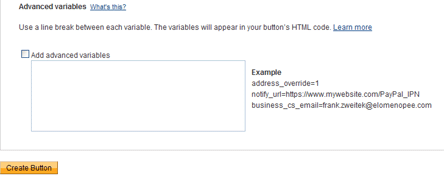
If you are creating a PayPal Hosted Buy Now button from your PayPal account then you simply have to add the necessary information in the advanced variables section of the button. When you create your button on PayPal, from the “Merchant Services” menu, you will be able to specify some advanced variables in “Step 3” of the button creation process.
Go to the “Integration Settings” menu of this plugin and use the interface to generate the advanced variables code for your button. The following screenshot shows an example of this settings menu
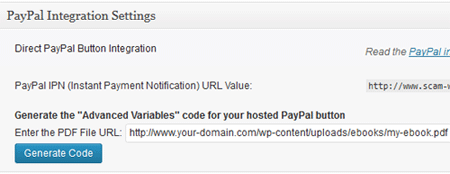
Enter the URL of the eBook (PDF file) that you are selling then hit the “Generate Code” button and it will generate the code for you. The code will look similar to the following:
notify_url=http://www.your-domain.com/?pdfs_pp_ipn=process
custom=http://www.your-domain-name.com/wp-content/uploads/my-ebook.pdf
Once you have the code ready, check the “add advanced variables” checkbox in your PayPal button creation interface then copy and paste the code.
After generating the PayPal button code, you can copy the button code and paste it on the eBook selling page of your site (your landing page).
When someone makes a purchase using this button, the WP PDF Stamper plugin will stamp a copy of the original eBook with the customer details and send it to him via email.
PayPal IPN Feature
The PayPal IPN feature needs to be enabled in your PayPal account for this to work. Normally, the IPN feature is enabled by default. If you disabled it before then you will need to re-enable that option. This video tutorial shows how to check and enable the IPN feature.
Hi,
i am very interested in the pdf-stamp plugin.
But i wonder if the plugin also sends the stamped ebook automatically to the customer after the purchase? via link?
Thank you
Jens
@Jens, yes the plugin will send an email to the customer with a link to the stamped copy of the PDF file.
Having some trouble integrating this. Even if I use the code supplied with the recommended chtnges nothing happens. just goes to PayPal, I make the payment but no file generated, no download link or even email from WP. Is there a better set of instructions for PayPal integration?
Hi, We just put up a set of videos on this that should help you with what you are looking to do:
http://www.tipsandtricks-hq.com/wp-pdf-stamper/wp-pdf-stamper-installation-and-usage-video-tutorials-155