2Chekcout payment gateway doesn’t seem to have the INS (instant payment notification) turned on by default. So you need to specify in your 2Checkout account that you want to send payment notification to the WP eStore plugin after a checkout. This will allow the plugin to do the post payment operation after a sale takes place via the 2Checkout gateway.
2Checkout INS (Instant Notification System) Setup
Step 1)Â Log into your 2Checkout vendor/merchant account.
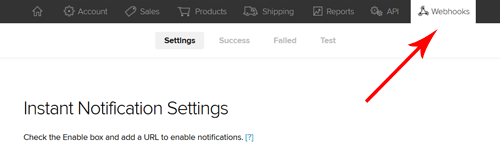
Step 2) Click on the “Webhooks” menu link (see the following screenshot)
Step 3)Â Enable the “Order Crated” notification option (see the following screenshot)
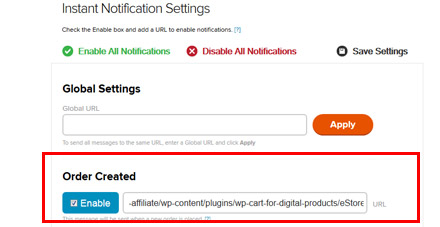
Step 4)Â Enter the following value in the “URL” field:
http://www.example.com/?estore_2co_ipn=process
Replace “http://www.example.com” with your own site URL.
Step 5)Â Save this settings change by clicking the “Save Settings” link at the bottom of the page.
Setting up the 2Checkout Secret Word
You can setup your secret word from your 2Checkout merchant account:
- Log in to your 2Checkout account.
- Click the ACCOUNT tab.
- Click on SITE MANAGEMENT sub tab.
- Scroll down to find the Secret Word field and change it.
- Save the changes
What to expect after this setup
Once you have completed the above setup your customers will see a page similar to the following screenshot after they enter their credit card details when making a payment.
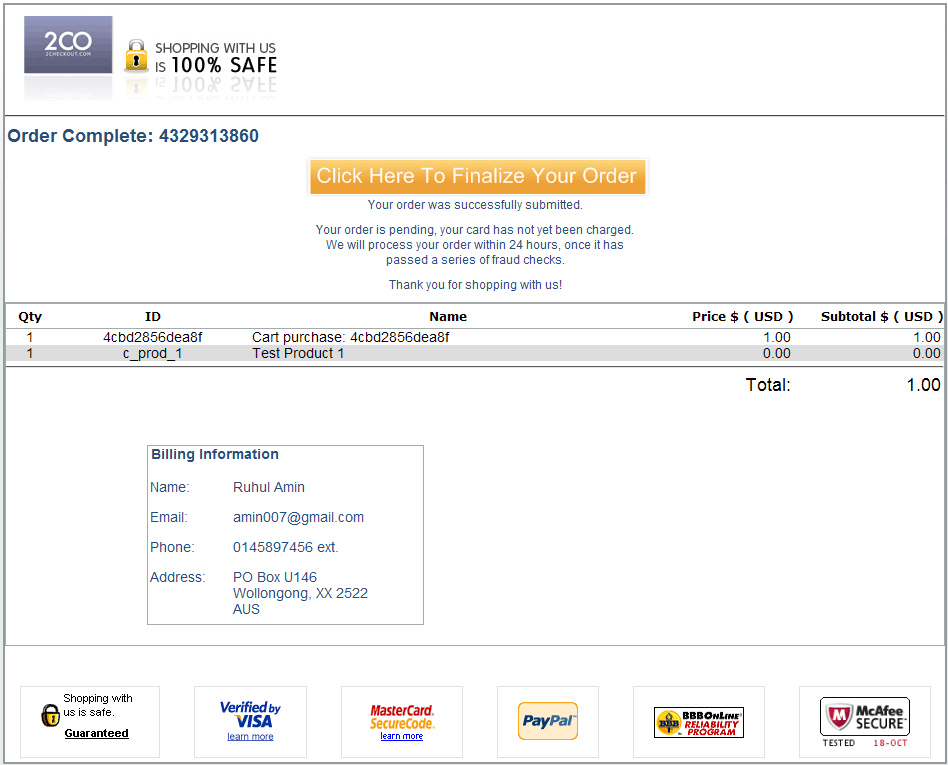
2Checkout Post Payment Confirmation Page
When they click on the “Click Here To Finalize Your Order” button the payment will be finalized and 2Checkout will send the payment notification to the plugin so WP eStore can continue with the post payment processing (for example, send the product download link(s) via email to the customer).
Limitations
2Checkout doesn’t have a PayPal PDT like feature where the transaction details are available on the “Thank You” page when a customer lands on that page after the payment. This means eStore cannot display the product download links on the “Thank You” page (eStore only gives the download links after it verifies the payment details).
Note: We provide technical support for our premium plugins via our customer only support forum