How to Bulk Upload eStore Products from a CSV File

Categories: Additional Resources

You can use the WP CSV to DB plugin to upload product details from a CSV file into the WP eStore’s database.

Note: The WP CSV to DB Plugin may not work on all servers. If this happens to you then note that you can directly import content into MySQL database via PHPMyAdmin (you can find it from your cPanel). The video tutorial on How to Easily Import or Export any of Your WordPress Database Content article will help.

Video Tutorial

eStore Import Product From CSV

1. Setup/Preparation

  • Install the WP CSV to DB plugin.
  • Download the Products.csv template file and open it using Microsoft Excel.
  • Fill up the product details; One product per row (There are two example entries in that file so replace them with actual product details).
  • Once you are done entering all your product details then save the file as a CSV file.

2. Specify the General Options

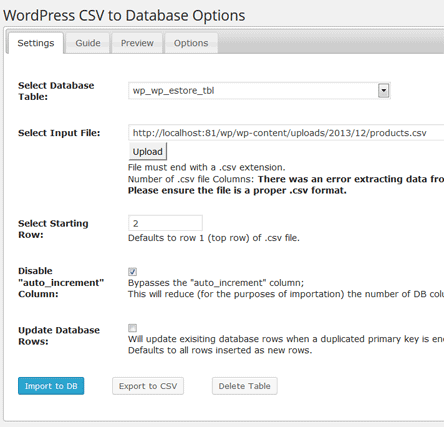
  • Enter 2 in the “Starting Row” field. This is the row number in the CSV file where you want the plugin to start reading from (the first row is the column titles so you want to read from the 2nd row)
  • Enter “wp_wp_eStore_tbl” in the “Database Table Name” field (this is the database table name for the WP eStore’s products table given that you did not manually change the wordpress database table’s prefix)
  • Enter the content of this text file in the “Column Names” field:

3. Specify the Input CSV file

Simply use the upload option to upload the CSV file created in the setup/preparation step.

4. Import into the Database

Hit the magic “Import to DB” button which will dump the product details from the CSV file into the database.

Now if you browse to the “Manage Products” menu of WP eStore, you should see all the new products that you just added.

Subscribe to Tips and Tricks HQ to stay informed

twitter_icon

26 Responses to “How to Bulk Upload eStore Products from a CSV File”

  1. Debbie Says:

    Hi,
    I tried to download the csv template, but the link does not work!
    Thanks…

  2. Ivy Says:

    Hi Debbie, Please try again as this should be fixed now. Thank you for pointing this out. =)

    Cheers,
    Ivy

  3. Rakib Says:

    Hi,
    Your wp-csv-db plugin works fine for small CSV file, But it did not work for me
    when i tried to upload 1.4 MB file.

    Do you know the reason is? May be you need to integrate ajax upload.. feature.

  4. admin Says:

    Do you get the error at upload time or when importing into the database? If you get the error at upload time then an workaround is to upload the file using an FTP client then use the plugin to import it into the database.

  5. Alex Says:

    Great stuff, this will save lots of time and efforts, LOTS! :)

    3 things:

    1. Is there any way to add the category as well? So that we don’t have to review each product manually to set it’s category?

    2. Is there any way to flush the DB so everything starts neatly from ID:1?

    3. Uploading the csv fails no matter what, I had to resort to uploading separately and reference to it via URL

    I can live with 2 and 3 but 1 would really be necessary. What say you? :)

  6. admin Says:

    The category information is not stored in the “products” database. It’s stored in a relational table that joins the product table and the category table. Anyway, without going too deep into the technical terms… yes, you can upload all the category for your products. here is how:

    After you have uploaded all your products you will need to upload all the category information to the following table:

    “wp_wp_eStore_cat_prod_rel_tbl”

    That table has two columns

    cat_id
    prod_id

    so create another CSV file that contains all your product ID to category ID mapping and import it using this plugin.

    “Is there any way to flush the DB so everything starts neatly from ID:1?” – you will have to do it from your PHPMyAdmin (simply empty the table). The reason I didn’t add it in the plugin is that people get real angry when they mistakenly delete all their product info.

    Your server does not have PHP’s fopen functionality enabled which is why the plugin couldn’t upload it.

  7. Alex Says:

    Very helpful reply, now it’s perfect :) Thank you!

  8. Lori Says:

    I’m getting this error om import to DB. I’ve rechecked the instructions, indicated start at row 2, copied the column names. I did notice that the text file of column names uses underscores while the sample csv does not?? Thanks!!

    L

    Error occured while trying to import!

    Insert into the Database failed for the following Query:
    INSERT INTO wp_wp_eStore_tbl (name,price,product_download_url,downloadable,shipping_cost,available_copies,button_image_url,return_url,sales_count,description,thumbnail_url,variation1,variation2,variation3,commission,a1,p1,t1,a3,p3,t3,sra,srt,ref_text,paypal_email,custom_input,custom_input_label,variation4,aweber_list,currency_code,target_thumb_url,target_button_url,weight,product_url) VALUES (”)
    Insert into the Database failed for the following Query:
    INSERT INTO wp_wp_eStore_tbl (name,price,product_download_url,downloadable,shipping_cost,available_copies,button_image_url,return_url,sales_count,description,thumbnail_url,variation1,variation2,variation3,commission,a1,p1,t1,a3,p3,t3,sra,srt,ref_text,paypal_email,custom_input,custom_input_label,variation4,aweber_list,currency_code,target_thumb_url,target_button_url,weight,product_url) VALUES (”)

  9. admin Says:

    The plugin doesn’t read the column name from the CSV file so it doesn’t matter what header you have there. You will specify the row number where you want the plugin to start reading the data.

    From the error it looks like your csv file doesn’t have any proper data as it’s trying to add empty values:

    VALUES (”)

  10. Jen Grant Says:

    I’m pretty sure I’ve followed everything correctly, but the items are not showing up in my Manage Products section. Any troubleshooting ideas for that? I wasn’t given any error messages or anything like that–said upload success.

    Thanks,
    Jen

  11. admin Says:

    Can you check if the values are in the database from PHPMyAdmin? You can go to your PHPMyAdmin from the cPanel.

  12. Jen Grant Says:

    I just checked and I do not see them in the database. Only thing that was there was elmtrees_wrdp1 and information_schema

  13. admin Says:

    Looks like this is your wordrpess database “elmtrees_wrdp1″ (you usually get these type of names when you use Fantastico to install WordPress).

    Anyway.. select the database and then find the following table:

    wp_wp_eStore_tbl

    Browse inside that table to see if the product details are there or not.

  14. Michael DeLuca Says:

    I notice there isn’t a column in the template or in the column_names file for the “Digital Product Variation” field. Nor does that field appear when I look at wp_wp_eStore_tbl in phpMyAdmin. Does that mean that data is stored in some other table? Is there some way I can add that information via a separate .csv file and a separate upload, like what you said about assigning categories on May 2nd?

    Pretty much all our products need 3 or 4 digital variations (different ebook file formats for use on different hardware), so this would be a big help.

    Thanks!

  15. admin Says:

    The column name for “Digital Product Variation” is “variation3″

  16. alex Says:

    hi,

    any sugestions if the products have allready id`s ?

  17. admin Says:

    eStore automatically assigns a unique ID for every product so you just have to ignore the ids that you had previously.

  18. clc Says:

    Everything works great but one problem. When I am trying to make a subscription for 1 month, I have 1 under the Recurring Billing Cycle and “Month” under Recurring Billing Cycle Unit. When I upload everything it makes the subscription as 1 Day instead of 1 Month.

  19. admin Says:

    @clc, Please enter M in the “Recurring Billing Cycle Unit” field instead of Month and it should work.

  20. Bob Says:

    Plugin installs, options set, .csv uploads.
    But the import function (even for only 10 items) never completes.
    1and1 shared hosting.
    Any idea what I”ve done wrong?
    Or, do you have an SQL script that one could use with phpMyAdmin?
    Thanks.

  21. Bob Says:

    Update: seems I had too many odd characters in my product names. I cleaned that and used phpMyAdmin to import the .csv file. Calm prevails. Thanks

  22. Eve H Says:

    Solved my problem! I’ve learned how to do it manually by reading other posts on how CSV works. I no longer am using the plugin to help me out but I think it would still be good for folks out there to know that if you are on a Mac save it as a Windows Comma Separated CSV instead of just saving over it. For me, that made a big difference, as there seems to be discrepancies between a mac formatted version and Windows version, depending on your server.

  23. Arthur Says:

    Step 2 add a bullet 4: Be sure to click the save button.

    If You don’t do this you’ll send half your night trying to figure out why your getting errors. if you don’t save you didn’t actually create the database. Sometimes a good nights sleep helps. Now so far very good.

  24. Simon de Deney Says:

    Can i echo Eve H on the Mac point? It solved it for me. I saved it as a Mac CSV file and da nada. Saved it as Windows CSV and bingo. Thanks Eve H

Who is Linking?

  1. WP CSV to Database Plugin | Tips and Tricks
  2. WP CSV to Database Plugin – Import Excel file content into WordPress database (MySQL) | Silver Blog

Leave a Reply

Featured Documents

Tips and Tricks Hot Items

wordpress_estore_icon
wordpress membership plugin icon
WordPress PDF Stamper Plugin
WordPress Lightbox Ultimate Plugin
infinity remix wordpress theme
wordpress_affiliate_plugin_icon