This documentation details the setup and configuration of the PayPal Commerce Platform (PPCP) checkout option for WP eStore plugin.
Table of Contents
- What is PayPal Commerce Platform?
- Configure PayPal Commerce Platform Checkout
- Optional/Additional Configuration Steps
- Customer Experience with the PayPal Commerce Platform Checkout
- Troubleshooting Related
- Using PPCP with Multiple Payment Gateways
- PPCP with Buy Now Type Buttons
- PPCP with Subscription Type Buttons
What is PayPal Commerce Platform?
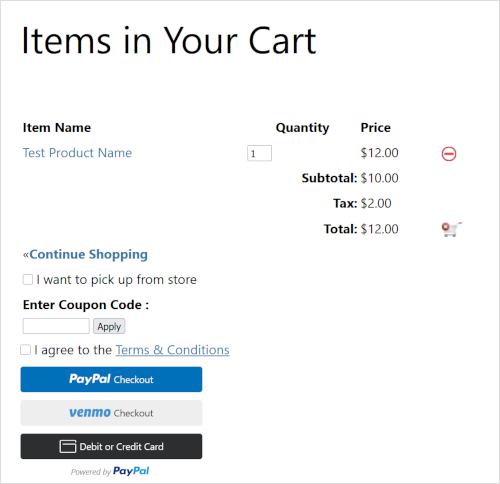
The PayPal Commerce Platform (PPCP) is PayPal’s latest all-in-one payment solution designed to maximize sales and simplify management. It integrates the standard PayPal checkout with a comprehensive suite of payment options—including local and alternative methods—tailored to your global customers’ location. This means customers see familiar payment methods at checkout (like the buttons shown below), while all your funds are consolidated into one PayPal account.
When enabled, it adds dynamic checkout buttons like the ones shown below to your shopping cart. It provides optimal payment solutions tailored to your customers’ country or region.
Configure PayPal Commerce Platform Checkout
To use the PayPal Commerce Platform (PPCP) Checkout with the WP eStore plugin, enable the option and set up the API credentials.
Step 1) Enabling PPCP Checkout option
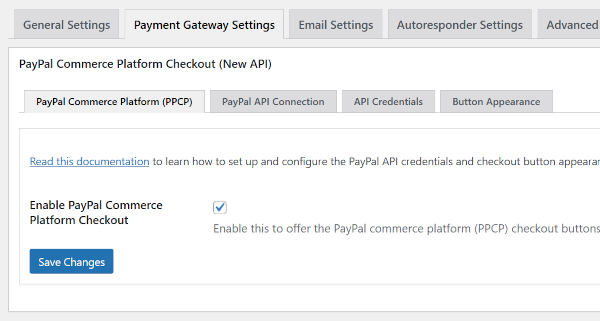
- In the WP eStore plugin menu, navigate to Settings and then select the Payment Gateway Settings tab.
- Find the section titled ‘Enable PayPal Commerce Platform Checkout‘.
- Check the box to enable it and save your settings.
Step 2) Acquiring the API Credentials
Note: You will need a PayPal Business account. It’s free to create one, and it provides access to all the PayPal features required for accepting payments on your website.
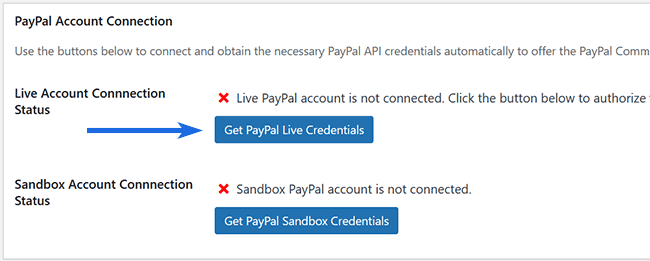
- Navigate to the ‘PayPal API Connection‘ sub-tab.
- Click on ‘Get PayPal Live Credentials‘ to begin the authorization process and obtain API credentials from your PayPal account.
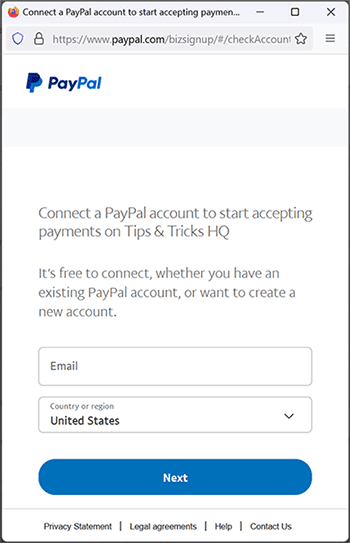
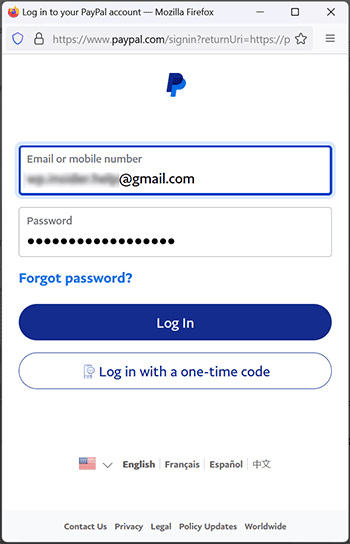
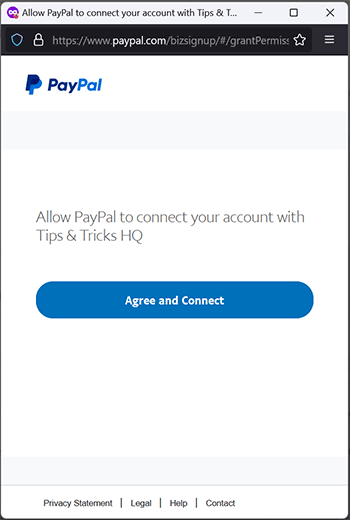
- A popup will appear, prompting you to log into your PayPal account. Log in and authorize our app to access your account and retrieve the API credentials.
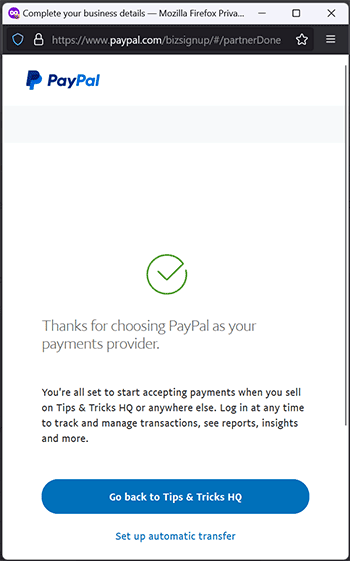
The following screenshots provide examples of what you may encounter during the authorization process and the acquisition of API credentials. Depending on the status of your business account and your location, PayPal may pose additional questions. Upon completing these steps, the plugin will automatically receive and store the API credentials in the database, finalizing the API acquisition process.
Step 3) Verify Acquisition of API Credentials
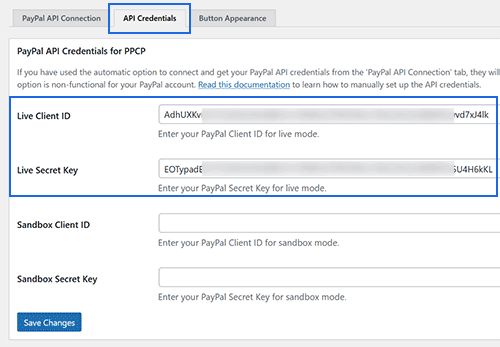
- Navigate to the “API Credentials” subtab to confirm that the plugin has successfully acquired and stored the API credentials.
- If the API credentials section displays the API keys, the setup for the PPCP checkout option is complete and ready for use.
Optional/Additional Configuration Steps
Sandbox Account
If you wish to conduct sandbox/test mode transactions with this API, follow the above steps using the ‘Get PayPal Sandbox Credentials’ button.
Button Appearance
For customization of the PayPal Commerce Platform checkout button appearance in your shopping cart, navigate to the ‘Button Appearance’ subtab. The default settings are optimized for immediate use, but you can modify them as needed.
Customer Experience with the PayPal Commerce Platform Checkout
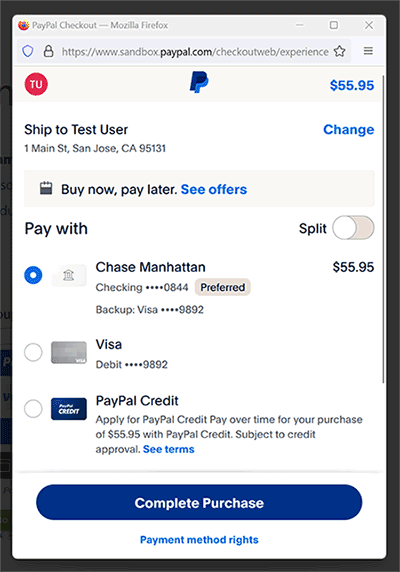
When customers add an item to the shopping cart, they can proceed to checkout using the PayPal Commerce Platform buttons. Upon clicking a PayPal Checkout button, a popup will appear for them to finalize the checkout process.
The following is an example of how the payment popup window appears.
Troubleshooting Related
If you encounter issues logging into your PayPal account during the API credential retrieval step, try this:
- Open a separate browser window
- Go to PayPal.com and log out of your PayPal account
- Clear your browser’s cookies and then attempt the process again
Using PPCP with Multiple Payment Gateways
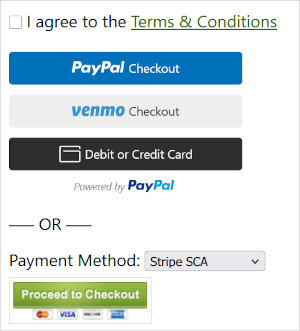
If you utilize the “Use Multiple Payment Gateways” option in WP eStore, any other configured checkout methods will appear below the PayPal Commerce Platform buttons in the shopping cart.
Refer to the following screenshot for an example.
PPCP with Buy Now Type Buttons
If you want to use the PayPal Commerce Platform (PPCP) checkout buttons for the standard Buy Now shortcodes in the WP eStore plugin, follow these steps:
- Go to Settings -> Payment Gateway Settings -> PayPal Commerce Platform Checkout -> Button Appearance.
- Scroll to the bottom and enable the Use PPCP for Buy Now Shortcode option.
- Click Save Settings to apply the change.
Once enabled, the PPCP checkout will be used for Buy Now buttons instead of the standard (legacy) PayPal checkout option.
Alternatively, you can use the following gateway-specific Buy Now button shortcode to explicitly enforce the use of PPCP:
[wp_eStore_buy_now_for_specific_gateway id="12" gateway="paypal_ppcp"]
PPCP with Subscription Type Buttons
If you want to use the PayPal Commerce Platform (PPCP) checkout buttons for the standard Subscription shortcodes in the WP eStore plugin, follow these steps:
- Go to Settings -> Payment Gateway Settings -> PayPal Commerce Platform Checkout -> Button Appearance.
- Scroll to the bottom and enable the Use PPCP for Subscription Shortcode option.
- Click Save Settings to apply the change.
Once enabled, the PPCP checkout will be used for Subscription type buttons instead of the standard (legacy) PayPal checkout option.
Subscription Webhooks
The PayPal subscription checkout (using the new API) requires webhooks to function correctly. Please follow the steps below to create the required webhook(s):
Go to Settings -> Payment Gateway Settings -> PayPal Commerce Platform Checkout -> PayPal Webhooks
Click the “Create Webhook” button.
- If you are using Live mode, click the button under the Live section.
- If you are using Sandbox (Test) mode, click the button under the Sandbox section.