WordPress Shopping Cart – Additional Resources
Categories: Additional Guidance
Other Versions of the Plugin (Modified by Users)
1. Multi Currency Support
2. Addon for the WordPress Simple Shopping Cart Plugin
3. Discount Coupon Mod for the WP Simple Shopping Cart
This mod was provided by Ben Newton
- Download the discount coupon version of simple shopping cart plugin (Check the “readme.txt” file inside for explanation on how to use it)
WP Shopping Cart CSS
The following CSS classes have been included in the plugin. You will just have to update the CSS in the style sheet file (wp_shopping_cart_style.css) of the wordpress paypal shopping cart plugin if you want to customize the look and feel of the shopping cart.
- shopping_cart
- wp_cart_button.
- wp_cart_checkout_button
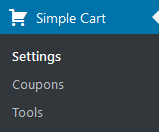
Where is the Settings Menu for the Shopping Cart?
The settings menu for the Shopping cart is located under the WordPress Settings menu…. please see the screenshot (click to enlarge).

How to Make the Shopping Cart Show the “Empty Cart” Message on a Post or Page
Search for the following line in the “wp_shopping_cart.php” file:
Delete that line once you find it and that should do it.
How to Show the Shopping Cart Widget Only When There are Items in the Cart
Search for the following function in the wp_shopping_cart.php file:
show_wp_paypal_shopping_cart_widget
Once you find it just add the following piece of code at the start of the function and that should do the job
{
return;
}
How to Resize the Add to Cart Buttons
Add the following to the CSS file of this pluign (wp_shopping_cart_style.css)
height: 20px;
width: 76px;
}
You will have to adjust the size to your needs.
How to Show the Add To Cart Buttons in the Sidebar (Method 1)
We have recently added new shortcodes that uses the WordPress shortcodes API. You can use these shortcodes to place a purchase button for a product on the sidebar widget of your WordPress site:
Here is how to do it:
Step 1) Go to the widgets menu of your WP Admin
Step 2) Add a standard text widget to the sidebar of your site
Step 3) Use one of the shortcodes to create a purchase button for your product that you want to sell:
[wp_cart_button name="Test Product One" price="29.95"]
[wp_cart_button name="Test Product Two" price="19.95" shipping="4.99"]
How to Show the Add To Cart Buttons in the Sidebar (Method 2)
Step 1) Download and activate the Executable PHP code plugin if you don’t have it already (any other PHP executable plugin will work too):
This plugin lets you call php functions from the widgets (it’s similar to the Text widget but it allows you execute PHP code too).
Step 2) Go to the widgets menu and add a ‘PHP Code’ widget to the sidebar (where you want to display the ‘Add to Cart’ buttons or shopping cart). Now you can enter HTML and PHP code here to display whatever you want to show. For example, entering the following line will display an add to cart button :
<?php echo print_wp_cart_button_for_product("Product Name","10.00"); ?>
How to Collect Special Instructions from the Customer
If you need to collect special instructions from the customer for some customized work on the item you are selling then you can instruct your buyer to put it in the “Special instructions to merchant” box on PayPal during checkout. Please note that this option is shown on the “Review your payment” screen (after you log in to put the credit card details)
Return to the WP Shopping Cart plugin page.


February 8th, 2012 at 9:32 am
Hiya, I’m really glad I have found this information. Today bloggers publish only about gossips and internet and this is really irritating. A good website with interesting content, that’s what I need. Thank you for keeping this website, I’ll be visiting it. Do you do newsletters? Can not find it.
January 16th, 2012 at 7:17 am
I have installed the plugin and everything seemed to be going fine, until I went to delete an item from the shopping cart. When I delete an item it returns to the appropriate “Products Page” but instead of loading the page it returns a 404 error. I have looked and looked and cannot find a solution. Please help!
July 5th, 2011 at 4:06 am
THank you for your response, and all clear to me, KEEP UP THE GOOD WORK!
December 22nd, 2010 at 4:43 am
Hi Williams, The following forum post will explain more about this:
http://www.tipsandtricks-hq.com/forum/topic/paypal-enhanced-checkout-issue
Please let me know if you need anything else.
December 22nd, 2010 at 12:18 am
I installed this plug-in and it is great. I am having a small issue though. When the customer is redirected back to the site after a successful transaction the products are still showing in the cart.
September 30th, 2010 at 6:50 am
Thanks for your quick response!
This worked for me once I upgraded the thesis theme to the latest version (1-8).
Regards,
August 30th, 2010 at 3:00 am
Hi Elizabeth, The following forum post should help you with this issue;
http://www.tipsandtricks-hq.com/forum/topic/images-appear-too-bigsmallstretched-on-thesis-theme
August 29th, 2010 at 3:28 pm
Hello! This is a great plugin for WordPress. I’m having difficulty with one “small” detail – although it may be some sort of artifact of running the Thesis theme on WordPress and not with your plugin.
On my products page, the paypal buttons display incorrectly. They are all weirdly large and pixelated. Even when I use text only for the “add to cart” button, it extends across half of my page screen. This was “fixed” to some degree by changing my page layout to include the sidebar, thus narrowing the page.
I tried using the instructions for changing the button size, to no good effect.
Have you encountered this issue before? Help!
Beth.
August 3rd, 2010 at 2:01 am
Hello, your blog is on air in the radio! Amazing job buddy. Your discussions are genuinely very good and saved in bookmarks. Regards
July 7th, 2010 at 1:08 am
You would need to use the eStore as this would send an email with the encrypted download links for each eBook. You can also have all the links displayed on one Thank you page. If you want to use different thank you pages or post payment landing pages for each product you can do this with the eStore and “Buy Now” buttons.
July 6th, 2010 at 11:40 am
Hi,
I am selling different books in my blog and would like to enable the customer to Immediately download the product that he just purchased.
How can i redirect him to the proper download page (different downloading page for every book) after completing the purchase process?
If this is impossible, can you suggest a different way of doing this?
What is the way to do it if someone purchases a few books together?
Thanks,
Reg
June 27th, 2010 at 1:00 am
Hi Brad, All you need to do is paste the “Image URL” in the “Add to Cart button text or Image” field of the settings menu.
Ivy
June 26th, 2010 at 3:02 pm
I thought i could just paste the URL in the settings if i wanted another “add to cart” image rather than the default. Is this correct? If so , what URL do i need to paste before i add my local site URL?
June 15th, 2010 at 5:55 am
@Nile, if your theme does not have a sidebar then this won’t be possible.
June 14th, 2010 at 5:44 am
Hello, I’m using the shopping cart and next gen integrated together on my wordpress website but the theme I’m using does not have a sidebar. I was wondering if there is a code I can put in with the php files to add a little bar anywhere on my page that will tell people how many items are in their cart. Ex- “There are 4 items in your bag (and a link to check out)” or “Your cart is empty (link to shop)” Thank you so much for any replies to my question! :]
June 11th, 2010 at 3:57 am
Hi Jacob, I believe what you are looking for is the Simple Shopping Cart and NextGen integration. You can read more about how to do this here: http://www.wordpress-ecommerce.com/wordpress-shop-using-nextgen-gallery-and-wp-shopping-cart-7
June 11th, 2010 at 2:28 am
Hello I also have put this on my site and I’d like to know how do I make a grid style of shop? any help would be great
June 5th, 2010 at 12:46 am
The WP eStore works a little differently then the Simple Shopping Cart. You would need to set the products up again and you would also need to use different shortcodes. You can watch the setup and usage video here to see how the eStore works:
http://www.tipsandtricks-hq.com/ecommerce/wp-estore-quick-setup-and-usage-video-tutorial-593
If you have the products in a CSV you can use the following plugin to bulk upload the products:
http://www.tipsandtricks-hq.com/wp-csv-to-database-plugin-import-excel-file-content-into-wordpress-database-2116
Cheers,
Ivy
June 4th, 2010 at 12:38 pm
Hello there
Is WP eStore an upgrade or will we need to start everything again to use this.
The functionality we need is for people to be able to search through products in categories and also to be able to add variations for different sizes = different prices. can we get that using this??
Many thanks
May 19th, 2010 at 1:07 am
Hi David, In the main settings of the Simple Shopping Cart you can set the button image “Add to Cart button text or Image”. This will make all the add to cart buttons the image you specify.
If you want to do this per product you will need to use the eStore as this feature is only available in the eStore plugin.
If you have anymore questions please let me know.
Cheers,
Ivy
May 18th, 2010 at 7:41 pm
I need to use my own buttons instead of the “add to cart” button How can I achieve this? My buttons have “Buy DVD, CD, MP3″ respectively.
Thanks in advance
David
May 7th, 2010 at 8:01 am
You just need to use the following shortcode to display the shopping cart even if it’s empty:
[always_show_wp_shopping_cart]
No need to modify any code. make sure you have some text in the “Empty Cart Text” settings menu.
May 7th, 2010 at 2:04 am
First… thanks for a GREAT Plugin!
Second, I have set up a shopping cart page, and would like the ‘your cart is empty’ prompt to be visible if the customer’s cart is empty. My understanding after reading the information provided above was to delete the
if (cart_not_empty())
line in the “wp_shopping_cart.php” file. After deleting this line, I still do not get the “your cart is empty’ prompt. Did I misinterpret the instructions?
Thanks very much.
May 5th, 2010 at 3:50 am
Many thanks for the free WP Simple PayPal Shopping Cart Plugin! It is ideal for our Community Supported Agriculture group’s initial needs.
It was easy to install and implement. Your documentation and support are superb. It has given us no problems or issues. I wish all the plugins I use on various sites were as easy, reliable, and trouble-free as your free WP Simple PayPal Shopping Cart Plugin.
April 30th, 2010 at 3:25 am
I had an item for sale with the WP shopping cart and the product description had the word: Don’t
The product description had the apostrophe in the word (don’t) and when I added that particular item to my shopping cart I was then unable to delete the item by pressing the red circle button with the x in it. Removing the apostrophe from the product description solved the problem.
Just an FYI.
April 24th, 2010 at 1:40 am
Hello I just wanted to post that I been following your blog for 3 days now and I wanted to state I’m beginning to favor your post. Anyways please keep up the good work. Thanks for the quality information you present here We Enjoy it!
April 16th, 2010 at 10:54 pm
Thanks, you guys explained everthing I needed to know and very quicly 10 out of 10!
March 17th, 2010 at 7:26 am
Thanks a lot for this blog post, i was looking for such thing and found so many blogs but this post of yours is really different and very much helpful. Expect similar thread of yours in future, Bookmarking this blog now for my own site on discount shopping.
March 15th, 2010 at 12:20 am
Hi Lillie, You will also need to show the cart on the page or the checkout page you are redirecting your customers to.
You can use the shortcode:
[show_wp_shopping_cart]
Or you can use the HTML shortcode:
Right now what is happening is the item is being added to the cart and refreshing the page. But you are not seeing anything as you have not told the plugin to show the cart.
If you have problems doing this please let me know.
Cheers,
Ivy
March 15th, 2010 at 12:07 am
Ivy, thanks for the quick response. I put [wp_cart:Wine and Chocolate Tasting:price:26.00:end] on the post with the event information and
on a separate shopping cart page but
still nothing happens
March 14th, 2010 at 10:57 pm
Hi Lillie, Have you put either one of the following shortcodes in HTML on the page?
< !–show-wp-shopping-cart–>
Try this and it should show the cart. If it does not please let me know.
Cheers,
Ivy
March 14th, 2010 at 9:48 pm
Hi, this is just what I have been looking for. I installed and activated the plugin but when I click the Add to Cart button, nothing happens. It only refreshes the page. I’ve added the shopping cart page but nothing shows up there. Any help is appreciated!
March 10th, 2010 at 1:56 am
Hi Jason, I am glad you got this fixed. Let me know if you need anything else.
Cheers,
Ivy
March 9th, 2010 at 10:17 am
Hi Ivy,
I’ve amended my Paypal account details as you advised and now the payment routine is working fine.
MANY THANKS for your help and guidance!
Kind Regards
Jason
March 8th, 2010 at 10:40 pm
Hi Jason, In your Paypal setting you have it set to accepts encrypted website payments only so anyone (which is about 90% of Paypal’s users) that is not using an encrypted website to make a payment can not buy items from you. If you turn this setting off it should fix everything.
Cheers,
Ivy
March 8th, 2010 at 7:30 pm
Hi There,
I’m using WP Mage with wordpress and created my first products website. However, after installing the simple WP shopping cart, everything appeared fine until I tested it?
After I clicked on the PayPal button to make a payment, I received the following error message:
“The seller accepts encrypted website payments only. You cannot pay the seller through un-encrypted buttons. Please contact your seller for more details.”
Could you please help and advise what I need to do to rectify the issue?
Many Thanks
Jason
February 15th, 2010 at 6:35 am
You should be able to modify the code to do this.. the following link will help:
http://www.tipsandtricks-hq.com/forum/topic/display-the-shopping-cart-total-only
February 13th, 2010 at 8:15 pm
First off, I must say that I am truly grateful for this plugin. It makes setting everything up so simple.
I do want to ask if there is a way to put just the shopping cart total on a sidebar or widget?
I have a lot of items and the shopping cart can be quite long on the sidebar. So I am setting up a page for the full shopping cart, but would still like to show the total of the shopping cart, along with the paypal button in the sidebar widget.
So is there something I can add to the code for the cart to make just the total show with the paypal button?
Thank you!
February 10th, 2010 at 10:58 pm
Hi Chris, Sorry about that the information above is for the eStore. We have two shopping carts. The free Shopping Cart does not have a Coupon/Discount feature.
Ivy
February 10th, 2010 at 8:00 pm
Ivy,
Thanks for your quick reply. I can’t find this menu with the Simple Paypal Plugin. Am I missing something?
February 9th, 2010 at 2:47 am
Hi Chris, You can find out more about coupons and discount code here: http://www.tipsandtricks-hq.com/ecommerce/how-to-use-coupons-discounts-in-wp-estore-364
Ivy
February 8th, 2010 at 7:36 pm
I’ve been using this plugin as well as your affiliate plugin for several months and really like both. One question – is it possible to offer a discount / coupon code?
thanks,
February 7th, 2010 at 11:02 pm
Hi Nils, You can use variation control. The following post will explain this more:
http://www.tipsandtricks-hq.com/ecommerce/how-to-use-variation-control-in-wordpress-estore-plugin-345
Ivy
February 7th, 2010 at 11:11 am
Hi, great plugin. I am going to sell prints of my photos, and want my customers to choose between diffent print sizes.
Is this possible in any way?
Thanks again for the great plugin.
December 29th, 2009 at 8:31 am
At the moment only the WP eStore (http://www.tipsandtricks-hq.com/?p=1059) has the coupon code functionality.
December 29th, 2009 at 5:37 am
Hi there! Just wondering if there’s a way to add coupon code functionality. Thanks!
December 23rd, 2009 at 2:51 am
I have the same problem as Jane – the image doesn’t display but the image you referenced definitely uploaded.
December 10th, 2009 at 11:56 pm
Hi Jane, the paypal button should show up automatically… just make sure that you didn’t miss to upload the following image in the “images” directory of the plugin:
“paypal_checkout.png”
December 9th, 2009 at 10:38 pm
wonderful plug in! Just wondering how to get the paypal button to show up–I only get a line of text that says “make payments with paypal-it’s fast, easy, secure.” It works as a link, but I’d much rather have the button. Thanks!
November 11th, 2009 at 12:50 pm
That’d be it, thanks. Odd, I copy/pasted the trigger text off the plugin settings. For some reason IE8 truncated the two short dashes into one long dash. You might want to note that in the instructions somewhere, to type it and not c/p it.
Thanks so much for a great plugin and the quick response.
November 11th, 2009 at 7:06 am
@Mike, You seem to have made a mistake when entering the trigger text for the shopping cart on your checkout page. Please note that there are two dashes (not one) at the start and end of the tag.
November 10th, 2009 at 3:16 pm
Thanks for working on this great plugin.
But… having problems. I have the shopping page built with NextGen gallery, and the button is there and all that seems fine. The shopping cart page, however, does nothing. The plugin is installed and active, and I have the ” ” code on the HTML tab of the Shopping Cart page. But the page is blank. When I add an item to the cart, then go the cart page, the page shows up as blank.
I removed the line to hide the empty cart, but I still get nothing. I am using a hosted account with WP 2.8.4. The URL of the product page (just one test product for now) is http://gospellightcommunitychurch.com/glcc/?page_id=382
November 10th, 2009 at 5:33 am
@Pete, the answer is yes for both of your questions. Visit the following link and add a product to your cart and you will see how it automatically redirects to the checkout page:
http://www.tipsandtricks-hq.com/products
November 10th, 2009 at 5:31 am
@Adam, yes definitely.. I will add it
November 10th, 2009 at 4:51 am
Also, can each variation on the full WP eStore plugin point to its own downloadable file?
Thanks again!
–
Pete
November 10th, 2009 at 4:16 am
Reagrding what Matt states above about redirecting the page to the cart after an item is added. Does the full WP eStore plugin provide this functionality?
Thanks!
–
Pete
November 9th, 2009 at 10:18 pm
Firstly .. Great plugin
Secondly, is there any way to add a Empty Cart button i.e. when clicked it will clear the contents of the cart?
Thanks in advance,
Adam
October 28th, 2009 at 11:24 pm
Hi matt, The simple shopping cart doesn’t this functionality.. you can add this manually by modifying the code though.
October 28th, 2009 at 3:19 pm
how do it to redirect to my carts URL after i’ve added something?
right now it just refreshes the page … i want it to go directly to view cart after they add something.
October 22nd, 2009 at 6:16 am
Hi Luke, nope.. at the moment only the WP eStore can do that.
October 21st, 2009 at 5:48 pm
Is there a way to set up the “var:” so that they can adjust the price ? I have 1 item in several colors, but each color has a unique price. I am looking to provide a drop down for ex.
Red at $12.00
Blue at $13.00
Green at $15.00 and have those prices reflected in the shopping cart.
October 20th, 2009 at 4:03 am
Hi John, I kinda didn’t finish the item number part since the simple shopping cart doesn’t utilize the item number (the WP eStore utilize this correctly). But some architecture is there already… Look for the following line in the shopping cart file:
<input type=’hidden’ name=’item_number’ value=’”.$item['item_number'].”‘ />
you will have to get the item number and put it in the array and then it will be passed on to PayPal.
October 19th, 2009 at 6:33 pm
Hey! Thanks for the plugin… exactly what I needed!
One question… how would I go about getting the item number of a product to pass through the form to PayPal. I used WP custom fields and use php to dynamically create the “add to cart” button… each product in my inventory has a unique item number. I’ve noticed in the plugin file that this is supported in the shopping cart page… but, can’t seem to get the item number to pass from the add to cart button to the checkout page using the provided template tag. I dig some digging and didn’t find anything. I’ll keep looking, but wondering if you might be able to point me to the right place.
October 16th, 2009 at 2:16 am
Hi, I have a problem here – the Shopping Cart is keeping only one item at a time – can’t add multiple items. what can be done ? thanks in advance.
September 29th, 2009 at 4:00 pm
That worked on the Paypal cookie, appreciate the info. It seems like I’ve seen other times when I’ve gotten that page in any case when I’ve set up a button via the Paypal website however, interesting. You can see the plugin in action at http://fusionbeans.com/
Thanks for the help!
September 27th, 2009 at 8:41 am
@Dan, Not sure if this will help but you can take a look at the following URL:
http://www.tipsandtricks-hq.com/ecommerce/?p=175
On the demo page I have a product called “Demo Engraving” that takes a customer input. you could do something similar to that for the “Name of person” using javascript.
September 27th, 2009 at 4:55 am
Hi – I’m looking at using the WP Shopping Cart plugin for the registration page of an up-coming conference at my church. It looks pretty ideal for my needs except I’m trying to find a way to add a field for the user to assign a person’s name to each item they add to the cart (name of person registering for the conference). I did have a separate form where they’d enter this info for before they were forwarded to the payment/cart page, but this just seems like it would make it difficult to match up names with payments etc. Suggestions?
Hope that makes sense. Thanks so much!!
September 13th, 2009 at 1:30 am
Hi Chris, you don’t have to configure the shopping cart for this option. PayPal will give your customers the option to pay by credit card if they don’t have a PayPal account. When your customers go to the checkout page on PayPal they will see a line similar to the following that they can click on and use the credit card to pay:
“Use your credit card or bank account (where available).”
PayPal normally figures out if you have a PayPal account or not from the cookies they leave on your computer. Try deleting all the cookies and hit the checkout button to go to PayPal and it will present you with the option to pay by credit card upfront.
September 12th, 2009 at 7:47 pm
Hey, I’m using the plugin for a simple shopping cart but when the “Checkout” button redirects to PayPal it requires the user to login or create a PayPal account. When you just create a simple PayPal button (via the PayPal website) it takes you to a page where you can simply pay via credit card and don’t have to have a PayPal account. Is there any way to configure the shopping cart plugin to do this? If so it’ll be ideal for my needs and I’ll definitely drop you a donation. Thanks!
September 10th, 2009 at 11:50 pm
Hi Angus, If you can give me the version you are working on then I can have a look and see what the issue is and suggest ways to resolve it.
September 10th, 2009 at 8:12 pm
hi.. im trying to use this *and* the amended version for pagseguro at the same time. i.e….. to give people a choice which one they want.
i cant because it seems the two plugins use similar variables. do you know of a workaround?????
cheers
angus
September 2nd, 2009 at 8:25 am
Hi Victoria, the trigger text for the “Add to cart” button only gives you the button. This is show you can design the way you want to display the product listing.
you don’t have to upload all items for the shopping cart to be viewable.
September 1st, 2009 at 7:38 pm
I apologize if these questions are common sense- i’ve been reading online text for so long i might be overlooking something obvious.
First, when I insert [wp_cart:PRODUCT-NAME:price:PRODUCT-PRICE:end]
into my text and change the name and price the only thing that appears is an “add to cart” button. But, there is no product name or price displayed. Is there any way to change this so that product name and price are included as well.
Also, do I have to have my items all uploaded complete with shopping cart installed in order for the shopping cart to be visible? (versus what I see now when i click on “shopping cart”- [eshop_show_cart]).
Thanks in advance!
August 28th, 2009 at 12:40 am
@Brandon, looks like you have a special character (‘) in the Product name. Try to use a name without that and see if it makes any difference.
August 27th, 2009 at 2:06 pm
Hey guys I’m having an issue with the shopping cart, everything else is working fine, but the delete items button does not work. How do i fix this?
http://www.santasprayer.org
You’ll notice that if you click add to cart twice it adds two items, but if you only want one item you are unable to remove the other.
Please help!
Thanks!
August 25th, 2009 at 9:30 pm
Thanks for the reply.
I got that plugin, and works as intended. Thanks for the heads up!
August 25th, 2009 at 9:24 pm
You were right about the Host being the issue. the the save path as not setup and php.ini.
Thank you so much – you have been soooo helpful.
August 25th, 2009 at 12:31 pm
Hi Shelly, this doesn’t look like a HTML issue. Did you try changing your wordpress theme to the default one to see if it’s a theme issue? (Not all wordpess themes are coded properly).
The other reason is your PHP session not working correctly.. can you verify this with your hosting provider?
August 25th, 2009 at 1:39 am
August 24th, 2009 at 3:32 pm
I sent my html for my products page. I have changed it a bit. This is the new html. Please tell me why I can not add more than 1 item to my cart.
Youngblood by Suse Wristband
[caption id="attachment_77" align="aligncenter" width="300" caption="FRONT OF WRISTBAND"][/caption]
[caption id="attachment_104" align="aligncenter" width="300" caption="BACK OF WRISTBAND"][/caption]
Cost: $5.00 / Shipping: $2.95
Total Cost w/Shipping: $7.95
Click on [Add To Cart] To Purchase
[wp_cart:Youngblood Wristband:price:5.00:end]
Youngblood by Suse Key Chain
[caption id="attachment_109" align="aligncenter" width="300" caption="FRONT SIDE OF KEY CHAIN"][/caption] [caption id="attachment_110" align="aligncenter" width="300" caption="BACKSIDE OF KEY CHAIN"][/caption]
Cost: $5.00 / Shipping: $2.95
Total Cost w/Shipping: $7.95
Click on [Add To Cart] To Purchase
[wp_cart:Youngblood Key Chain:price:5.00:end]
August 25th, 2009 at 12:16 am
Hi Henk, Glad to hear that you like the shopping cart plugin. Unfortunately the simple shopping cart doesn’t use a database so it doesn’t have the inventory control capability as it can’t keep track of how many items have been purchased. The WP eStore have this capability.
August 24th, 2009 at 10:55 am
Hi there,
First: Awesome plugin! Works like a charm, kuddos to that.
I am still wrestling with one thing:
All the items I used for the webshop are unique, therefor there is only one item available. (e.g. there is 1 necklase with color blue, one with color yellow etc etc)
Can this be altered in the plugin say: inventory = 1. (this way customers cannot order 2 of the same kind, as there simply is only one.
Any tips tricks or hints are very welcome.
Thanks in advance
August 22nd, 2009 at 3:59 am
@Shelly, Yes you can.. use the following PHP function:
<?php echo print_wp_cart_button_for_product(’Demo Product’, 10.95); ?>
August 21st, 2009 at 7:10 pm
Can you put product and Buy Botton in sidebar widgets?
August 13th, 2009 at 9:10 am
Hi Heather, 1) Charging Regional or International sales tax is pretty easy… the following link should help:
http://www.tipsandtricks-hq.com/ecommerce/?p=191
2) The simple shopping cart doesn’t have the variation control with different price options (WP eStore has that)
3) Yes, it is possible to add an input field to get additional info from user.
August 12th, 2009 at 2:20 am
I have just recently downloaded the simple paypal shopping cart plugin. I am very new to trying to design myself a website. I think this plugin would be great for my home business; if I can figure out a few things…
1) I have to charge tax on my items for people that live in my state (FL) and tax can vary from county to county. Is there a way to set up a tax table using this plugin?
2) I tried using the variation control for prices. Say I charge $16 for a lunch box and depending on whether they want an initial or a full name on the lunch box, the price increases from $2 to $8. I tried adding this information in the nextgen gallery in the description box this:
[wp_cart:Check It Out Lunch Box:price:16:var1[Additional Options|Single Initial:2|Single Name:5|3 Initials:5|Mongram:5|Full Name:8]:end]
but it didn’t change the price of the shopping cart.
3) Say someone wants to add their name to an item, is there a way to make an input field for them to add this information?
I apologize if these questions have been asked elsewhere. I have tried looking but didn’t see anything regarding these questions. I appreciate your help very much.