WordPress eStore allows you to create Donate button functionality so you can accept donation for a cause. The donation type buttons takes the user directly to the PayPal payment page for payment when clicked.
Creating a PayPal Donate Button
Step 1) Create an eStore product the same way you configure any eStore product. You can watch our video tutorials if you don’t know how to create a product in eStore.
Set the product price to 0.00 (zero) if you want to allow your users to be able to specify the donation amount when they make the payment.
Alternatively, set the product price value to a fixed amount (example: 25.00) to accept donation for that amount only.
Step 2) Create a WordPress post or page where you want to place the “Donate” button. You can explain why people should donate to your on this page.
Step 3) Use the following shortcode where you want eStore to put the donate button on the page (you created this in step 2):
[wp_eStore_donate id=1]
1 is the product id of the product you created in step 1.
Here is a live example of a PayPal donate button created with WP eStore. Click on it to see how it works:
You can use the PayPal donation button shortcode anywhere on your site to place a donate button. For example, if you want to place a donate button on your sidebar then add a “Text Widget” to the sidebar and use the above mentioned shortocde.
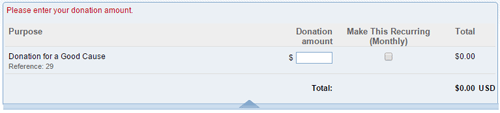
When the users go to the PayPal payment page, they will be able to enter a donation amount and pay. They can also make that a recurring donation payment (if they want to). See example below:
Customizing the “Donate” Button
Option 1) Using a Custom Button Image
You can use a custom image for your donate button to make it look pretty. The following documentation explains how to use a custom button image for any eStore product.
Option 2) Customizing the Text of the Button
If you want to use a custom text for the button (instead of using a custom button image), you can do that too. You can add a parameter called “button_text” to specify the text you want to use for the donate button.
Here is an example usage:
[wp_eStore_donate id=1 button_text="Donate Money via PayPal"]
The above shortcode will create a donate button with the text Donate Money via PayPal for product 1.