
WordPress Easy PayPal Payment or Donation Accept Plugin is an easy to use WordPress plugin to Accept PayPal payment for a service or a product or Donation in one click. It can be used anywhere on your site (sidebar, posts, pages etc.).
Also, try our new and free WP Express Checkout plugin, offering enhanced functionality for accepting PayPal payments for products, services and donations.
Plugin Screenshots
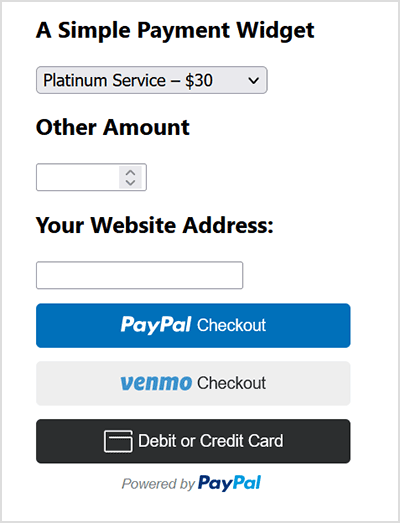
This plugin does not give you a shopping cart. Check out our WordPress Simple Shopping Cart plugin, If you are looking for a simple shopping cart plugin for your WordPress site.
WordPress PayPal Payment Plugin Usage
To begin utilizing the plugin, please follow these steps:
Step 1) Setup the PayPal PPCP API Credentials
Navigate to the ‘PayPal PPCP’ tab in the settings to set up your PayPal API credentials.
PayPal Commerce Platform (PPCP) is the new/latest product from PayPal, it offers the PayPal checkout and adds more payment options for global customers so that all your funds will be in one place, but your customers will see familiar payment methods.
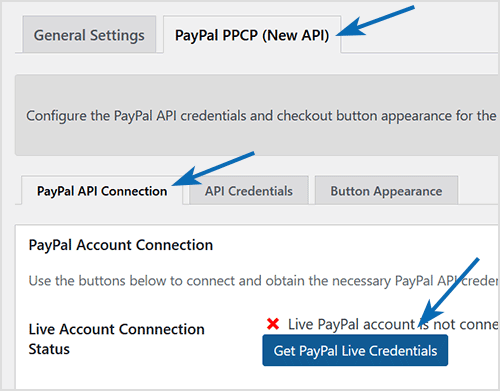
After the API is connected, you can navigate to the “button appearance” sub-tab to customize certain button appearance settings. The default settings are good to get started.
Step 2) Configure the Payment Options in General Settings
Adjust the payment options in the general settings menu of the plugin.
Step 3) Use the Shortcode to Embed the Payment Widget
Finally, insert the shortcode [wp_paypal_payment] into a post, page, or sidebar widget where you wish to display the payment button.
[wp_paypal_payment]
For more versatility, you can use the [wp_paypal_payment_box] shortcode (see the section below for details) along with custom parameter options to incorporate various payment widgets:
[wp_paypal_payment_box options="T-Shirt Payment:15.50|Ticket Payment:30.00|Membership Payment:47.95"]
Usage Video Tutorial
The following video shows how to create payment widgets using the values set in the plugin’s settings configuration:
The following video shows how to create payment widgets using shortcode parameters (you specify all the values in the shortcode):
Usage with Shortcode to Create PayPal Payment Widget
This plugin comes with a couple of very powerful shortcodes to create a PayPal payment button. The following section has usage examples so you can see how to use these shortcodes.
You can use the following shortcode to create a PayPal payment button on the fly and show it anywhere on your site:
[wp_paypal_payment_box options="T-Shirt Payment:15.50|Ticket Payment:30.00|Membership Payment:47.95"]
Note: You will need to replace the example values in the shortcode parameter with actual value for your site.
Shortcode Parameters
Optionally, you can add some more parameters in the above mentioned shortcode to customize the reference title, return page URL, tax etc. Below is a list of the supported parameters in the payment button shortcode
- options
- return
- reference
- reference_placeholder
- other_amount
- other_amount_label
- other_amount_placeholder
- payment_subject
Here is an example shotcode usage with some extra parameters to give you an idea of how to use it:
[wp_paypal_payment_box options="Payment for Service One:15.50|Payment for Service Two:30.00|Payment for Service Three:47.00" reference ="Your Email Address" return="the-return-url-page"]
Allow Your Users to Specify an Amount
You can use the “other_amount” parameter in the shortcode to allow your customer to specify an account (name your price). Here is an example usage:
[wp_paypal_payment_box options="Payment for Service One:15.50|Payment for Service Two:30.00|Payment for Service Three:47.00" other_amount="true"]
This shortcode can be used anywhere on your site and as many times as you want with different values to accept payment for another product or service.
Hiding the Reference Field From the Payment Widget
Use the parameter reference=”” in the shortcode will hide/disable that field.
Using a Placeholder for the Reference Field
Use the “reference_placeholder” parameter in the shortcode to specify a placeholder for the reference text field. Example below:
[wp_paypal_payment_box options="Payment for Service 1:15.50|Payment for Service 2:30.00|Payment for Service 3:47.00" reference="Payment Reference" reference_placeholder="Enter a payment reference"]
Download Latest Version
Download the Plugin.
Download Legacy Version (v4.9.10)
If you prefer to use the earlier version of the plugin featuring the legacy PayPal Standard checkout option, you can download it from the link below:
Additional Documentation
How to collect the Shipping Address from the customer
You don’t really need to collect shipping address from the customers manually as they can specify a shipping address when paying on PayPal. So this is how it works:
- A customer clicks on the Pay Now/Buy Now button and goes to PayPal to pay for the product or service.
- The customer fills in the credit card details or logs into his/her PayPal account and reviews the order
- Now before hitting the “Pay Now” button the customer can specify a shipping address by clicking on “Change Shipping” that is shown below the default shipping address.
- After payment, PayPal will send you a payment confirmation email which will have this postal address so you can ship the item.
Center Aligning the Shortcode
Try the following in an HTML code block to center-align the shortcode:
<div style="margin-right:auto; margin-left: auto; width:300px;">
[wp_paypal_payment_box]
</div>
Don’t forget to check out the WordPress Simple Shopping Cart plugin which also allows you to sell products and services site-wide and has shopping cart functionality or the WordPress Donation Plugin which allows you to receive a simple donation.
If you are looking for a feature rich and robust way to sell products or services then check out our WP Express Checkout or Accept Stripe Payments plugin.
@Rob, We have just released an update for the Accept PayPal Payment plugin. Can you please upgrade the plugin to v5.1.2 and let me know if you still see the API error issue after that?
I installed the plugin a couple of years ago and it suddenly stopped working yesterday. Paypal’s log shows it returns a 422 status. Here’s the part of the response:
{
“name”: “UNPROCESSABLE_ENTITY”,
“details”: [
{
“field”: “/purchase_units/@reference_id==’default’/amount/breakdown/item_total/value”,
“value”: “xxxxxx”,
“issue”: “ITEM_TOTAL_MISMATCH”,
“description”: “Should equal sum of (unit_amount * quantity) across all items for a given purchase_unit”
}
],
Here’s the original request:
{
“intent”: “CAPTURE”,
“payment_source”: {
“paypal”: {
“experience_context”: {
“payment_method_preference”: “IMMEDIATE_PAYMENT_REQUIRED”,
“shipping_preference”: “NO_SHIPPING”,
“user_action”: “PAY_NOW”
}
}
},
“purchase_units”: [
{
“amount”: {
“value”: “199.00”,
“currency_code”: “USD”,
“breakdown”: {
“item_total”: {
“currency_code”: “USD”,
“value”: “199.00”
}
}
},
“items”: [
{
“name”: “Donation”,
“quantity”: 1,
“unit_amount”: {
“value”: “0.00”,
“currency_code”: “USD”
}
}
],
“description”: “WP Accept PayPal Payment Transaction.”
}
]
}
I don’t see where the error is unless it’s in the “items:” part of the request.
I haven’t changed anything in the plugin settings and don’t have “price per item.” Just a couple drop down selections and a “any amount” box.
Any help would be appreaciated
@Sebastian, We’ve released a new update for the plugin, now including support for the Norwegian Krone (NOK). Please update the plugin and set the currency in the settings menu.
I’ve used this plugin on a pan-Nordic website to collect payments in Norwegian kronor by using the shortcode ‘currency=”NOK”‘. Since some updates ago, that doesn’t work anymore and NOK is not available in the settings. Is there any way to get this to work with NOK?
@Ron, All the valid transactions will definitely be visible in your PayPal account. PayPal will also send you an email as soon as someone makes a payment. Are you checking the activities tab in your PayPal account? If you don’t see anything in your PayPal account then that means the transaction was not completed by the user.
Hello, when people have selected an item and have paid, where can i find what they have paid for? I don’t see it in paypal and i would like to know what they have ordered so i can give them the right item. Can anyone help me with that?
The “email” parameter in the shortcode is missing a correct value. Enter your PayPal email address value in the shortcode’s “email” parameter then it should work fine.
hi, this shortcode is no longer working? Can i know why?
[wp_paypal_payment_box email=”XXX” options=”For 30 sec :349.00|For 60 sec :699.00|For 90 sec :1049.00|For 120 sec :1399.00 |For 150 sec :1749.00 |For 180 sec :2099.00|For 210 sec :2449.00|For 240 sec :2799.00|For 270 sec :3149.00|For 300 sec :3499.00″ currency=”USD” button_text=”Pay Now”]
Error Message from Paypal
“Things don’t appear to be working at the moment. Please try again later.”
@Dave,
Try the following in a HTML block to center the donation button:
<div style="text-align: center;">

[wp_paypal_payment_box_for_any_amount button_image="https://www.paypalobjects.com/webstatic/en_US/btn/btn_donate_pp_142x27.png" email="xxxxx" description="Donation to Friends of xx"]

</div>
Is there any way to center the paypal button? I’m trying to insert the
[wp_paypal_payment_box_for_any_amount button_image=”https://www.paypalobjects.com/webstatic/en_US/btn/btn_donate_pp_142x27.png” email=”xxxxx” description=”Donation to Friends of xxx”]
No matter what I try it’s always flush left. I’ve even tried centering it in a table cell and it still ignores me 🙁
Tried using some CSS and it doesn’t seem to work either – but it could be my poor knowledge of CSS.
@Taco, yeah that should be doable with a little CSS tweak. Below is an example.
You can insert the following CSS in Customizer -> Additional CSS. That will increase the font-size. Instead of 20px, you can use a different number.
#accept_paypal_payment_form {
font-size: 20px;
}
.wp_paypal_button_widget {
font-size: 20px;
}
Is there a way to make the font size larger?
@Vanessa, If you (the seller) have a PayPal business or premier account, the customers will see the credit card payment option when they go to the paypal checkout page.
Hello,
How can i enable the credit card payments with the buy now button
@Randi, You can create as many payment boxes as you want to with different options. Use the shortcode explained in the “Usage with Shortcode to Create PayPal Payment Widget” section of this page. The shortcode described there takes all the parameters from the shortcode so you can specify different option values on a per shortcode basis.
Is there a way to set-up multiple types of payment boxes? I want different drop-downs on different pages pertaining to what they can pay for on that page. When I try and use the short code – it gives me an error and I only see where I can configure one drop down using the settings.
You specify your PayPal account in the setting menu of this plugin.
How does the plugin connect to my Paypal account ?
@Voldi, Yes it works with SGD. The plugin works will all PayPal supported currencies. Simply use your currency code in the plugin’s settings or the shortcode.
Hi There,
Is it possible to add currency SGD to the plugin?
@Kristen, yes look at the shortcode under the “Payment Widget to Accept Any Amount” section.
Is there a shortcode option to choose between the “Donate” button and the “Pay Now” button?
@Sarah, Use the shortcode specified in the “Payment Widget to Accept Any Amount” section. That shortcode will give you the option you are looking for.
Hello – The last plugin screenshot on this page shows just an amount box (without the options dropdown). What is the shortcode to hide the options box completely? I want users to be able to only enter their own amount. I like how that screenshot says Amount instead of Other Amount. Also, is there a way to add multiple reference fields? Thank you.
@Rembert, Are you familiar with PayPal’s PDT feature by any chance? You can enable that in your PayPal account and all the data will be sent to the “Thank You” page also.
Nice plugin, code looks well-written. I have a request though: I’d like to control the rm-variable to PayPal as I’d like to have a POST return request to my website including all payment details. I tested this already by adding the rm variable with value ‘2’ to the plugin code manually and tested it. It does work as expected. So, can you please add the rm-value setting to top eoptions page? Maybe this would better fit an advanced options section.
@David, Not at the moment. You could try our eStore plugin which will work with the affiliate plugin so you can share your donation (The eStore plugin has feature to accept donation also).
Hi all community,
Can you tell me if this plugin is compatible with the plugin WP affiliate platform ?
I wish can divise the donation with the affiliate.
Thanks you very much 🙂
(wordress easy paypal payment or donation accept)
@Vik, yeah just use the shortcode to insert separate buttons.
Hi
Thanks – a really easy to use plugin.
Is there any way of inserting a separate button for each service instead of having the drop down box for options?
Vik
@Kevin, Yes you can accept credit card also. You just have to have a premium or business PayPal account because PayPal doesn’t allow you to accept card for personal account.
Is there an option for a user to make a payment without creating/logging into a paypal account? I’ve seen this option with other sites that pay with paypal
@Gordon, yes you can do that by using the URL value in the “return” parameter in the shortcode. Or specify the page URL in the settings (if you are using that option).
Is it possible to designate a specific page that a user is redirected to, once the payment process is complete? I want to use this plugin to charge for private coaching sessions, and I use an online scheduling tool for booking appointments.
I’d like to have have my customer taken directly to the scheduling tool after payment.
@Sylvia, Yes you can use both. You can create as many payment widgets as you want to using the shortcode. See the usage section above to learn more.
My client is a charity and they sell different items as a fundraisers, but also collect donations. Can I use both Donate AND Pay Now options or is it either/or?
@Michael, You can specify the PayPal account in the settings area of this plugin. If you are using the shortcodes (see the usage documentation above) then you can specify the PayPal email address (where the donation will go to) in the shortcode.
Nice plugin!
Easy to use and fast. But I have just one cuestion, how to introduce the paypal account where the donation is going charged? I just opened an account for the donations but don’t know how set for send the donations directly to the donations account.
Kind Regards.
Michael
@James, The reference box should help you collect the name if you want to. You can customize that reference box to collect whatever you want.
Hi,
Awesome plugin!
I was able to add couple of boxes more for payments, GREAT!
but is there any way to include a NAME? (with last name of course)
I have a service for kids and i want to know when parents are paying (kids name will be inserted in a “name” box.
Thanks!
keep up the good work!
@Kathryn, I have added an option in the new version to disable the payment reference box.
This is a great plugin and fits the needs of my non-profit client perfectly.
Is there a parameter to add to the shortcode to turn OFF the reference box? I tried using { reference=false } and it just keeps the box and titles it “false”.
This plugin doesn’t send you to PayPal sandbox. Are you sure you are using this plugin or are you using our simple PayPal shopping cart?
Why does my PayPal process point to a PayPal Sandbox? I can’t figure out how to make it go live! Many thanks.
@Jon, is this signup form going to come from a different plugin?
Is there a way to add the payment at the end of a sign up form so the user fills out the details of the service they are requesting and the payment plan? Or do you need to have a page for form entry and a page for payment?
Thanks! After looking again at how I changed things, I don’t think additional selectors are needed. What I did was delete all breaks in the “Paypal form” code, then added the following CSS. This way I have control over spacing:
#accept_paypal_payment_form input, #accept_paypal_payment_form select, #accept_paypal_payment_form textarea {
margin-bottom: 1rem !important;
padding: .2rem !important;
}
@Dee, Yeah sure. Please suggest the changes you want to make and I will try to incorporate it into the plugin.