I received the following question today in the forum:
“For certain sales pages on my site I do not want to have the distraction of the sidebar items. Is there a way to have a second page template without a sidebar for this purpose?”
Having an optimized sales/landing page does help with sales conversion and it is really easy to create a custom sales/landing page in WordPress. Any readers of this site using the WordPress Simple Shopping cart or WordPress eStore or the WordPress Membership Plugin are most likely selling something online. In this article I have explained how you can create a custom sales page easily in WordPress and use it to optimize your sales conversion.
How do You Create a Custom Sales Page in WordPress?
The answer is custom WordPress page template. Your WordPress theme has a file called “page.php”. When you create a WordPress page, by default it uses this “page.php” template file which makes the page look a certain way. You can easily create another template file which has a different look/structure and use that template file for a particular page.
Say for example, the default “page.php” file displays the page with “header”, “body”, “sidebar” and “footer”. You can create a custom template called “sales-page.php” and make it only display “header”, “body” and “footer”. Now, when you create a page and specify it to use the “sales-page.php” template file then essentially you are making a page without any sidebar (kind of like what the usual sales page look like). You can pretty much custom every aspect of the look and feel of this page by modifying the “sales-page.php” template file.
Now that you know that creating a sales page in WordPress is basically creating a custom page template and using it for that particular page, the next question is how do you create this custom page template (e.g. sales-page.php).
How to Create and Use a Custom WordPress Page Template
Edit: If you prefer to watch a video tutorial on this topic then checkout the custom WordPress page template video tutorial.
Step1: Create the template file
Use a simple text editor (you can use a PHP editor too) to create a file called “sales-page.php” (you can give it any name) and add the following code to it:
<?php

/*

Template Name: Sales Page

*/

//Display the header

get_header();

//Display the page content/body

if ( have_posts() ) while ( have_posts() )

{

the_post();

the_content();

}

//Display the footer

get_footer();

?>
- You first specify the template name, in this case I used “Sales Page”. The “Template Name: Sales Page” tells WordPress that this will be a custom page template. The name “Sales Page” will show up in the drop down menu so you can easily identify this template and select it for a particular page when when you need.
- Then call the header of the theme (get_header) which displays the theme header (your header banner, logo etc).
- The WordPress ‘loop’ is there to show the content of the page.
- At the end you include the theme footer (get_footer).
Step2: Upload the newly created template file
Before you can use it, you need to upload this template file to your current theme’s directory. Usually it will be in the following location on your server:
“/wp-content/themes/my-theme” where “my-theme” is your theme name.
Step3: Use the template file for a WordPress page
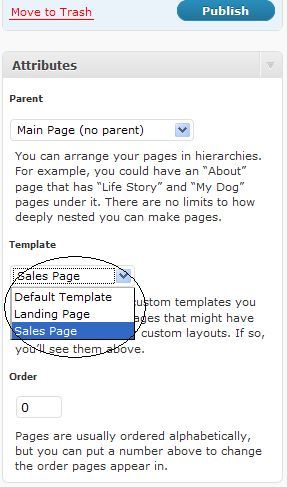
You are now ready to use this template file. Create a new WordPress file or edit an existing one. Just make sure to select this new created template file as the “Template” for this page from the “Attributes” section. Save the page and hit “Preview” to see how it looks.
Download the Basic Sidebar Free Template File
You can download the example template file from here if you don’t want to create it yourself.
Side Notes
This requires a bit more fiddling around but you can customize the page width, color scheme and all that type of stuff by modifying the “sales-page.php” file. Remember, it’s a PHP file so you can use plain “HTML” on that file too.
If you are selling just one product for your site and want to set this sales page as your homepage then you can do so by configuring the “Readings” settings (Settings -> Reading) of your WordPress installation. Simply select the “Front page displays a Static page” option and choose this page from the drop down menu.
Note: You do not need a custom page template to use the static front page option. You can create any page with the content you want for the front page and then choose the static front page option as above.
How you want to design and structure your sales page is completely up to you. I only tried to cover the very basic type of sales page in this article… so feel free to let your creativity fly.
Check out our eBook on how to create landing pages that convert.
Thank You for for your post. its worked i have learned to create a page
I’ve just uploaded your sales page template, and for the most part it works. However, it still has the sidebar on the right, just pushed down below my sales copy.
If I’m reading the comments thread correctly, I think the theme has something to keep the sidebar there, and I’m going to have to try another theme that’s not so fussy.
I’ve been searching for an hour for this solution, big thanks for the easy explanation!
Cheers!
Simply put and bottom lined! Thanks!
Very nice and clear post about creating post template 🙂
Here I am 3 years later and coming across this perfect post…again! Now i can’t wait to use it.
Thank you!!!
Thanks so much for this tutorial on custom page template! Its very useful for me.
Perrrrrfect! Thanks for sharing. This worked like a charm and will help me build sites in the future.
Worked like a charm! A very good article, I have bookmarked it and tweeted it. Thanks
Thanx for this tutorial. My old theme already has this templates(portofolio,shopping cart,landing page…) but now i use other theme which doesnt have….great tutorial 😀
Getting ready to create a new custom page template for the members section of my website. Trying to get rid of the free offers that the members have already taken advantage of and instead present something more useful to them. Going to give this a shot and see if I can make it work using the information here on this page. Using Notepad++, Filezilla, and Editor in WordPress to make this happen. Thanks for your help.
I’ve not seen such simple and easy tutorial on any site till date…thanks a lot…
Thanks so much! I’m reading every article out there on working with WordPress. This one will definitely help me out. Please, continue to post!
Thx a lot!!!!!!
its very useful for me.
fabulous…fabulous…nice share dude
Excellent article. I haven’t had much to do with customising WordPress but I’ve got the template working ok and just wanted to say thanks for sharing this.
@Cheryl, You should create a new unique CSS div for your custom page body then place everything inside that div. This will help you separately apply margins inside this div without affecting your header or footer.
I found a way to redo the CSS finally, but resetting the right and left margins reset the margins for the header and footer as well! Trying to leave the header and footer stretching from side to side, with the content having a right and left margin if this is possible.
I just got this working fully. The idea here is you want to follow the above instruction – if you want to just copy and paste your html into the php file then stripe out the display header, display content, display footer in the code they gave above. Now select your template via the instructions in the tutorial in wp-admin. Once you click publish go back into the sale-page template and use the php reference codes found here at https://www.tipsandtricks-hq.com/ecommerce/wp-content/uploads/wp-estore-shortcodes.pdf inplace of the original buy now image you had in your original html template. Once you save and refresh the page your custom buy now button you activated in you manage order settings will work just like the short code, the difference is you are using the php echo function references instead of the short codes. I hope this helps. This gives you the ability to use virtually anyhtml squeeze page template without the funkiness of WordPress. So it turns out super sharp!
Thank you for this tutorial it has really helped me out and saved alot of time. My question is…is their a way to specify the short code in the php file for the product? Here is what I did so far…I created a sales page template in my theme folder via your directions instead of calling the footer , body and header I stripped out that content and put it into a file with the
Then I copied and pasted my html into the file below the php. My question is how do I craft the url of the buy now button so it works with this new sales page and wp-estore recognizes it? Can I use the shortcode in the html? which I think that will not work because I stripped out the wp body section in the php you gave.
The images can be uploaded anywhere on your server. You need to make sure the URL you are specifying for the image is correct. Simply copy and paste a URL in the browser’s address bar to check if the URL is correct or not. If you upload the images using the WordPress’s media uploader then it will give you the URL of the file after you finish uploading it.
Thanks for this post. I’m using my own html and I can’t figure out where to upload the images to, in order for them to show correctly. I put them in the file with the php template and I’m just getting x’s. Any suggestions? Thanks!
Good post and it is worth doing. Since I started customising sales pages on some of my sites I’ve seen a lot more purchases.
Here is an example of how your template file should look like. Basically the template file needs to have a call to the wp_head() and the wp_footer() function. You can view the source of your current sales page then copy that HTML code and place it where there is a line that says “Place all your HTML code….”
<?php

/*

Template Name: Sales Page

*/
wp_head();

?>
Replace this line and Place all your HTML code from your sales page here
<?php

wp_footer();

?>
You mentioned you can just upload a HTLM page as a template. How do I do that is I have a great Sales page full of CSS Style sheets Images and zip files?? how do I upload that as a template??? Do I leave all the files in the same place???
Very cool. I have never used wordpress to create sales pages. I have always used static pages, but this will come in handy for my new business. Thanks a lot.
Excellent article! The ability to create and customize your own sales page or pages is fabulous, however, to ensure you meet the needs of your complete, sales, service and marketing campaign, I would if you can afford recruit a specialist in the first instance, then you and or staff could take over the monitoring and maintain strategy.
Fantastic !!! Fantastic !!!
Another superb post, keep it up friend.
Here is the piece of CSS that’s giving that background:
#page {

background:none repeat scroll 0 0 #ECECEC;

font-size:0.7em;

margin:0 auto;

padding:10px;

width:940px;

}
It’s better if you add a div block around your content and then apply specific CSS to that div.
Sure, here it is :
http://toucherlavie.com/solutions-sante/sciatique/
Hi Aswad, it should just be a matter of changing the CSS. Can you please post a link to the page in question?
Hello Amin,
Thanks for this post. I have one question though.
Since I don’t know any coding, I simply copied and pasted the code lines you give in this post.
It works with Infinity Remix, but it gives me a grey background.
What code do I have to write to make the white background square appear in the page ?
Thank you.
I almost had a nerdgasm when I saw this post! Thanks a bunch. That solves a huge problem I was having.
Thanks for the help. I was having trouble with getting the new template to show up in attributes until I realised I hadn’t named the new template.
Great tip. This is just what I was looking for.
thanks i’ll try that
Yes, you can make a template anyway you want it. You can even just make a template by writing your own HTML code. Remember, some themes have part of the header in it’s body so if you are calling the body some of the header may come with it too. It’s best to write the template from scratch for situations like this. All you have to do is query wordpress for the post or page and then display the title of the post then the content of the post and that code can go in your template. This post might be of some help to you:
https://www.tipsandtricks-hq.com/query-or-show-a-specific-post-in-wordpress-php-code-example-44
You can also make your page in a basic HTML editor then copy that code in the template file and use that.
hey i was just wondering is it possible to make a template file but without the header function?
I’ve tried loads of times with the following code:
I just want a page with just the content. The above code works but i get the whole header thing come up which is what i dont want. I’ve tried just removing the header function but then the page just comes up blank. Any ideas?
useful post!!!!
@Jamie, You can use the wordpress editor to insert images on your page like you normally do. If you are talking about adding image in the actual template file then you just have to add the HTML code for embedding an image.
Thanks for sharing this fantastic article. I have a quick question… How do you add an image in this custom template?
Thanks a lot! Very useful post.