WordPress Membership

Easy to use WordPress Membership plugin

  • Documentation
  • WP eMember Plugin
  • Projects
  • Home

Giving a WordPress Admin User Access to All Protected Content

The WP eMember plugin uses membership levels to control access to protected content on the front end of your website. If content is protected by a membership level and a user doesn’t have that level assigned to their eMember record, the content will be hidden from them — even if that user is a WordPress admin.

This is because WordPress admin roles and eMember membership levels are independent systems. To allow your admin user to view all protected content on the front end, you need to create an eMember record for them and assign a membership level with access to all protected content.

Table of Contents

  • Giving Your WordPress Admin User Access to All Protected Content
    • Step 1) Create a Dedicated Membership Level
    • Step 2) Import Your WordPress Admin User
    • Step 3) Configure Access for the Admin Membership Level
    • Step 4) Log Out and Log Back In

Giving Your WordPress Admin User Access to All Protected Content

Prerequisite: Before following the steps below, make sure you have the WordPress User Role Synchronization feature enabled. This ensures that your WordPress users and eMember members are properly linked.

Follow these four steps to set this up.

Step 1) Create a Dedicated Membership Level

Create a new membership level specifically for your WordPress admin user. Name it something descriptive like Admin Access or Full Access. This level should not be used for regular members.

See: How to Add a Membership Level

Step 2) Import Your WordPress Admin User

Import your WordPress admin user into eMember and assign them to the membership level you created in Step 1.

See: Import WordPress Users into eMember

Note: Make sure you select the correct admin-dedicated membership level during import. Assigning the admin user to a level shared with regular members may unintentionally expose admin-level access to others.

Step 3) Configure Access for the Admin Membership Level

Edit the Admin Access membership level and grant it access to all of your protected content categories, posts, or pages.

See: Membership Level Configuration

Step 4) Log Out and Log Back In

Log out of WordPress and log back in with your admin account. Your admin user will now be able to view all protected content from the front end of your site.
Filed Under: Content Protection Tagged With: Admin Functions

Send a Quick Notification Email when Editing a Member’s Profile

You can send a quick notification email to your members when editing their details from the admin dashboard. This is useful if you wanted to let the user know that you have made some changes to their account.

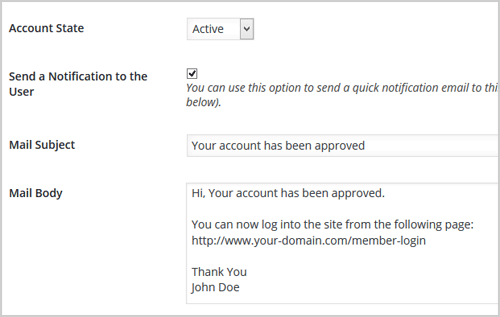
When you review the member’s profile details and make some changes to the account, you can additionally check the Send a Notification to the User checkbox and enter an email message. This email will be sent to the member when you save the profile.

sending-account-approval-email

The email content (subject and body) of the last email notification is saved (when you use this feature). So next time you want to send the same notification email, you don’t have to manually enter the email content.

Filed Under: Uncategorized

Only Allow Members to be Added Manually

In a standard setup, your visitors will signup for a membership account after they read your membership offers. You will use one of these registration scenarios for them to register for an account.

On rare cases, you may be running an organization where you only allow the members to be added manually (by an administrator). You can make the following changes to the setup so only an administrator can add member records to the site.

Step 1) Remove the registration form shortcode

Edit the registration page from the “Pages” menu of your site and remove the standard registration form shortcode of eMember. Instead, you can put a message like the following in there:

Members are added manually by an administrator. Please contact us if you have any questions.

This will prevent anyone from being able to register from the front-end.

Step 2) Hide the links to the “Join Us” page

Since you handle the registration process manually, you probably don’t want the users to go to the Join Us page.

  • Use this CSS tweak to hide the “Join Us” link in the member login widget.
  • Use this text/language tweak to customize the “Protection” message.

Step 3) Manually add members from the admin interface

When you want to add a member to your site manually, do the following:

  • Click on the Members link from the WP eMember plugin’s admin menu.
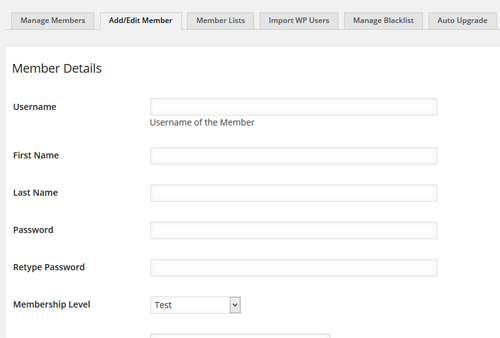
  • Click on the Add/Edit Member link from the top navigation menu.
  • Fill in the details of the member and hit the save button.
add-edit-members-interface

These changes should make it so members can be added to your site manually (only).

Filed Under: Uncategorized

Membership Payments Using the WP Express Checkout Plugin

Using the WP eMember Plugin together with the free WP Express Checkout plugin, membership payments can be handled via PayPal express checkout gateway.

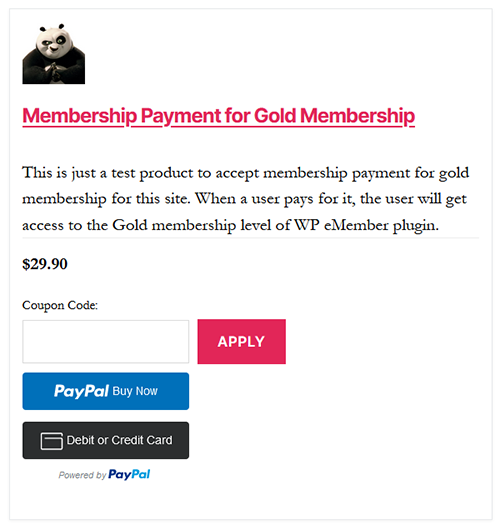
Using the WP Express Checkout Plugin, customers can purchase memberships via a ‘Buy Now’ button and checkout using PayPal. Their member profile will be automatically created by WP eMember and as a result they will be able to enjoy protected content.

Installation and Activation of Plugins

To accept membership payments via Express Checkout, you will need the WP eMember Plugin as well as the WP Express Checkout plugin installed and activated.

Creating a Membership Product that Can be Purchased via Express Checkout

Step 1) Create a new product in the WP Express Checkout plugin. This documentation explains how to create a new product.

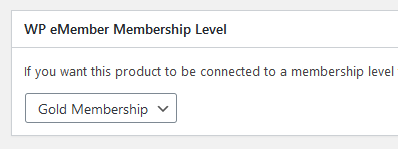
Step 2) Specify a membership level for this product in the “WP eMember Membership Level” section of the product.

Step 3) Your customers can now purchase this product and it will be considered as payment for the membership level you specified.

Member Sign Up Process with Express Checkout

After a successful payment, the standard WP eMember’s registration flow applies.

Member Upgrade/Renewal Process

If a member is logged into the site and makes a payment, then the payment is applied to that existing membership profile. So it works as an upgrade/renewal payment.

Filed Under: Uncategorized

Manually Activating Expired Members Account

The plugin normally runs in an automated fashion and updates the member profiles when accounts are renewed. It also has a daily check which expires any account that has run its course. However, sometimes you may want to manually activate a member’s account that has expired. The following documentation explains how to do it correctly.

The expiry of a member’s account is controlled by the membership level assigned to that member. When you want to manually activate an expired account, you need to pay attention to the following two items from the member’s profile:

  1. The membership level assigned to the member.
  2. The “Subscription Starts” date set in the member’s profile.

Check the “Subscription Duration” value of the membership level in question and then do the following according to the access duration.

1) No Expiry Access Duration

If the membership level of the member has “No Expiry or Until Cancelled” duration, then you can just change the account status to “Active” and save the profile.

2) Expire After an Interval

If the membership level of the member has “Expire After an Interval” duration, then update the “Subscription Starts” date value in the member’s profile to the current date so the plugin doesn’t think that the membership has run its course and revert it back to expired.

So edit the member’s profile then change the account status to “Active” and update the “Subscription Starts” date to current date then save the profile.

3) Expire After a Fixed Date

If the membership level of the member has a “Expire After a Fixed Date” duration, then check to make sure the current date is not past that expiry date already.

  • Past the expiry date – then changing the account status to “active” won’t help since the membership level is still expired. You may want to switch the member to a new membership level in this case.
  • Expiry date is still in the future – then you can just change the account status to “Active” and save the profile.

Filed Under: Additional Resources Tagged With: member, WP eMember

WP eMember Miscellaneous CSS Tweaks

You can add the CSS tweaks to the following interface of your site (or any other option your theme may have to insert CSS tweaks):

Appearance -> Customize -> Additional CSS

Login Form Related

Hiding the Join Us Link in the Login Form Widget

Add the following CSS tweak to hide the Join Us link in the membership login form widget:

#wp_emember_loginForm .register_link{
display: none;
}

Hiding the Forgot Password Link in the Login Form Widget

Add the following CSS tweak to hide the Forgot Password link in the membership login form widget:

#wp_emember_loginForm #forgot_pass{
display: none;
}

Hiding the Remember Me Checkbox in the Login Form Widget

Add the following CSS tweak to hide the Remember Me checkbox in the membership login form widget:

#wp_emember_loginForm .eMember_remember_me{
display: none;
}

Center Align the Member Login Form

Add the following CSS tweak to center align the member login form on the login page:

.wp_emember_loginForm {
    margin-right: auto;
    margin-left: auto;
}

Registration Form Related

Larger Font Size (Registration Form)

Add the following CSS tweak to make the font-size larger in the membership registration form:

#wp_emember_regoForm {
  font-size: 22px;
}

Larger Font Size for Only the Text Input Fields (Registration Form)

Add the following CSS tweak to target only the text input fields of the registration form and make the font-size larger:

#wp_emember_regoForm input[type="text"] {
  font-size: 22px;
}

Hide the Membership Level Field on the Registration Form

Add the following CSS tweak to target the membership level field of the registration form and hide it:

#wp_emember_regoForm #wp_emember_member_level {
  display: none;
}

Filed Under: Additional Resources Tagged With: membership tweaks, WP eMember

JVZoo Integration with WP eMember

WP eMember plugin can be integrated with JVZoo to process the membership payment. When customers purchase your JVZoo product, membership accounts will be created for them.

What You Can Expect from the JVZoo Integration

  • The customers go to your landing page where you have the JVZoo payment button.
  • Customers click on the JVZoo buy button and complete the payment.
  • Payment is completed and they get sent to your thank you page.
  • JVZoo sends a payment notification (JVZIPN) to WP eMember plugin after the transaction.
  • WP eMember creates a member account by processing the notification and emails the special link to complete the registration.
  • Users complete the registration form. Now, they can view everything that the membership level offers.

JVZoo Integration Instructions

Step 1) Set Your JVZoo Secret Key

First, you need to set a secret key for the JVZoo IPN feature in your JVZoo account.

  • Login to your JVZoo account and visit the MyAccount page.
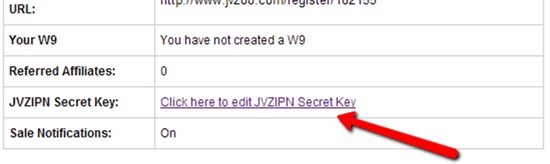
  • Search for Click here to edit JVZIPN Secret Key link as shown on the image below.
  • Click on that link, Enter your Secret Key and click Save.

jvzoo-secret-key-setup-1

Step 2) Enter the Secret Key in WP eMember Settings

Copy the secrete key from step 1 and enter it in the following interface of WP eMember

WP eMember Settings -> Gateway Settings -> JVZoo Integration Settings -> JVZoo Secret Key

Save the settings.

Take note of the JVZoo Instant Notification URL Value as we will need it in the next step.

Step 3) Enter the IPN URL in Your JVZoo Product

Click the Sellers tab in your JVZoo account. Click your product in the sub nav.

Enter an Instant Notification URL in the JVZIPN URL field.

The URL should look something like the following

https://www.yoursite.com/?emember_jvzoo_ipn=1&membership_level_id=XX

Replace “XX” with the membership level that corresponds to this product. A member account with this membership level will be created when a customer purchases this product.

Click ‘Save Changes’.

Now you should be all set and JVZoo transactions for the product in question will be processed and sent to your Instant Notification URL and WP eMember will create the membership account for them.

Filed Under: Integration Tagged With: 3rd party integration, Integration, jvzoo, membership payment

Beaver Builder Plugin and WP eMember Plugin

WP eMemeber should work fine with the Beaver Builder Plugin.

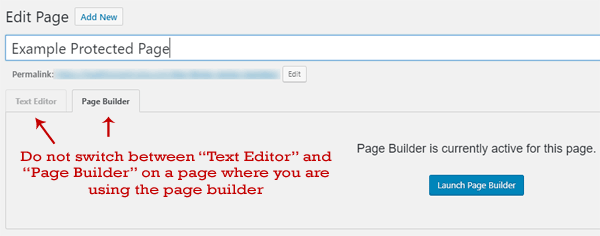
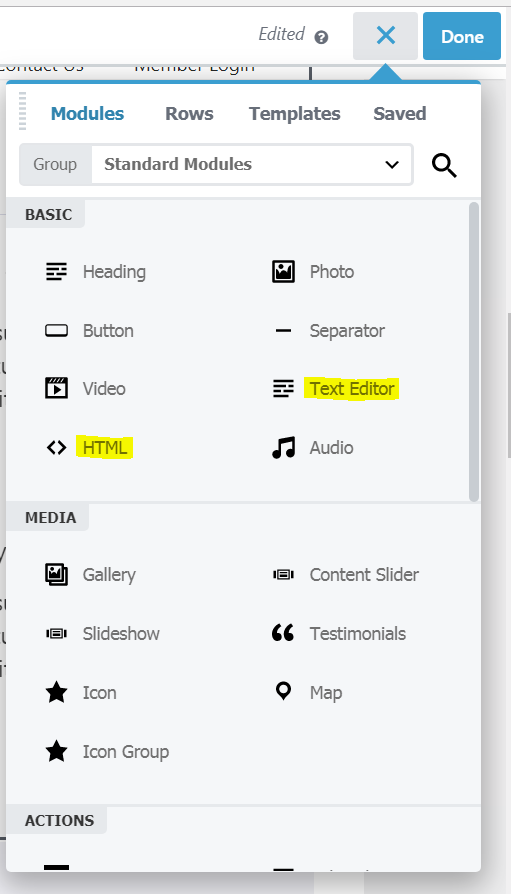
You need to make sure that you don’t switch between the “Text Editor” and “Page Builder” on a page where you are using the page builder. Switching to text editor can mess up your formatting of the page.

Stay in the “Page Builder” then scroll down to the bottom and apply protection to the page (if you need to).

beaver-page-builder-plugin-and-wp-emember

Using eMember Shortcode in Beaver Builder

The emember plugin’s shortcode works fine in Beaver Builder. Use the native “HTML” module or “Text Editor” of Beaver Builder and insert shorcode in there.

WP-eMember-Shortcode-in-Beaver-Builder


Filed Under: Additional Resources Tagged With: form builder, Membership Level, membership protection

Managing Member Blacklisting Using WP eMember Plugin

You may have a site where you find a pattern of certain IP or email addresses that are the basis of problematic or spam memberships.

Within the settings menu of the WP eMember plugin, a site admin is able to blacklist specific user addresses. Blacklisting a user from creating a membership can be based on their IP address, email address or email address pattern (eg blacklisting all users who attempt to sign up with an @yahoo.com email). This allows admin to blacklist multiple accounts attempting to sign up with certain email patterns IP addresses or one user specific to a certain email address.

This functionality of the WP eMember plugin allows admin to prevent spam or problematic users from signing up to their site.

How to Blacklist Users Based on IP and Email Address

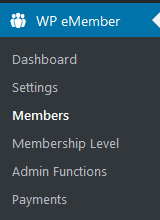
Step 1) Once logged into the admin dashboard of your site, go to Members under the WP eMember menu.

wp-emember-members-admin-menu

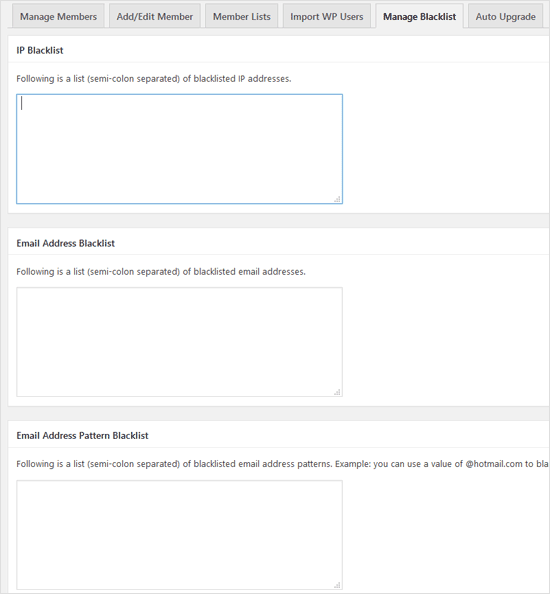
Step 2) Click on the Manage Blacklist tab.

Step 3) Under Manage Blacklist, you will see three fields depending on the sort of users you need to blacklist:

  • IP Blacklist
  • Email Address Blacklist
  • Email Address Pattern Blacklist.

Step 4) Decide on the type of address or pattern you wish to blacklist. For example if you wish to blacklist one user from becoming a member you may decide to blacklist them using their email address. You would enter their email into the email address blacklist field. If you have more than one IP or email in any one field you will need to separate them using a semi-colon.

Example Values

The following example values will give you an idea of how to enter the data in the fields.

IP Blacklist

223.58.1.10;4.23.145.90;129.6.8.4

Email Address Blacklist

[email protected];[email protected];[email protected]

Email Address Pattern Blacklist

@spamydomain.com;@yahoo.com

Step 5) Once you have entered in your blacklisted IP, email or pattern email addresses click on the Update Blacklist button at the bottom of the page to save it.

Now, when a member tries to register or login that matches with the entries you specified in the blacklisting interface, they will be blocked.

Filed Under: Additional Resources Tagged With: Access, member, registration form

Creating a Braintree Buy Now Button for Membership Payment

You can create a Braintree payment button inside WP eMember plugin to accept payment for your premium memberships.

Braintree gateway allows you to create payment buttons that is processed on your site (so the visitor never leaves your site during the checkout).

Creating Braintree Buy Now Button for Membership Payment

Step 1) Select Braintree Buy Now Button

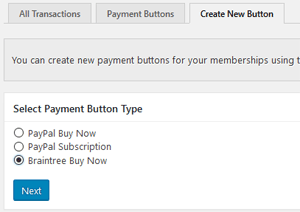
Go to Payments -> Create New Button interface from the admin side of the eMember plugin. Then select the Braintree Buy Now option (see image below):

braintree-payment-button-for-membership-step-1

Step 2) Configure the Payment Details

Enter the payment details and select your membership level for the button.

Step 3) Configure the Braintree API Key and Account Details

Enter your Braintree API Key details in the payment button also.

You can get the Braintree API key details from your Braintree account.

You can locate these values by following these steps:

  1. Log into your Braintree account
  2. Navigate to Account > My user
  3. Under API Keys, Tokenization Keys, Encryption Keys, click View Authorizations
    • If no API keys appear, click Generate New API Key
  4. Click View under the Private Key column to see your public and private keys, merchant ID, and environment

If you do not see the Authorizations section at all and your account was recently approved, please try again later – it can take a few business days for Braintree to set up your merchant account.

Merchant Account ID

This field controls your currenty for the transaction. You can leave the Merchant Account ID field empty if you want to use the default one.

Step 4) Save the Payment Button

Save the payment button after you have entered all the necessary details. This will create the payment button.

Step 5) Put the Payment Button on a Page

You can now put this newly created button on your membership join us page so the visitors can pay you using this button.

The Payment Buttons tab shows you the shortcode you need to use to put your Braintree payment button on a page. The shortcode should look something like the following:

[emember_payment_button id=2101]

The shortcode will create a Buy Now button (for the membership level you specified).

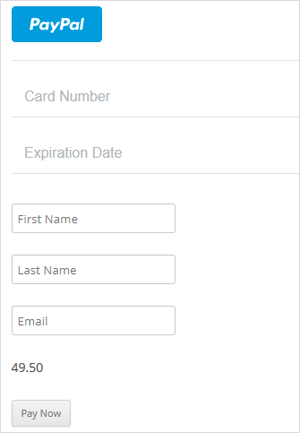
When your visitors click on the button, they will see a payment form like the following screenshot. They will be able to enter the credit card details to complete the payment.

braintree-payment-button-for-membership-card-payment-form

Customizing the Button Text

You can customize the button text by specifying the value in the shortcode using the “button_text” parameter. Below is an example shortcode that uses “Pay Now” as the payment button text:

[emember_payment_button id=2101 button_text="Pay for Membership"]

What Happens After the Payment?

If a payment is made by a new member then the user will receive an email that contains a unique link to complete the registration. Read the registration process overview documentation to learn more.

If the payment is made by an existing member then the membership level (associated with this payment button) is applied to the existing member’s profile.

Note: The member must be logged into the site as a member for this plugin to recognize the user and treat him as an existing member.

SSL Certificate Requirement

Braintree payment gateway requires you to have SSL certification on your payment/checkout page (the page where you put your payment button). So the URL of that page should have HTTPS (example: https://www.example.com/membership-payment-page).

If you are not already using an SSL certificate on your site then you should contact your hosting provider and request them to install it for you.

Filed Under: Integration Tagged With: Integration, membership payment

  • 1
  • 2
  • 3
  • …
  • 10
  • Next Page »

Get the WP eMember Plugin

Get WP eMember

Categories

  • Additional Resources
  • Content Protection
  • Design & Usage
  • eMember Addon
  • Installation
  • Integration
  • License
  • Testing
  • Uncategorized
  • Video Tutorial

Recent Comments

  • admin on Giving a WordPress Admin User Access to All Protected Content
  • Ramona Hapjke on Giving a WordPress Admin User Access to All Protected Content
  • admin on Overview of the Available Content Protection Methods
  • Ramona Hapke on Overview of the Available Content Protection Methods
  • admin on Giving Other WordPress User Roles Access to Your WP eMember Admin Dashboard

Featured WordPress Plugins

WP Express Checkout Plugin
wordpress_estore_icon
wordpress membership plugin icon
wordpress_affiliate_plugin_icon

Copyright © 2026 | WP Membership Plugin