WordPress Membership

Easy to use WordPress Membership plugin

  • Documentation
  • WP eMember Plugin
  • Projects
  • Home

Creating a PayPal Subscription Button for Membership Payment

A lot of people use the WP eStore plugin to create payment buttons for membership as it has a few advantages. However, you can also create a PayPal Subscription payment button inside eMember to accept payment for your premium memberships.

Buy Now Type Button or Subscription Type Button?

You can use PayPal buy now or subscription type buttons for your membership payment (based on how you want to setup the payment structure). Read the following post so you understand the difference between these two types of payment buttons.

  • Difference between “Buy Now” and “Subscription” type buttons for membership payment

Creating PayPal Subscription Button for Membership Payment

Step 1) Select PayPal Subscription Button

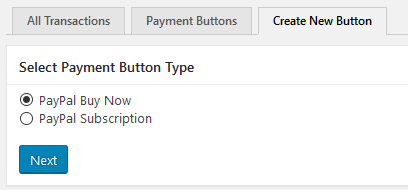
Go to Payments -> Create New Button interface from the admin side of the eMember plugin. Then select the PayPal Subscription option (see image below):
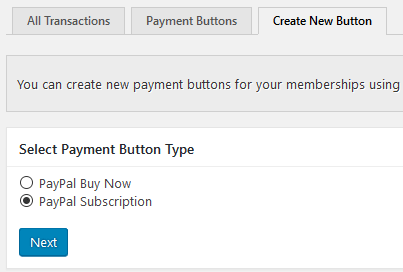
creating-paypal-subscription-button-for-membership-step-1

Step 2) Configure the Payment Details

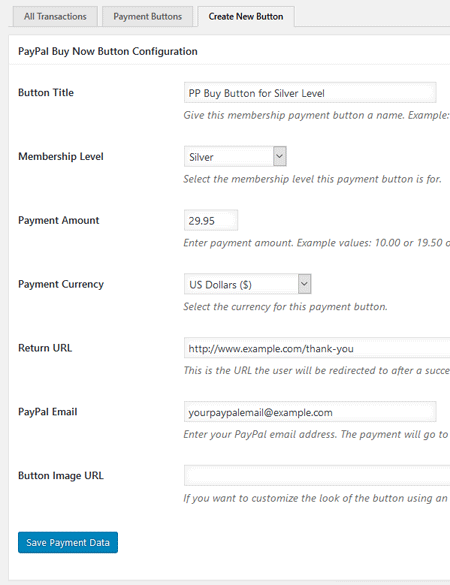
Enter the payment details and select your membership level for the button. See example below:
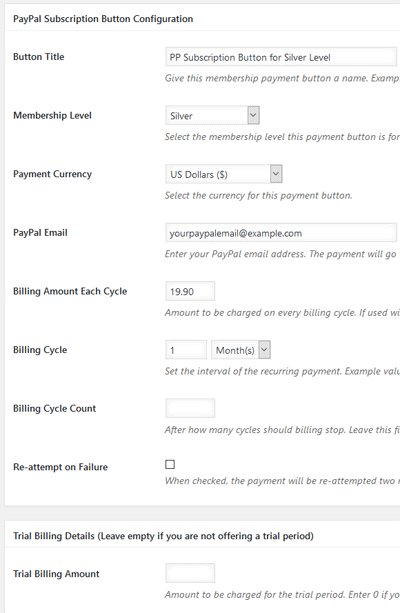
creating-paypal-subscription-button-for-membership-step-2

Step 3) Put the Subscripiton Button on Your Membership Payment Page

You can now put this newly created payment button on your membership join us page so the visitors can pay you using this button.

The Payment Buttons tab shows you the shortcode you need to use to put your payment button on a page.
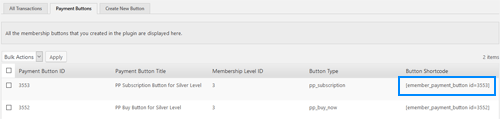
creating-paypal-buy-now-button-for-membership-step-3

The shortcode will create a PayPal Subscription button (for the membership level you specified in the button).

Your PayPal Profile Settings

Make sure that the Instant Payment Notification (IPN) feature is enabled in your PayPal profile (this is enabled by default). You can enable it by going to the profile menu in your PayPal account.

If the IPN is disabled in your PayPal Profile then PayPal won’t send any payment notification to eMember after payment. This will cause the registration process to not work as usual and your users who pay you won’t get any email form eMember.

You can use your site’s homepage URL when enabling the IPN feature in your PayPal account.

Creating a Thank You Page

You should create a generic thank you page for your membership site. Use this page as your return page in the PayPal button (so the user goes to this page after the payment).

Explain what the user can expect next in this “Thank You” page. Instruct your users to check their email and click on the link to complete the paid membership registration.

The following is an example of the type of message you should put on your thank you page:

You will receive an email shortly which will contain the details of this transaction.

You will also receive an email containing a unique link. Click on that link in the email to complete your paid membership registration.

Customizing the Payment Button

The look and feel of the button will depend on your theme’s style/CSS.

You can use a custom image for your button to customize it. Upload your button image to the media library then specify the URL of the image in the “Button Image URL” field (by editing the button).

You can also customize the button text by specifying the value in the shortcode using the “button_text” parameter. Below is an example shortcode that uses “Subscribe Now” as the payment button text:

[emember_payment_button id="3553" button_text="Subscribe Now"]

What Happens After the Payment?

If the payment is made by a new member then the user will receive an email that contains a unique link to complete the registration. Read the registration process documentation to learn more.

If the payment is made by an existing member then the membership level (associated with this payment button) is applied to the existing member’s profile.

The member must be logged into the site as a member for this plugin to recognize the user and treat him as an existing member.

Will the Affiliate Commission be Tracked?

If you are using our WP Affiliate Platform plugin and the user was referred by an affiliate then the referrer will receive an affiliate commission after the payment.
Filed Under: Design & Usage Tagged With: membership payment, paypal, plain paypal button

Creating a PayPal Buy Now Button for Membership Payment

A lot of people use the WP eStore plugin to create payment buttons for membership as it has a few advantages. However, you can also create a PayPal payment button inside eMember to accept payment for your premium memberships.

Buy Now Type Button or Subscription Type Button?

You can use PayPal buy now or subscription type buttons for your membership payment (based on how you want to setup the payment structure). Read the following post so you understand the difference between these two types of payment buttons.

  • Difference between “Buy Now” and “Subscription” type buttons for membership payment

Creating PayPal Buy Now Button for Membership Payment

Step 1) Select PayPal Buy Now Button

Go to Payments -> Create New Button interface from the admin side of the eMember plugin. Then select the PayPal Buy Now option (see image below):

creating-paypal-buy-now-button-for-membership-step-1

Step 2) Configure the Payment Details

Enter the payment details and select your membership level for the button. See example below:

creating-paypal-buy-now-button-for-membership-step-2

Step 3) Put the Payment Button on Your Membership Payment Page

You can now put this newly created payment button on your membership join us page so the visitors can pay you using this button.

The Payment Buttons tab shows you the shortcode you need to use to put your payment button on a page.

creating-paypal-buy-now-button-for-membership-step-3

The shortcode will create a PayPal buy now button (for the membership level you specified in the button).

Your PayPal Profile Settings

Make sure that the Instant Payment Notification (IPN) feature is enabled in your PayPal profile (this is enabled by default). You can enable it by going to the profile menu in your PayPal account.

If the IPN is disabled in your PayPal Profile then PayPal won’t send any payment notification to eMember after payment. This will cause the registration process to not work as usual and your users who pay you won’t get any email form eMember.

You can use your site’s homepage URL when enabling the IPN feature in your PayPal account.

PayPal IPN URL

WP eMember doesn’t require you to use any special URL for the IPN feature. The plugin just needs that the IPN feature be enabled in your PayPal account. So you can use your homepage URL to enable this feature.

Creating a Thank You Page

You should create a generic thank you page for your membership site. Use this page as your return page in the PayPal button (so the user goes to this page after the payment).

Explain what the user can expect next in this “Thank You” page. Instruct your users to check their email and click on the link to complete the paid membership registration.

The following is an example of the type of message you should put on your thank you page:

You will receive an email shortly which will contain the details of this transaction.

You will also receive an email containing a unique link. Click on that link in the email to complete your paid membership registration.

Customizing the Payment Button

The look and feel of the button will depend on your theme’s style/CSS.

You can use a custom image for your button to customize it. Upload your button image to the media library then specify the URL of the image in the “Button Image URL” field (by editing the button).

You can also customize the button text by specifying the value in the shortcode using the “button_text” parameter. Below is an example shortcode that uses “Pay Now” as the payment button text:

[emember_payment_button id="3552" button_text="Pay Now"]

What Happens After the Payment?

If the payment is made by a new member then the user will receive an email that contains a unique link to complete the registration. Read the registration process documentation to learn more.

If the payment is made by an existing member then the membership level (associated with this payment button) is applied to the existing member’s profile.

The member must be logged into the site as a member for this plugin to recognize the user and treat him as an existing member.

Will the Affiliate Commission be Tracked?

If you are using our WP Affiliate Platform plugin and the user was referred by an affiliate then the referrer will receive an affiliate commission after the payment.
Filed Under: Design & Usage Tagged With: Account Upgrade, membership payment, paypal, plain paypal button

ConvertKit Integration with WP eMember plugin

You can integrate the WP eMember plugin with ConvertKit so that the members can be automatically signed up to a sequence. You can also add members to certain tags (based on their membership level).

Installing the ConvertKit Addon

You can install this addon the same way you install any WordPress plugin:

  • Go to the Add New plugins screen in your WordPress admin area
  • Click the Upload button
  • Browse for the addon file (emember-convertkit-addon.zip)
  • Click Install Now and then activate the plugin

[Read more…]

Filed Under: Additional Resources Tagged With: Autoresponder, emember addon, newsletter, WP eMember

ActiveCampaign Integration with WP eMember Plugin

You can integrate the WP eMember plugin with ActiveCampaign so that the members can be automatically signed up to your list (with any tags that you want to apply).

Installing the ActiveCampaign Addon

You can install this addon the same way you install any WordPress plugin:

  • Go to the Add New plugins screen in your WordPress admin area
  • Click the Upload button
  • Browse for the addon file (emember-activecampaign-addon.zip)
  • Click Install Now and then activate the plugin

Addon Usage

Step 1) Click on the ActiveCampaign menu link from the main eMember plugin’s admin menu.

Step 2) Enable the integration then fill in the API key and API URL details. You can get the API details from your ActiveCampaign account.

Step 3) Hit the update button to save.

Step 4) Edit the membership level in question and specify your ActiveCampaign List ID in there (this is the list where the members of this level will be added to).

Get the ActiveCampaign Addon

The price of this addon is $39

Filed Under: eMember Addon, Integration Tagged With: 3rd party integration, Autoresponder, emember addon, WordPress membership

Amazon S3 Secure Downloads for Members (Using eMember and eStore)

The following video explains how you can do Amazon S3 downloads for members using WP eStore and WP eMember plugins.

Video Tutorial

Summary Steps

Below is a quick summary of the steps involved to set it up:

Step 1) First, configure eStore’s amazon s3 integration with a product.

Step 2) Use the following shortcode on a page for the eStore product in question so a user can click on the download link to download the item via secure amazon s3 download.

[wp_eStore_download_now_button id=1]

1 is the Product ID of the product in this example.

Put as many download now buttons as you want (for different products) on a page.

Step 3) Now, use eMember’s protection settings to protect this post/page in question. So only members who have access to that page can view the “download now” button and use it to download the items from your amazon s3 account.


Filed Under: Additional Resources Tagged With: member only download, membership protection, WordPress membership, WP eMember

eMember Alternative Post/Page Protection Addon

The default content protection of the WP eMember plugin will work on most posts/pages and custom post types. However, there are some plugins out there that do not trigger the standard WordPress filters for their content. The default protection will fail on those posts/pages since the eMember plugin can’t hook in there using the standard method. This is when the “eMember Alternative Protection” addon will come in handy. This addon uses a completely different method to still protect those posts/pages.

This method of protection will work good if you are using a page builder type plugin or theme and the standard eMember protection is not working there.

Installing the Addon

You can install this addon the same way you install any WordPress plugin:

  • Go to the “Add New” plugins screen in your WordPress admin area
  • Click the “upload” tab
  • Browse for the addon file (emember-alternative-protection.zip)
  • Click “Install Now” and then activate the plugin

Addon Usage

Step 1) Click on the “Alternative Protection” menu link from the main eMember plugin’s admin menu.

Step 2) Check the options as you need then save the settings. You basically specify which type of posts you want this addon to handle (so this addon can apply the protection using the alternative mmethod instead of emember’s standard protection method).

emember-alternative-protection-addon-settings

When this addon is active and you have enabled the settings, a protected post/page will apply content protection like the following example:

emember-alternative-protection-example

Showing the Header and Footer with the Protection Message

There is an option in the settings of this addon to show the protection message with the site header and footer. Your theme must support WordPress’s standard get_header() and get_footer() functions for this option to work.

Get This Addon

The price of this addon is $29.

Please contact us to get this addon.

Filed Under: eMember Addon Tagged With: emember addon, membership protection, partial content protection, WP eMember

Giving Other WordPress User Roles Access to Your WP eMember Admin Dashboard

Your WP eMember plugin’s admin dashboard is only accessible to WP Admin users by default. There is an option in the plugin that you can use to give other WP User roles (example: editor, author etc.) access to the eMember plugin’s admin dashboard.

Enabling Dashboard Access for Other WordPress User Roles

Step 1) Go to the “Admin Functions” menu of the plugin.

Step 2) Scroll down to the “eMember Admin Dashboard Acess Permission” section.

Step 3) Select the desired role and save the permission.

emember-admin-dashboard-access-permission-setup

WP users with and above that selected user role will now have access to the dashboard.

Filed Under: Additional Resources Tagged With: Access, Permission, WP eMember

Show Secure RSS Feed Link to Members of Certain Membership Levels

If you enable the “Display Secure RSS Feed” feature in WP eMember plugin then it will show the secure RSS feed link in the login widget (to all members).

This addon has a shortcode that allows you to show the secure RSS feed if the member belongs to the specified membership level.

The following is an example of how to use the shortcode. It will show the RSS feed links to members that belong to membership level 2 or 3 or 4.

[wp_eMember_secure_rss_feed levels="2,3,4"]

You can specify as many membership levels as you want in the abavoe shortcode.

Keep the “Display Secure RSS Feed” option in the main eMember plugin unchecked (if you don’t wan to show the standard RSS feed link to all members).

Filed Under: Additional Resources Tagged With: emember addon

Allow Members to Upgrade or Add New Level to Their Profile for Free

Normally, you would charge people to upgrade their membership level to a new one. The standard upgrade documentation explains how that process is handled.

However, for a particular project, you may want to allow your members to upgrade their membership level for free. They just log into the site as a member then click a button to upgrade (or add) the level to their profile. This documentation explains how you can create a button that will allow your members to do that.

Creating a Button for Free Membership Level Upgrade

Step 1) Create a new WordPress page (where you will put the free upgrade buttons).

Step 2) Use the following shortcode in this newly created page. So you are creating a button that will upgrade the user’s membership level to the one specified in the “level” parameter of the shortcode.

[wp_eMember_upgrade_membership_level_to level="3"]

3 is the membership level ID in the above example. So change it to the correct level ID value for your site.

You can put as many buttons as you want (using the above shortcode) on this page for your various different levels that you want to offer free upgrade.

Step 3) Protect this page so only logged-in members of the site can view and interact with the upgrade buttons. You can use partial protection too (if that makes sense for your particular situation).

Step 4) Tell your users (who already has an account on your site) to go to this page and click on the button to upgrade.

When logged-in members click on the button that this shortcode generates, it upgrades their membership level to the one specified in the shortcode. If you are using the multiple membership level per user feature, then it will ADD the specified level to their profile (meaning they will now be able to access content of this newly added level).

Custom Button Text for the Update Level Button

You can specify a custom button text for the button by using the “button_text” parameter in the shortcode.

Example shortcode usage below:

[wp_eMember_upgrade_membership_level_to level="3" button_text="Click here to update"]

Redirect the Members to a Page After They Use the Button

You can use the “redirect_to” parameter in the shortcode to redirect the members to a page after they use the level update button.

Example shortcode usage below:

[wp_eMember_upgrade_membership_level_to level="3" redirect_to="http://www.exmaple.com/page-after-update-button-usage"]

Filed Under: Additional Resources Tagged With: Account Upgrade, Membership Level, shortcodes, WP eMember

How to Use Google reCAPTCHA on Member Registration Form

If you offer free membership registration on your site then it can be affected by spam signups (bots completing the registration form).

You can enable Google reCAPTCHA on your member’s registration form if your site gets a lot of spam signups. Google reCAPTCHA will cut down all the spam signup attempts on your membership registration page.

Enabling Google reCAPTCHA

Go to the Google reCAPCHA settings tab from the main eMember settings menu. Then fill in the API keys to enable this option.

Disable the ‘Anyone Can Register’ Option of WordPress

WordPress has an option that allows anyone to go to WordPress’s registration page and create a WP user account. This WordPress feature can open your site up for spam user registration. If you had previously enabled this option, you should disable it.

If you are getting a lot of spam WP user registration and you are not sure where it is coming from then this option is likely the cause for it.

You can find this settings option in the General WordPress settings menu of your site.

Settings -> General -> Membership

Our WP eMember plugin Does NOT need that option to be enabled.

So you should keep the “Anyone can register” checkbox unchecked.

Spam Registration Troubleshooting

If you are experiencing spam registrations despite enabling a CAPTCHA option, follow these steps to identify and resolve the issue:

  1. Enable Debug Logging
    Turn on the debug logging feature within the plugin. This can help you analyze registration attempts, identify patterns, and determine if bots are bypassing the CAPTCHA.
  2. Check WordPress Registration Settings
    Go to WordPress Admin Dashboard → Settings → General and ensure that the “Anyone can register” option is disabled. Leaving this option enabled can allow bots to bypass membership registration restrictions.
  3. Review API Access Settings
    If you have enabled the “Create members via API“ option, double-check if it is necessary. Some users unknowingly enable this feature when working with freelancers, who might then share the API secret, making the site vulnerable to spam registrations. If you do not require API-based registrations, disable this option.
  4. Verify CAPTCHA Integration
    • Test the CAPTCHA functionality by attempting a registration yourself.
    • If the CAPTCHA is not showing up, check for JavaScript errors in the browser console, as theme or plugin conflicts can prevent it from working properly.
    • Ensure that you have correctly configured the CAPTCHA keys in the settings.
  5. Check for Hidden Registration Forms
    Some themes and plugins create additional registration forms that might not be protected by CAPTCHA.
    • Search for hidden or alternative registration pages on your site.
    • Ensure that CAPTCHA protection is enabled for all relevant forms.

Filed Under: Design & Usage Tagged With: captcha addon, registration form, WP eMember, wp emember captcha

  • « Previous Page
  • 1
  • 2
  • 3
  • 4
  • …
  • 10
  • Next Page »

Get the WP eMember Plugin

Get WP eMember

Categories

  • Additional Resources
  • Content Protection
  • Design & Usage
  • eMember Addon
  • Installation
  • Integration
  • License
  • Testing
  • Uncategorized
  • Video Tutorial

Recent Comments

  • admin on Giving a WordPress Admin User Access to All Protected Content
  • Ramona Hapjke on Giving a WordPress Admin User Access to All Protected Content
  • admin on Overview of the Available Content Protection Methods
  • Ramona Hapke on Overview of the Available Content Protection Methods
  • admin on Giving Other WordPress User Roles Access to Your WP eMember Admin Dashboard

Featured WordPress Plugins

WP Express Checkout Plugin
wordpress_estore_icon
wordpress membership plugin icon
wordpress_affiliate_plugin_icon

Copyright © 2026 | WP Membership Plugin