WordPress Membership

Easy to use WordPress Membership plugin

  • Documentation
  • WP eMember Plugin
  • Projects
  • Home

How to Re-Create the Mandatory eMember Pages

When you first install the WP eMember plugin, it will create all the mandatory pages for you so you never need to use the following tutorial.

However, if you need to re-create those pages (for whatever reason) then just watch the following video and it will show you what to do:

Pages Created on Installation

When you install the WP eMember plugin for the very first time, the following pages are automatically created:

  • Login Page – The page where visitors are able to login to your site.
  • Registration Page – Where customers will sign up to your website. A form where they will enter in their details.
  • Join Us Page – A page that has the different memberships that you offer.
  • Edit Profile Page – Where your members can go to edit their profile.
  • Password Reset Page – Where your members can go and reset their account password.

Recreating the Mandatory eMember Pages

If you happen to accidentally delete any of the required pages (the four pages listed above), you can complete the steps below to recreate the page(s).

Login Page

Creating the Page:

  1. Create a new WordPress page and title it ‘Member Login’.
  2. In the page editor enter in the following shortcode and then publish the page:

[wp_eMember_login]

Correcting the URL:

  1. Copy the URL of the new ‘Member Login’ page.
  2. Click on the ‘WP eMember’, ‘Settings’ menu.
  3. Click on the ‘Pages/Forms Settings’ tab.
  4. Delete the previous ‘Login Page’ URL and paste in the new URL.
  5. Ensure you ‘Update Options’.
Registration Page

Creating the Page:

  1. Create a new WordPress page and title it ‘Registration’.
  2. In the page editor enter in the following shortcode and then publish the page:

[wp_eMember_registration]

Correcting the URL:

  1. Copy the URL of the new ‘Registration’ page.
  2. Click on the ‘WP eMember’, ‘Settings’ menu.
  3. Click on the ‘Pages/Forms Settings’ tab.
  4. Delete the previous ‘Registration Page’ URL and paste in the new URL.
  5. Ensure you ‘Update Options’.

Join Us Page

Creating the Page:

  1. Create a new WordPress page and title it ‘Join Us’.
  2. This page can be customized how you would like. Use the ‘Join Us’ page to inform your customers of the different memberships that you offer. Once you have added content to the page, ensure that you ‘Publish’

Correcting the URL:

  1. Copy the URL of the new ‘Join Us’ page.
  2. Click on the ‘WP eMember’, ‘Settings’ menu.
  3. Click on the ‘Pages/Forms Settings’ tab.
  4. Delete the previous ‘Membership Payment/Join Page’ URL and paste in the new URL.
  5. Ensure you ‘Update Options’.

Edit Profile Page

Creating the Page:

  1. Create a new WordPress page and title it ‘Edit Profile’.
  2. In the page editor enter in the following shortcode and then publish the page:

[wp_eMember_edit_profile]

Correcting the URL:

  1. Copy the URL of the new ‘Edit Profile’ page.
  2. Click on the ‘WP eMember’, ‘Settings’ menu.
  3. Click on the ‘Pages/Forms Settings’ tab.
  4. Delete the previous ‘Member Profile Edit Page’ URL and paste in the new URL.
  5. Ensure you ‘Update Options’.

Password Reset Page

Creating the Page:

  1. Create a new WordPress page and title it ‘Password Reset’.
  2. In the page editor enter in the following shortcode and then publish the page:

[wp_eMember_password_reset]

Correcting the URL:

  1. Copy the URL of the new ‘Password Reset’ page.
  2. Click on the ‘WP eMember’, ‘Settings’ menu.
  3. Click on the ‘Pages/Forms Settings’ tab.
  4. Delete the previous ‘Password Reset Page’ URL and paste in the new URL value.
  5. Ensure you ‘Update Options’.


Filed Under: Additional Resources Tagged With: registration form, WP eMember

WP eMember MailPoet NewsletterIntegration Addon

The eMember MailPoet Newsletters integration addon allows you to add your members to the MailPoet list when they signup for a membership.

Installing the MailPoet (Formerly Wysija) Newsletter Integration Addon

First, install the main MailPoet (Wysija) Newsletter plugin (if you don’t have it installed already).

Next, Install the eMember mailpoet integration addon. You can install this addon the same way you install any WordPress plugin:

  • Go to the “Add New” plugins screen in your WordPress admin area
  • Click the “upload” tab
  • Browse for the plugin file (emember-wysija-newsletter-addon.zip)
  • Click “Install Now” and then activate the plugin

Using the eMember MailPoet Newsletters Addon

After you install this addon using the above instruction do the following:

Step 1) Create a new list in the MailPoet Newsletters plugin (if you haven’t done so already). Now edit the list you just created and find the unique ID assigned to it.

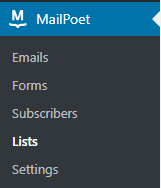
To edit a list you need to go to MailPoet -> Lists interface and select the “Edit” option under the list.

mailpoet-lists-menu-screenshot-1

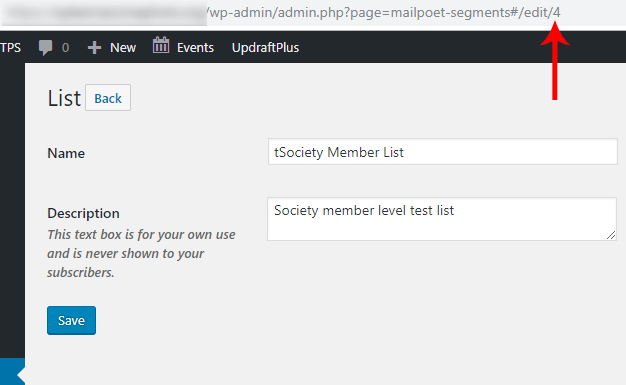
Once you click the “Edit” option you will be able to find the List ID from your browser’s address bar.

mailpoet-list-id-from-the-list-edit-interface

Step 2) Edit the eMember Membership Level  and specify the MailPoet list ID in the autoresponder List/Campaign Name field.

members-wysija-newsletter-integration-sc

Save the membership level and you are done!

Now, every time when a new member joins this membership level, the member will be automatically added to the specified MailPoet list.

AddOn Price

The addon is FREE for all customers who purchased WP eMember plugin from us.

Download the Addon

You can download this addon from the addon download area of our customer only support forum

  • Addon download area

Please note that some of these free addons are developed by our users in the community. So these addons do not have any advanced customization option. The description above explains exactly what this addon does.

Filed Under: Additional Resources, eMember Addon Tagged With: emember addon, newsletter

Member Registration Completion Hook

This documentation is only for developers. If you are not a developer with good PHP coding skills then you have no need to read this.

The registration completion hook (eMember_registration_complete) gets triggered after a member completes the registration. It will pass the details of the user who just registered to the handling function.

Here is a sample code to show you how it works. You can use this code in your custom plugin to see how it passes the data.

function handle_custom_registration_complete_event($member_data,$custom_fields)
{
  //The following line will print all the member details that got passed to this function via the $member_data array.
  //You can use this data however you like it.
  print_r($member_data);
  echo "<br />Custom fields data shown below<br />";
  print_r($custom_fields);
}
add_action('eMember_registration_complete','handle_custom_registration_complete_event',10,2);

Filed Under: Additional Resources Tagged With: API, member, registration form

Membership Site with Facebook Connect Plugin

Looks like the Facebook Connect plugin no longer exists. So this integration is not possible anymore.

In this tutorial I will explain how to use the Facebook Connect Plugin in conjunction with WP eMember to add facebook registration and login to your membership site.

eMember Does Not Create WordPress User Accounts by Default

When someone logs into a WordPress site using Facebook Connect they must have an existing WordPress user account. By default, when a new user is created in eMember, the user is not also created in WordPress. The account profiles for eMember are kept separate.

It makes no sense (in most cases) for someone to login to WordPress on a membership site without getting access to the content they are meant to have access to.

Therefore mirrored accounts need to be created, and mirrored logins need to happen to keep things simple for the users.

Optionally Import WordPress User Accounts Into eMember

If you have WordPress user accounts that need to be brought into eMember, you can do that very quickly. You have the option to import all accounts or just a selection of them.

Here are the steps:

  1. Go to WP eMember >> Members >> Import WP Users
  2. Choose which accounts you want to copy over, the membership level to use, etc.
  3. Click the Submit button.

Use Automation For Future Account Creation And Logins

Now that you have matching accounts between eMember and WordPress for all of the accounts that you want to, you can now set it up so that this happens automatically from here on out. At the same time we can turn on the auto background login features.

If you intend to turn on the ability to allow users to register to WordPress with Facebook Connect, we will need to make sure that a corresponding eMember account is created as well.

To enable that feature:

  1. Go to WP eMember >> Admin Functions.
  2. Look for the section labeled Automatically Create eMember Account When a WordPress User Account is Created.
  3. Enable it and click the Save Settings button.

Now, let’s set it up so that when an eMember account is created, a WordPress account is created in the background at the same time. While we are at it, we’ll turn on the auto login features at the same time.

Follow the steps below:

  1. Go to WP eMember >> Settings.
  2. Scroll down and look for the section labeled WordPress User Integration Settings.
  3. Turn on the top 3 options labeled “Automatically Create WordPress User,” “Automatically log into WordPress,” and “Automatically log into eMember.”
  4. Scroll to the bottom and click the Update Options button.

When everything is complete, test logins and registration using all scenarios to be certain all works as expected.

Filed Under: Additional Resources Tagged With: social media, WordPress membership, WP eMember

Bulk Member Data Importer Addon

The bulk member data importer addon lets you import all your member’s info from a CSV file.

Installing the AddOn

  • Upload the “emember-bulk-member-import.zip” file via the WordPress’s plugin uploader interface (Plugins -> Add New -> Upload)
  • Activate the plugin through the “Plugins” menu in WordPress.

Using The Bulk Importer Addon

Step 1) Prepare the CSV File with Member Information

The first step is to add members to a CSV file under the proper headings. You can download a skeleton of the CSV file here to get an idea of the layout needed.

Please use MS Excel in a windows machine to modify/create the CSV file for best result. It will create the CSV file with the correct format.

If you are exporting from another program, providing it is flexible enough to “order” the headings, be sure to export as CSV. You can then open the file using a spreadsheet software like Excel (or OpenOffice), then paste the headings on top.

When opening the CSV file using spreadsheet software, you will be prompted about which delimiter to use. “Comma” should be selected by default but if not make sure that it is selected, and that it is the only option selected in order for the file to show up as it should. The skeleton file available from the above link will have sample data (that can be safely removed) to give you an idea of the format for the fields.

Step 2) Use the interface to import the data

1) Open the eMember Bulk Importer page by clicking WP eMember -> Member Bulk Import.

2) Click the Upload a .csv file button.

3) Locate the .csv file on your computer and double click it.

4) An Import Summary will be displayed. We’re looking for the Total and Succeeded columns to have the same value at this point.

5) Click WP eMember -> Members to see the newly added/imported members.

Imported Member’s Password

The plugin will generate a random password for the imported users and send them the reset password email. You can customize this email from the “Email Settings” menu of the WP eMember plugin.

AddOn Price

The addon is FREE for all customers who purchased WP eMember plugin from us.

Download the Addon

You can download this addon from the addon download area of our customer only support forum

  • Addon download area

Please note that some of these free addons are developed by our users in the community. So these addons do not have any advanced customization option. The description above explains exactly what this addon does.

Filed Under: eMember Addon Tagged With: emember addon, import, member, WP eMember

eMember addon – Disable Button After Form Submission

This addon plugin will disable the registration and login form button immediately after the user clicks the button. If you have a slightly slow loading site then this should prevent users from clicking again and again when the form data is being submitted.

Installing the AddOn

  • Upload the “emember-disable-button-after-submission.zip” file via the WordPress’s plugin uploader interface (Plugins -> Add New -> Upload)
  • Activate the plugin through the “Plugins” menu in WordPress.

Using The Addon

You don’t have to do anything other than keeping it active.

AddOn Price

The eMember Email Broadcast addon is FREE for all customers who purchased WP eMember plugin from us.

Download the Addon

You can download this addon from the addon download area of our customer only support forum

  • Addon download area

Please note that some of these free addons are developed by our users in the community. So these addons do not have any advanced customization option. The description above explains exactly what this addon does.

Filed Under: eMember Addon Tagged With: disable button, emember addon, emember extension, registration form

WordPress Newsletter Plugin (by Tribulant Software) Integration Addon

The WordPress newsletter plugin is a newsletter software for WordPress which allows you to gather unlimited email subscribers, organized into multiple mailing lists.

Tribulant has created an eMember addon that allows your members to be added to the WordPress newsletter plugin. View the full details of this newsletter plugin addon here.

It can sync memberships with subscribers.

Filed Under: eMember Addon Tagged With: 3rd party integration, emember extension, Integration, newsletter

How to Limit Access to Video Content on a WordPress Site

In this article and the embedded video I will demonstrate how to prevent access to video content from non-paying members or members without sufficient privileges, on your WordPress site.

There are a few different ways you can limit access to your protected videos and make it only available to your members. In this tutorial I will cover an in-depth method of making videos available to your members only or a customer can buy an individual video and view that video.

You should also check out this other simple option to protect videos.

What Plugins I will Use in This Tutorial

I am going to use the following two WordPress plugins for this tutorial

  • WP eMember
  • WP eStore

These instructions will allow you to provide access to video content in two different ways, for those that are members at the appropriate membership level, and for those who purchased “pay per view” or PPV access. PPV access grants access to one or more videos depending on what was purchased, rather than the “whole lot” which is available to paying members.

Video Tutorial

Setting up the Video Display Page

In the video example you will see that I setup a page that gives visitors a view of all the video courses that are available. Regardless of whether the individual is logged in or not, or what privelegs they have, they will see a thumbnail of the video.

If the visitor is a logged in member with appropriate access, he or she will be able to click the video thumbnail, or the accompanying “Watch Now” link to gain access to the video watch page.

For those that are not logged in, or those that are logged in but aren’t at the appropriate membership level, they will see “add to cart” buttons rather than “watch now” links.

Pay Per View access is not taken into account on this page.

Below is the code, including the shortcodes that could be added to the video display page. Modify the code to adopt it for your needs.

At the top of the page in the sample showed in the video I have a welcome message that changes based on whether the visitor has access to the content or not.

[emember_protected for=2 custom_msg='No access']
If you see this text then you have access
[/emember_protected]

In the above code it checks whether the visitor is logged in and has a membership level of 2. You can determine the appropriate membership level ID to use by going to WP eMember >> Membership Level.

The custom message will accept HTML so you can ask the visitor to “login” or “join” if desired, and link them to the appropriate place. Just be sure to use single quotes to wrap around your custom message and double quotes in your HTML (or vice versa). Also, do not use square brackets in your custom message. I have also found that using more than one break tag in a row generates undesirable results.

Check the partial protection documentation to learn more on the usage of this shortcode.

The other message, the message that shows when the visitor has full access to the content, can explain how to gain access to the content. In my example, I explained to click the “watch now” link to watch the video.

Here is the code used to show either the “add to cart” button or “watch” link below the video thumbnail/description.

[emember_protected for=2 do_not_show_restricted_msg=1]

<a href="#">Watch Now</a>

[/emember_protected]

[emember_protected scope=not_logged_in_users_only]

[wp_eStore_add_to_cart id=1]

[/emember_protected]

[emember_protected not_for=2 do_not_show_restricted_msg=1]

[wp_eStore_add_to_cart id=1]

[/emember_protected]

Here we are again checking for membership level “2” and if found, it links to the video watch page for that particular video. Note: The URL for the video watch page is no secret, the plugins will work to keep the video protected even though the page is publicly accessible.

The next two bits of code may seem redundant but they are checking for two different scenarios even though the results are the same.

One block is displaying content if the visitor is “public” (i.e. not logged in) and the other is displaying content if the visitor is in fact logged in but doesn’t have sufficient privileges. Either way, we are providing an “add to cart” button which will give them access to that individual video.

Somewhere on the page we should also indicate that they can save money (assuming that is the case) if they pay for a full membership rather that buying access to videos on an individual basis. I have seen this scenario where commonly one month of access to all content is slightly less than the cost of two or three individual videos.

Setting Up the Video Watch Page

The video watch page is a public URL but has a section with protected content (the HTML that displays the video). This video HTML can be to YouTube, but in order to keep it really secure it might be best to use a solution such as Amazon.

At any rate, the video watch page checks a few different scenarios before deciding what to display to the visitor.

First off, members with proper access gain access to the video content. Secondly, non-members with pay-per-view access are allowed to view the video content as well. Everyone else sees a thumbnail and a buy button.

Below is the code to grant users who are logged in and have sufficient access (i.e. members), the ability to stream the video. In some cases (when using Amazon AWS for example) you can also provide a download link for the video from within the HTML that is displayed to visitors with sufficient privileges.

[emember_protected for=2 do_not_show_restricted_msg=1]

HTML to display and optionally download the video content

[/emember_protected]

Just like before, we are looking for membership level of 2. If the current visitor’s membership level is not 2, we do nothing. This is why “do_not_show_restricted_msg” is set to 1. This tells the shortocde not to display the default “insufficient access” message for non-privileged users.

After that (below) we have code for logged in users that aren’t at the proper membership level. If you remember, when taking into account pay per view access, this doesn’t necessarily mean that they can’t view the content. For that reason we are using the “wp_eStore_APR” shortcode to check for the cookie that shows that they paid (per view).

We are also considering non logged in users with this code. Non logged in users may very well have access to the video content as well on a pay per view basis. If not, we give them their options (login, pay for a membership, or pay for individual access).

[emember_protected not_for=2 do_not_show_restricted_msg=1]

The code in here is displayed and executed when members ARE logged in but don't have membership level access to ALL content

[wp_eStore_APR expiry=0 status=unexpired]

HTML to display and optionally download the video content.
This is displayed for those that have PPV access.

[/wp_eStore_APR]

[wp_eStore_APR expiry=0 status=expired]

This is displayed for those that DO NOT have PPV access.
It is appropriate here to include a "buy now" or "add to cart" button, or a link to get membership access.

[/wp_eStore_APR]

[/emember_protected]

[emember_protected scope=not_logged_in_users_only]

The code in here is displayed and executed when members ARE NOT logged in

[wp_eStore_APR expiry=0 status=unexpired]

HTML to display and optionally download the video content.
This is displayed for those that have PPV access.

[/wp_eStore_APR]

[wp_eStore_APR expiry=0 status=expired]

This is displayed for those that DO NOT have PPV access.
It is appropriate here to include a "buy now" or "add to cart" button, or a link to get membership access.

[/wp_eStore_APR]

[/emember_protected]

Setting up the “Product” for the Video

Now, the above code is really just the first step to getting pay per view to work.

Using eStore we now must setup a product for each video. There are a couple required fields here:

a) product name of course
b) product price naturally

…and in the Digital Content Details section:

a) Digital Product URL: this is the link to the page for the video (created above) – be sure to replace “http” with “aprtp” (or “https” with “aprtps”) in the full URL
b) Uncheck “Downloadable”

Now, when someone purchases individual access (or pay per view access) to a video, they will be given a “download” link in an email. Of course, they will not be downloading the video watch page, but visiting/viewing it instead.

Upon visiting the page, the cookie will be checked, and the individual will be able to watch the video (i.e. view the hidden PPV content, whatever it may be).

Filed Under: Additional Resources Tagged With: video membership site, video protection, WordPress membership

WP eMember Email Broadcast Add-On Plugin

The eMember email broadcast addon gives you the ability to send an email broadcast to your members from within the WordPress dashboard.

This isn’t the same as sending an email to an existing list through a 3rd party like AWeber, MailChimp, or GetResponse. However the ‘Autoresponder Integration’ feature built into the main eMember plugin does allow for members to be added to your lists automatically. This is more meant for those that do not use a 3rd party email marketing provider, or just want to send a quick email to all (or a selection of) members.

Installing The Add-On Is Like Installing Any Other Plugin

  • Upload the “emember-email-broadcast.zip” file via the WordPress’s plugin uploader interface (Plugins -> Add New -> Upload)
  • Activate the plugin through the “Plugins” menu in WordPress.
  • Go to the Email Broadcast interface from the eMember dashboard menu.

Be sure that the WP eMember plugin is already installed and activated or else the add on will have no use.

How To Send An Email Broadcast

The email broadcast feature is a flexible way to send emails to all or some of the members of your membership site. You have the ability to send to: members of one or more specific membership levels, one or more specific members, only active members, only inactive members, only pending members, only expired members, or of course to all members as mentioned.

Follow the quick steps below to send a message:

1) Enter in a Subject line for the email.

2) Enter in a Message to send and include any “tokens” (or shortcodes) to fill in certain information dynamically. You simply just have to click on a specifc token to have it placed at the end of the message. Options include: User Name, First Name, Last Name, Member Since Date, Membership Level, Account State (active or pending etc), Gender, Company, Email, Phone, and Subsrciption Starts Date.

3) Optionally enter in a Signature.

4) Specify a Send Date.

5) Select from the different options for who you want to send the email to.

6) Click Send!

AddOn Price

The eMember Email Broadcast addon is FREE for all customers who purchased WP eMember plugin from us.

Download the Addon

You can download this addon from the addon download area of our customer only support forum

  • Addon download area

Using Emoji in Your Email Subject or Body

If you want to use Emoji in your Email Subject or Body, then you will need to make sure the Database table columns for the email broadcaster addon uses a collation value of “utf8mb4_unicode_ci”. You can go to PHPMyAdmin of your site to access your WordPress database and then view the “wp_eMember_email_broadcast” database table to make modifications.

General Note

Please note that some of these free addons are developed by our users in the community. So these addons do not have any advanced customization option. The description above explains exactly what this addon does.

Filed Under: eMember Addon Tagged With: email, email list, emember extension, WP eMember

WP eMember Form Builder Addon (Extension)

The eMember Form Builder Addon allows you to create registration and edit profile forms with custom fields.

WP eMember has a feature that allows you to control which fields appear on your membership registration form. It also lets you add your own custom fields to the registration form. The form fields customization documentation has details of this core plugin feature.

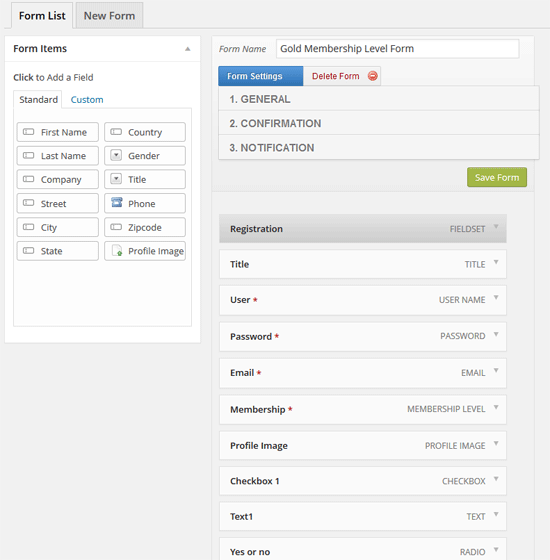
However, we have found that a few businesses out there need more flexibility in terms of customizing the form fields of the membership registration form. This addon was created to solve that issue. It allows you to create registration form(s) with whatever custom fields you require using a drag and drop system.

emember-form-builder-addon-screenshot

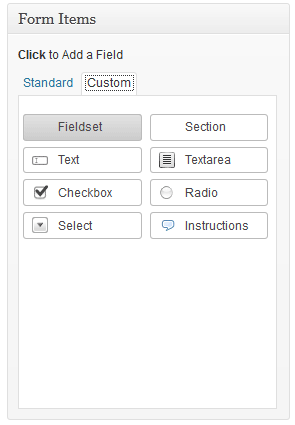
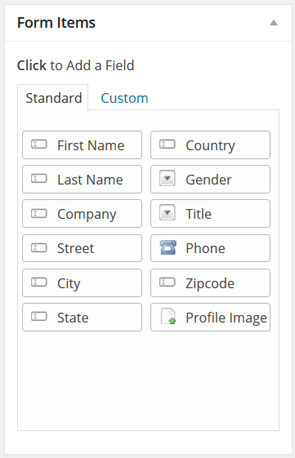
The following screenshot shows the various types of custom fields that you can add to your membership registration and edit profile forms to collect details from your members.

emember-form-builder-addon-custom-fields
emember-form-builder-addon-standard-fields

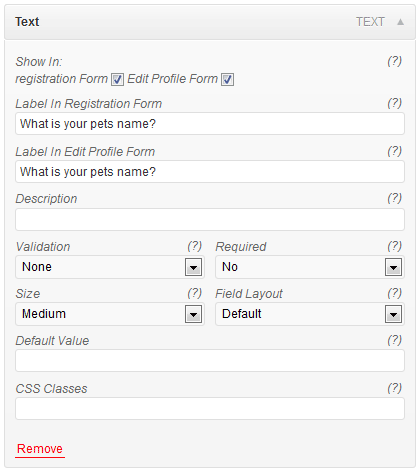
You can customize various details of each custom fields that you add to the form:

emember-form-builder-addon-screenshot-3

You can also create fields that are “ReadOnly” so your members can only see the content of the field but can’t edit it.

There is an option to create “Hidden” fields too. Hidden fields are not visible to the members (only admins can see the content of the hidden fields).

Installing the Form Builder Addon

  1. Click on the “Add New” menu under the plugins interface.
  2. Go to the “Uploader” tab and upload the emember-form-builder.zip file
  3. Hit the “Install Now” button and then activate the addon

Form Builder Addon Usage

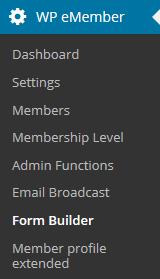
Go to the form builder menu from the main eMember admin dashboard menu:

emember-form-builder-addon-menu

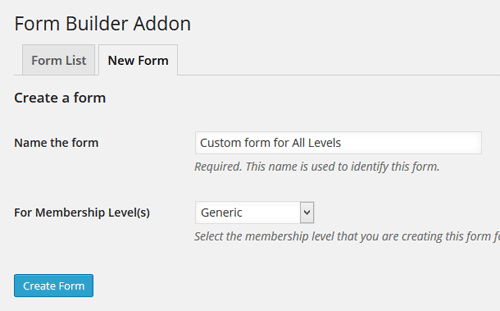
Click on the “New Form” link to create a new custom form:

creating-a-new-custom-form

You can create a custom form for each of your levels. However, you should create a “Generic” form first that way if you don’t have a custom form for a specific level, it will use the generic one for that level.

After you hit the “Create Form” button, you will be in the form customization interface where you will be able to visually add or remove fields for the registration and edit profile forms.

You have the option to apply the following  rules to your custom fields:

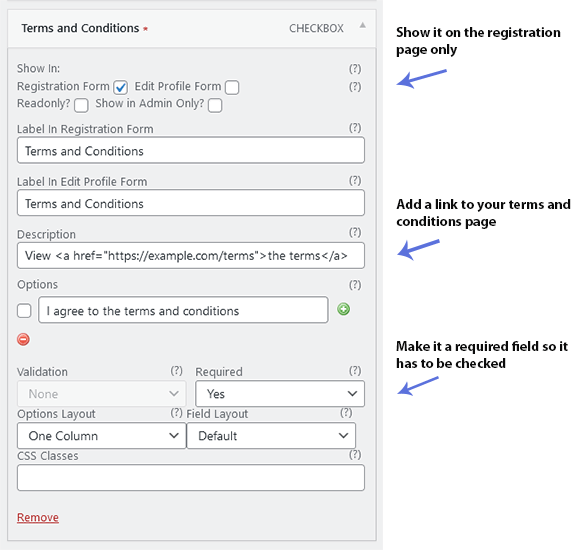
  • Show the field in the registration page only.
  • Show the field in the edit profile page only.
  • Make the custom field a required field (so a user has to enter a value in that field).
  • Make the field read-only (a user can only view the value of that field, edit is not allowed).
  • Show the field in the admin interface only (so only admin user can enter value there).

How do I show the Custom Form?

The custom forms you create in the form builder addon works with the existing registration page (and the registration page shortcode). The same goes for the edit profile page also.

You don’t need to do anything else other than to just create your custom forms and save the forms.

When your users visit the registration page, they will see the appropriate custom registration form (just like the standard eMember registration form). Don’t go to the registration page directly and expect to see a particular custom form.

You must read the following two documentation to learn how the registration form rendering behaves in the plugin:

  • How the plugin uses one registration page to handle all types of member registration
  • Typical member registration process overview

Placing a Custom Registration Form for a Particular Level

If you want to put a registration form for a particular membership level on a page for whatever reason, you can do that using the standard shortcode.

Read this documentation which explains how you can put a registration form for any level on any page.

Viewing the Custom Field Values

The site admin can go to the members menu of the eMember admin dashboard and edit a member record to view the custom fields of that member (just the same way you would view any other details of a member).

Also, if you have enabled the “Send Notification to Admin” option for the “Registration Complete” email, then the admin will receive the custom field values in that notification email.

Adding a Terms and Conditions Checkbox

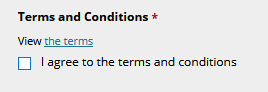
You can use a “Checkbox” type field to add a terms and conditions checkbox to the registration form. This will force users to agree to your terms before they can complete the registration.

The following is an examaple showing how you can configure a simple terms and conditions checkbox.

The following screenshot shows how this terms and conditions checkbox looks on the front-end

Video Tutorial Showing the Basic Usage

Get This Addon/Extension

The price of this addon is $39.00

Filed Under: eMember Addon Tagged With: customize registration fields, emember extension, form builder

  • « Previous Page
  • 1
  • …
  • 3
  • 4
  • 5
  • 6
  • 7
  • …
  • 10
  • Next Page »

Get the WP eMember Plugin

Get WP eMember

Categories

  • Additional Resources
  • Content Protection
  • Design & Usage
  • eMember Addon
  • Installation
  • Integration
  • License
  • Testing
  • Uncategorized
  • Video Tutorial

Recent Comments

  • admin on Giving a WordPress Admin User Access to All Protected Content
  • Ramona Hapjke on Giving a WordPress Admin User Access to All Protected Content
  • admin on Overview of the Available Content Protection Methods
  • Ramona Hapke on Overview of the Available Content Protection Methods
  • admin on Giving Other WordPress User Roles Access to Your WP eMember Admin Dashboard

Featured WordPress Plugins

WP Express Checkout Plugin
wordpress_estore_icon
wordpress membership plugin icon
wordpress_affiliate_plugin_icon

Copyright © 2026 | WP Membership Plugin