WordPress Membership

Easy to use WordPress Membership plugin

  • Documentation
  • WP eMember Plugin
  • Projects
  • Home

WP eMember Capture Affiliate Leads Addon

This addon allows you to capture each WP eMember user signup as affiliate leads if the user was referred by an affiliate. This is useful for setting up a site where you see each of your member/user signups as a lead.

When this addon is active, every time a user signs up, the addon will check to see if the user was sent by an affiliate. It will then capture this user’s details (email address and name) as a lead in the affiliate platform plugin. You will be able to see all the captured leads in the “Manage Leads” admin menu of the affiliate plugin.

What can you expect from this Addon?

The following points show the usual flow of events that you can expect when this extension is active:

  1. An affiliate sends a visitor to your landing page (The affiliate plugin detects this referral and tracks the click)
  2. The visitor decides to become your member.
  3. After the membership registration form is submitted, the affiliate plugin detects that this member was sent by an affiliate.
  4. The affiliate plugin captures this member as a lead in the lead capture table.
  5. You can see all the leads by going to the “Manage Leads” menu of the affiliate plugin.

Addon Price

The eMember affiliate leads addon is FREE for all customers who purchased WP eMember plugin from us.

Download the Addon

You can download this addon from the addon download area of our customer only support forum.

General Note

Please note that some of these free addons are developed by our users in the community. So these addons do not have any advanced customization option. The description above explains exactly what this addon does.

Filed Under: eMember Addon Tagged With: capture leads, emember addon, emember affiliate, member signups as affiliate lead

How to Create Teaser Content for Your Membership Site

What is Teaser Content

A teaser is a short part of content to draw user in. It is used to “tease” a visitor into reading/viewing the rest of the content and in the process become a member of the site.

How to Create Teaser Content Using eMember

There are two ways you can create teaser content using eMember:

  1. Using the More Tag Protection Feature
  2. Using the Section/partial Content Protection Feature

Method 1) Using the More Tag Protection Feature

First, enable the more tag protection by checking the “Enable More Tag Protection” option from eMember’s settings screen.

Next, insert WordPress’s “More Tag” marker in your posts to tell eMember what content is teaser and what content is for members only.

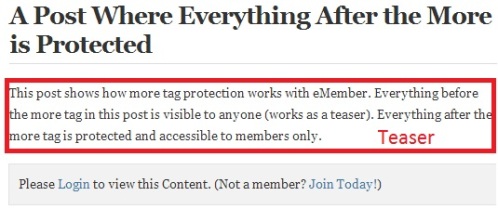
The content before that more tag marker in a post will be visible to everyone and serve as a teaser. The content after the more tag marker will be protected/hidden and only be available to logged members.

Example:

Teaser Content Example

Method 2) Using Section/Partial Protection Feature

You can also use eMember’s section/partial protection feature to hide certain section/area of the post or page. The section of the content that you keep open for everyone serves as a teaser.

Please check our documentation on section protection feature to learn how to use this feature.

Filed Under: Design & Usage Tagged With: create teaser content, partial content protection, section protection, teaser content, WP eMember

Automatically Redirect Your Members to a Page After They Login

WP eMember has an “After Login Redirection” feature that you can use to automatically send the members to a specific page (example, members only area) when they log into the site.

How to Enable the After Login Redirection Feature

  • Go to the WP eMember Settings menu
  • Check the “Enable After login Redirection” checkbox
  • Save the settings by clicking the update button at the bottom of this page

How to Configure Which Page to Redirect to

There are 3 options to choose from:

  1. You can redirect all of your members to a specific page upon login. Simply specify the URL of the page in the "eMember settings -> Pages/Forms Settings -> After Login Page" field.
  2. You can redirect members to a specific page based on their membership levels. Specify the URL of the redirect page in the "Membership Level -> Redirect After Login" field to configure a per membership level specific redirection page.
  3. You can also redirect on a per user basis (redirect a specific member to a specific page). Specify the URL of the redirect page in the "Members -> Edit a member's record -> After Login Page URL" field to configure a per user specific redirection page.

Can I Use a Mixture of These Available Redirections?

Yes, you can mix them up. This is how eMember will determine the after login redirection of a user when he/she logs into the site:

  • First, it will check if there is a user specific redirection available for the member. If it finds one then it will redirect the member to that page.
  • If a user specific redirection is not present, the plugin will check if a membership level specific redirection is configured. If it finds one then it will redirect the member to that membership level redirection page.
  • If the plugin can’t find any of the above, it will redirect the user to the global/general redirection page specified under the “Pages/Forms Settings” area.

Do Not Trigger After Login Redirection when Logging in via Inline Login Widget

This option can be used to keep the user on the current page when they are logging in via the inline login widget. The inline login widget is shown when a member clicks on the login link inside a protected post/page.

You can enable the following option in eMember plugin settings:

Prevent After Login Redirection When Logging in via Inline Login Option

When this option is enabled, the after login redirection won’t get triggered when the login action happens via the inline login widget. If the member goes to the standard login page and logs in then the redirection will work as configured in your site.

Create a Custom Link to the Login Page to Redirect to a URL

The after login redirection will honor the redirect_to query parameter in the URL. If you specify a URL value via the redirect_to parameter then it will send the user to that URL after the loging (ignoring any after login redirection that you may have configured in the settings).

Below is an example of how you can use the redirect_to parameter to create a link to the login page.

https://www.mysite.com/member-login/?redirect_to=https://www.mysite.com/special-redirect-page

If a user clicks on this link and logs into the site from the login page, he will get redirect to that specified URL.

Create a Custom Link to Override the Login Redirection

You can specify the no-redirect parameter in the login page’s URL to prevent the after login redirection.

Below is an example of how you can use the no-redirect parameter to create a link to the login page.

https://www.mysite.com/member-login/?no-redirect=1

When a member clicks on the following link and logs into the site, there will be no after login redirection for him (even if you have enabled the redirection feature).

Filed Under: Design & Usage Tagged With: after login redirection, member login redirection, Usage Guide, WP eMember

WP eMember and BBPress Forum Plugin Integration

WP eMember (membership plugin) can be used with BBPress forum plugin to protect the content of your forum topics.

Required Setup for BBPress Forum Protection Feature

Simply enable WP eMember’s WP User integration feature then choose one of the following protection options for your forum.

There are 3 different forum protection options:

  1. You can protect a BBPress forum (the forum and all the topics inside that forum will be protected)
  2. You can protect individual topics
  3. You can make the full BBPress forum area members only

1. Protect a BBPress Forum

This is the most widely used option when it comes to making your forum(s) member only.

This option allows you to protect the forum and all the topics inside that forum for members of particular membership level.

When you create a BBPress forum you can specify the eMember protection settings for this forum. WP eMember will only let members of the correct membership level (that you specify) to see the content of the topics that belong to the protected forum.

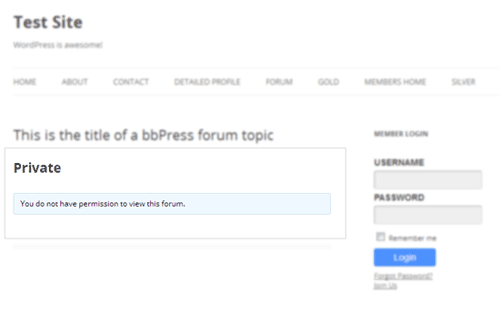
Users who do not have permission to view a forum topic will be greeted with a message like the following:

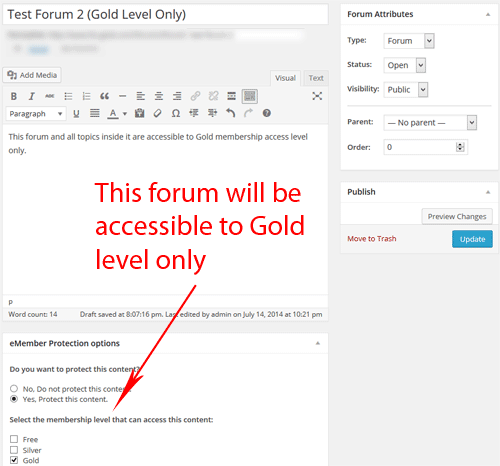
To use this option, edit the “forum” in question from your admin dashboard. Then scroll down to the “eMember protection options” box at the bottom and choose your protection settings.

bbpress-entire-forum-protection

2. Protect Individual Forum Topics

If you want to keep your forum topics open and only protect a handful of topics selectively then this option will be useful for you.

Keep your forum unprotected then edit an individual forum topic and set the eMember protection settings for that topic. eMember will only let the members of the correct membership level to see the content of the protected forum topic.

Users who do not have permission to view a forum topic will be greeted with a message like the following:

To use this option, edit the forum topic from your admin dashboard and choose the protection settings from the “eMember protection options” box.

3. Lock-down the Full Forum Area to Members Only

If you want to lockdown your forum area and make it to where only logged in members can view it, then this option will be useful for you.

This option is achieved by using eMember’s lockdown feature and specifying the URL of the forum area. The following documentation on the lockdown feature explains how to use the lockdown feature:

  • How to use the eMember’s lockdown feature

Filed Under: Integration Tagged With: bbpress forum plugin integration, membership and bbpress forum, wordpress membership with bbpress

WP eMember Captcha AddOn (Alternative to Google reCAPTCHA)

The recommended Google reCAPTCHA alternative is to use this solution.

Filed Under: Additional Resources, eMember Addon Tagged With: captcha addon, emember addon, wp emember captcha

WordPress eMember Change Log

WP eMember v10.0 Change Log

  • New feature to hide admin toolbar for all users except admins. So the toolbar in the front-end is visible to admins only.
  • New feature for better custom post type protection.
  • Added fallback code in the new member creation insert query to convert the data to UTF-8 (where possible).
  • Added a new option to tell the plugin to use the same timezone values that is set in your WordPress timezone settings.
  • Added a new feature in the Members List menu to show a list of soon to expire members list.
  • Added a new feature in the admin functions menu to bulk update the auto upgrade start date change.
  • Added a new feature so you can specify email address patterns in the member blacklisting interface.
  • Fixed a bug with the bulk send registration complete email.
  • Reduced the spacing between the teaser content and the protection message on posts using “more” tag protection feature.
  • Updated the Clickbank IPN handling code to work with Clickbank IPN v6.0
  • The free rego with email confirmation feature will now take into account the email blacklisting feature.
  • Woocommerce billing user meta will get updated when emember record is created with wp user integration option.
  • Upgraded mailchimp API to the new Mailchimp API v3.
  • All debug log files now have .txt extension.
  • Increased the login cookie expiry duration.
  • Added secondary level filtering option in the manage members menu admin interface.
  • Removed the CSS style for the login, registration and edit profile submit buttons. The styles of those buttons will now come from the theme.
  • The after login redirection will now honor the “redirect_to” query parameter in the URL. If present it will redirect to that URL. Example below:
    www.example.com/member-login/?redirect_to=mysite.com/test-page
  • New Braintree payment gateway option. Your members can now pay for membership using Braintree.
  • The registration and edit profile form CSS code has been reworked so it is fully responsive and mobile friendly.

WP eMember v9.0 Change Log

  • New email tag for member ID in the registration complete email.
  • Added “not for” condition in the section protection shortcode.
  • Ability to specify a message for the “First Click Free” viewers.
  • Added generic autoresponder integration option.
  • Enhanced the WordPress Multisite integration capability.
  • Ability to use eMember’s profile image picture in WordPress comment avatar.
  • Enhanced the first click free message condition so it only shows on single post view and if the post is fully protected.
  • More BBPress integration feature. Now if a BBPress forum is protected, then all the topics in that forum is also protected.
  • Added an option to specify the bookmark listing page URL. When a page URL is specified, it will show the link to this page in the login widget.
  • Added a new option in the settings to preserve the WP User’s role when using the WP User integration feature.
  • Added a new function called “emember_is_logged_into_secondary_level” for developers.
  • Added the display of the expiry date of a member in the admin dashboard.
  • Added an admin notes section for each member. An admin can use this field to save notes about the member.
  • Ability to manually add files uploaded to the protected folder via FTP.
  • Added an option to turn off the welcome email sending for mailchimp autoresponder signup when double optin is disabled.
  • Added an option to show an email list of “Expired Members” in the members list menu area.
  • Added an option to enable bookmarking feature for logged in members only.
  • Added a shortcode to display various referrer details to the visitor.
  • Overhauled the profile image upload functionality (it now automatically saves the image upon ajax upload).
  • Added an option to add a confirm password field in the member registration form.
  • Added a new language definition that gets shown to the user when you are using the “Manually Approve Membership” feature.
  • Account status now gets set to “pending” at registration time if the “Manually Approve Membership” feature is enabled.
  • A new tab in the “manage content protection” menu to protect Custom Posts.
  • Ability to protect the media library attachments.
  • Added a “redirect_to” parameter in the [wp_eMember_upgrade_membership_level_to] shortcode to redirect after the upgrade.
  • Fixed a minor bug with member data export feature with custom fields.
  • Released an Email Broadcast addon that allows you to send mass emails to your members.
  • Added a new shortcode [wp_eMember_my_membership_levels] to display a list of membership levels that a user has in his/her profiles (useful if you are using lots of secondary levels).
  • Manage members menu overhauled.
  • Tab menu navigation links have been updated to the native WordPress ones.
  • You can now set WP roles other than “admin” to access eMember admin dashboard if you need it for whatever reason.
  • Added a country dropdown list for the country field in the registration form.
  • Improved the [wp_eMember_my_membership_levels] shortcode to show the welcome page URLs too. Example usage: [wp_eMember_my_membership_levels show_welcome_page=”1″]
  • WooCommerce Integration.
  • Added a new Bulk Operation menu under emember admin functions interface for bulk changing user’s membership level and subscription start date
  • Added a new API for deactivating member’s profile.
  • Added an option in the members menu for pagination
  • Added more filter options in the manage members menu
  • The username field will now accept an email address value too
  • Added a new option in the disable simultaneous login feature so you can now choose to keep the most recent login session or the active login session
  • Added a new URL parameter “no-redirect” to override the after login redirect. Example: When members login from the following URL, there will be no after login redirect even if there is one set in the settings: example.com/loginpage/?no-redirect=1
  • The free registration confirmation message will now show the email address where the mail was sent to. It also has a filter to customize this message.
  • Added the DONOTCACHE constant definition for hyper cache plugin compatibility.
  • You can now use multiple email addresses (separated by comma) in the notification email address field.
  • Auto redirect on protected page addon is released
  • Added Norwegian language translation.
  • Added a new feature in the membership level to protect posts published before a member’s join date
  • Secondary /multiple levels per user feature has been revamped significantly
  • Updated the PayPal subscription cancellation shortcode to have an “alias” parameter to specify the secure merchant ID.
  • The [upgrade level to] shortcode will set the account status to active when used by a member.
  • New feature to hide the admin toolbar that WordPress shows to logged in users
  • The account update/upgrade email can now be disabled by entering a value of “disabled” in the email body field.
  • Added the option to specify a redirect URL in the [free_rego_with_email_confirmation] shortcode
  • The manage members list is sorted by “member_id” by default.
  • The member ID is visible as a field when a user profile is being edited from the admin dashboard.
  • Added a new feature to redirect expired users to a page upon login.
  • Added a new shortcode for easy PayPal integration
  • New option for the “scope” parameter in the section protection shortcode. Specifying “expired” will make it so a section is ONLY visible to expired users.
  • New option to specify the “for” parameter with the “expired” scope so a section can be protected for expired members who belong to a specified level.
  • Added a new addon for Drip integration.
  • Added the “do_not_show_expired_msg” parameter in the section protection shortcode so the “expired message” can be hidden for members whose account is expired.
  • It will now show a Warning/notice to the admin if a login redirect page is specified without the option being enabled in the settings.
  • Added a new API to allow querying of a member profile by ID or email address.
  • Added the new Google reCAPTCHA implementation to the plugin.
  • Added a new option to disable after login redirection when inline login widget is used to log into the site.

WP eMember v8.0 Change Log

  • New shortcode to section protect against a particular member
  • Limit affiliate account creation to particular membership levels only
  • Fancy 2 login style work (you can choose between fancy1 and fancy2)
  • Some language changes to make it more meaningful
  • Ability to force your members to re-authenticate after XX minutes of browsing
  • Exclude URL for lockdown
  • Comment section protection for the full page (not individual login message for each comment anymore)
  • Display various member details using shortcodes
  • Expire membership on a fixed date
  • After login redirection on per member basis
  • Added the display of last access from IP and last access from date value in the admin menu
  • Added the “Disable inline login widget option” feature
  • Added the ability to send a quick notification email to a member when editing a member profile from the admin
  • Shortcode for creating an unsubscribe button that members can use to cancel a recurring payment
  • Option to automatically log in your member right after the registration
  • Added short by membership join date
  • Enhanced site wide/domain level page protection
  • BBPress 2.0+ more integrated integration
  • Additional download folder protection feature.
  • Added a Custom compact login widget (can be useful for users who want to customize the compact login widget)
  • You can now use any member details column to replace the details value dynamically in the registration complete email
  • Exclude URL patterns from domain level lockdown feature
  • New feature to automatically create eMember account in the background for every WP User that gets created on the site (via the wp registration page or via other plugins)
  • Ability to disable simultaneous member login using the same member details (helps prevent login sharing)
  • Ability to display a link to the member’s welcome page (after login page) in the login widget area
  • Added more member list display filtering option in the “manage members” menu
  • Added a new shortcode to display a logged in users expiry date – [wp_eMember_user_details user_info=”member_expiry_date”]
  • Lots of minor under the hood enhancements and tweaks.

Filed Under: Additional Resources Tagged With: emember change log

WP eMember Profile Display Extended AddOn

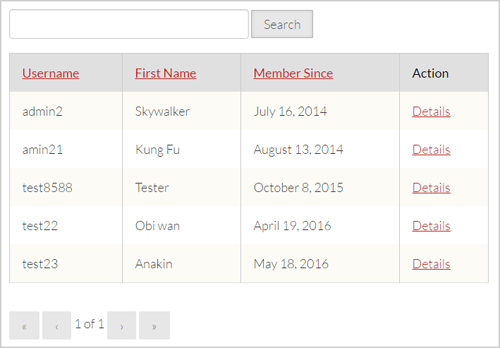
The eMember Profile Display Extended Addon lets you display your member’s profile on a WordPress page so other visitors can view it.

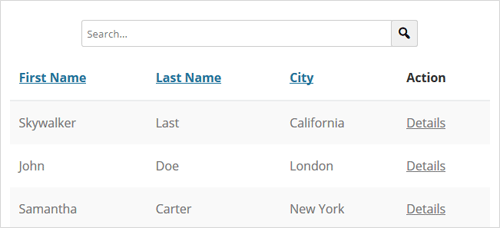
This allows your visitors to be able to see all the members from the front-end of your site. Your visitors will be able to search the user profile listing also.

You can configure exactly what fields (member detail) you want to display in the user listing.

profile-extended-addon-member-listing-example
profile-extended-member-listing-style-2-example

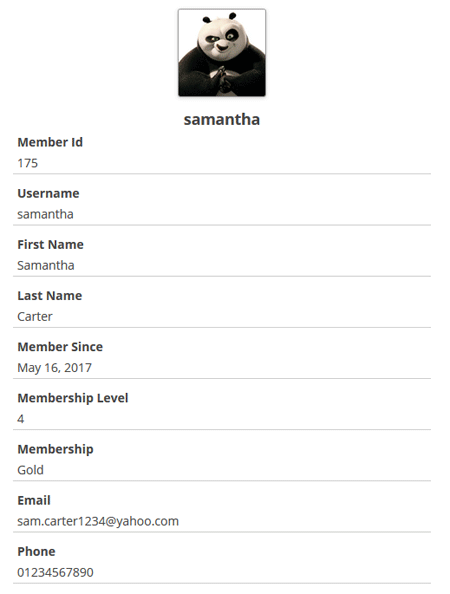
When a visitor clicks the “Details” link, it will show the full details of the member:

example-of-user-profile-display

eMember Profile Extended Addon Usage

Please read the following document to learn how to use the WP eMember profile extended addon:

WP eMember Profile Extended Addon’s Setup Steps

Additional Setup Options

Using Profile Listing Style 2

Add the following parameter in the member summary listing shortcode to use the style 2 of profile listing:

style="2"

The following is an example shortcode usage showing how to use this “style” parameter:

[emember_extended_summary_list fields="user_name,first_name,member_since" style="2"]

The following screenshot shows how this style of profile listing looks like:

profile-extended-member-listing-style-2-example

Adding a User Profile Search Box on Your Site

The user profile listing page has a built in profile search field that your visitors can use to search profiles.

Additionally, if you wanted to add a profile search box somewhere else on your site, then use the following shortcode (where you want to place the profile search box):

[profile_extended_search listing_page_url="http://www.example.com/profile-listing-page"]

You will need to provide the correct value for the “listing_page_url” parameter of the shortcode.

AddOn Price

The eMember profile extended addon is FREE for all customers who purchased WP eMember plugin from us.

Download the Addon

You can download this addon from the addon download area of our customer only support forum

  • Addon download area

General Note

Please note that some of these free addons are developed by our users in the community. So these addons do not have any advanced customization option. The description above explains exactly what this addon does.

Filed Under: eMember Addon Tagged With: directory listing, emember addon, member profile display, user profile listing

[Deprecated] – Integrate WP eMember with AWeber via Email Parser

This documentation is old and has been deprecated. It should not be used anymore. Use the new documentation for WP eMember and AWeber integration.

Before AWeber introduced their API, they only supported 3rd party integration using email parsers. This documentation explains how to integrate eMember using AWeber’s email parser method.

Step 1: Create an Email Parser

AWeber use email parsers in situations where you want subscribers to add to your list via an email from a third party, typically a payment processor, rather than the subscriber sending an email directly from their email program.

To add a new custom email parser select “Email Parser” from the “My Lists” menu and choose “Add New” from the “Custom Parsers” section.

  • My List -> Email Parser
  • Custom Parsers -> Add New

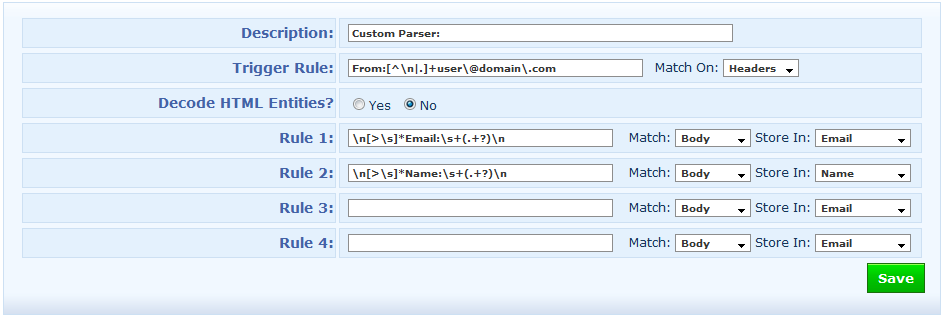
The new email parser configuration will look similar to the following (Click to enlarge)

New Parser

New Email Parser

There are only two fields (Description and Trigger Rule) that need changing here.

  • Give a description for this parser, eg. eMember Parser
  • In the Trigger Rule field, replace the “user\@domain\.com” with the email address that you have specified in the “From Email Address” field in the eMember’s email settings menu (This step is also very important).
  • If you have multiple lists in your account then edit the parser you just created then check the “Enable parser for all lists in this account” checkbox and save it (This step is also very important). Enabling this option will not harm any of your other lists… all it does is that it activates this parser so it can filter signup request from eStore and assigns the contact to the correct list.

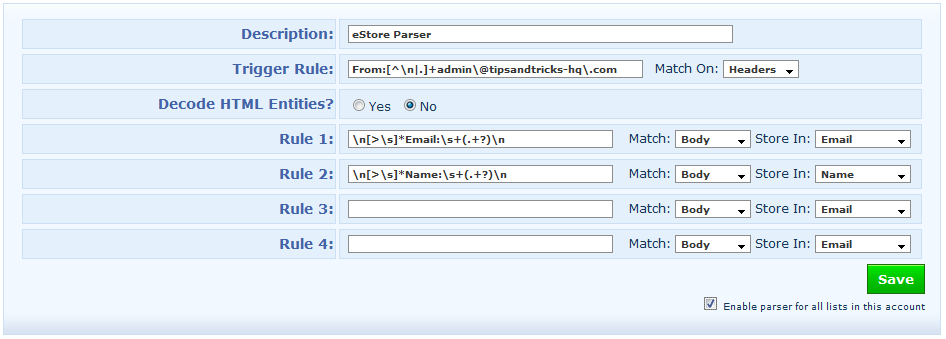
For example, the email address I have specified in my “From Email Address” field is “[email protected] so I need to replace:

user\@domain\.com

with

superadmin\@tipsandtricks-hq\.com

Below is a screenshot of my email parser (click to enlarge):

My Email Parser

My Email Parser

Adding an Email Parser is really simple but even a small error can throw everything off.

Step 2: Configure the WP eMember’s Autoresponder Settings

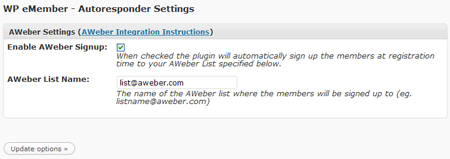
Now all you need to do is specify the AWeber list name that you want your customers to be signed up to and enable AWeber Signup.

emember-aweber-integration-sc

AWeber Settings Menu

Filed Under: Additional Resources

Show Different Navigation Menu to your Members and Non-members

This tutorial will explain how you can show different navigation menus to your logged in members and non-members if the theme supports WordPress menu.

General Warning: This is more of a General WordPress theme tweaking tutorial as the menu gets displayed by your theme. eMember has nothing to do with displaying your navigation menu. Different themes display the navigation menu differently and from different place(s) of the template file, so this tutorial may not be applicable to all themes. Also, a little bit of HTML and PHP knowledge is required for this tutorial.

If your theme has an option where it allows you to show different menu to logged in users and non-logged in users then you do not need to follow this tutorial.

Summary of What We will Do

  1. We will create two WordPress navigation menus from the “Appearance -> Menus” section of WordPress. One for the “logged in members” and the other for the “non logged in members”.
  2. We will then change your theme’s code (where the menu is getting displayed from) and replace the existing menu display code with a new dynamic menu display code.

Creating the Menus

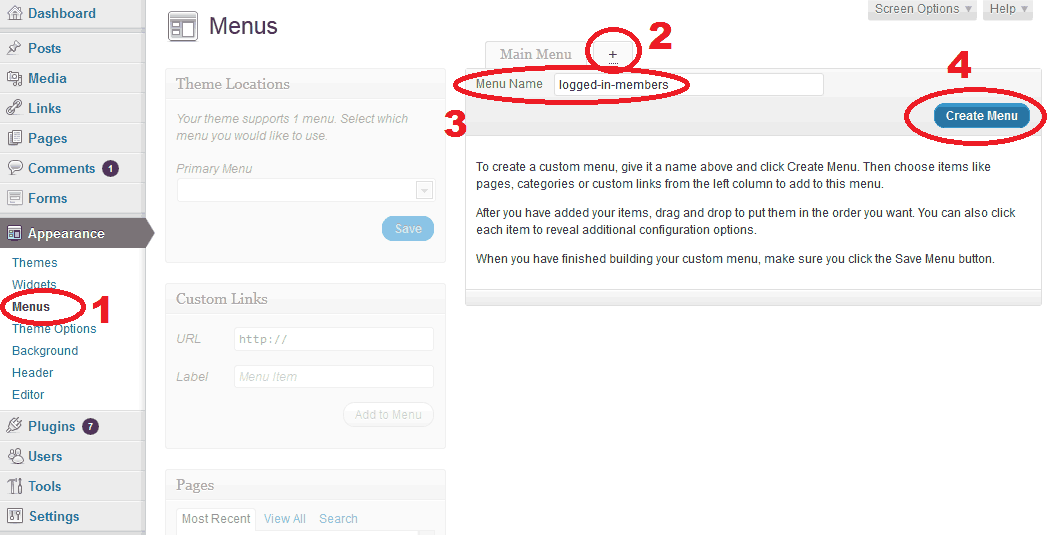
Step 1) Go to the “Appearance -> Menus” section in your WordPress dashboard and create a new menu with the name “logged-in-members” (we want to show this menu to our logged in members)

Creating a New WordPress Menu for Members

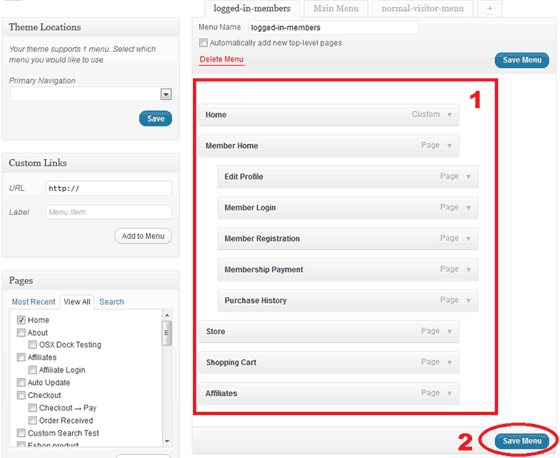
Step 2) Add whatever menu items you want to show to your logged in members in this newly created menu and then save this menu.

Adding Menu Items to Your Newly Created Menu

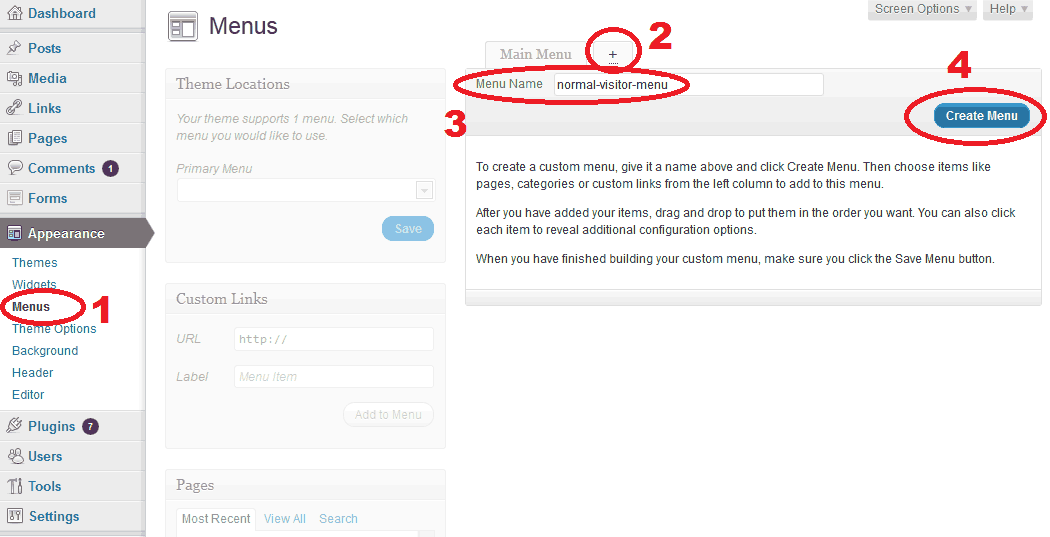
Step 3) Now, create another menu with the name “normal-visitor-menu“. we want to show this menu to our non logged in members (anyone who is not logged into the site will see this menu).

Create another menu for the normal visitors

Step 4) Add whatever menu items you want to show to your normal visitors in this newly created menu and then save this menu.

That gives you two WordPress menus (one for the members and one for everyone else).

Utilizing the Newly Created Menus in Your Theme

Step 5) Find the block of code in your theme that is displaying your navigation menu (you can ask your theme developer where this line of code is). Generally the navigation menu code resides in the “header.php” template file of your theme.

Example 1: The following line of code in the “header.php” file outputs the navigation menu in the WordPress Twenty Ten theme:

<?php wp_nav_menu( array( 'container_class' => 'menu-header', 'theme_location' => 'primary' ) ); ?>

Example 2: The following line of code in the “header.php” file outputs the navigation menu in the WordPress Twenty Eleven theme:

<?php wp_nav_menu( array( 'theme_location' => 'primary' ) ); ?>

Step 6) Once you have identified the block of code that is displaying your navigation menu, replace that code with the following block of code which will output the menus we already created dynamically:

<?php
if ( wp_emember_is_member_logged_in() ) {
wp_nav_menu( array( 'menu' => 'logged-in-members' ) );
} else {
wp_nav_menu( array( 'menu' => 'normal-visitor-menu' ) );
}
?>

WordPress Twenty Ten Theme: Use the following block of code for step 6 if you are using the WordPress Twenty Ten theme:

<?php
if ( wp_emember_is_member_logged_in() ) {
    wp_nav_menu( array( 'menu' => 'logged-in-members', 'container_class' => 'menu-header' ));
} 
else {
    wp_nav_menu( array( 'menu' => 'normal-visitor-menu', 'container_class' => 'menu-header' ));
}
?>

Show Different Menus to Different Membership Levels

If you want to show totally different menus to members of different membership level then you can do that too. Create your menus as usual then use the following logic:

<?php
if ( wp_emember_is_member_logged_in('1') ) {//Show this menu to members of membership level 1
    wp_nav_menu( array( 'menu' => 'level-1-menu', 'container_class' => 'menu-header' ));
} 
else if ( wp_emember_is_member_logged_in('2') ) {//Show this menu to members of membership level 2
    wp_nav_menu( array( 'menu' => 'level-2-menu', 'container_class' => 'menu-header' ));
} 
else if ( wp_emember_is_member_logged_in('3') ) {//Show this menu to members of membership level 3
    wp_nav_menu( array( 'menu' => 'level-3-menu', 'container_class' => 'menu-header' ));
}
else {//Show this menu to non logged in visitors
    wp_nav_menu( array( 'menu' => 'normal-visitor-menu', 'container_class' => 'menu-header' ));
}
?>

Filed Under: Additional Resources Tagged With: different menu for members, dynamic navigation menu

Overview of the Available Content Protection Methods

WP eMember has a few types of content protection methods available to help you protect your content. Most users use the “Standard Protection” and “Section Protection” options but depending on your situation the others might come in handy too.

This page provides an overview/summary of the different ways you can protect your content. There is documentation for each of these protection options which explains how a particular method works and how you can use it.

1) Standard Protection:

Protects the main body of the content (example, post body, page body). Visitors can browse the site as usual but they won’t be able to see the content of the protected posts, pages, comments etc. You control this type of protection via the “Manage Content Protection” tab or the “eMember Protection” section below the WordPress post editor at the time of editing your post/page. Full details on how to use this method of protection can be found here.

2) Section Protection:

You can also protect a section of a post or page content. Visitors can browse the site as usual but they won’t be able to see the section that is protected unless they are logged in as a member. Section protection is applied via a shortcode (you wrap the content that you want to protect with this shortcode). Full details on how to use it can be found here.

3) Site Wide Protection:

WP eMember has a site wide protection feature. When you use this feature, nothing on your WordPress site is accessible unless the visitor logs in as a member. You can selectively exclude some of your pages (example, a landing page) so it can be accessible without having to log in.

There is also an option to do the opposite of the above. Instead of locking down the full site you can selectively lock-down some pages or a group of pages on your site. The visitor won’t be able to see any part of the locked down pages unless they log in as a member. Full details of this option can found here.

4) Custom Content Protection:

This option is mainly useful for developers. WP eMember has a few functions that can help you write code to dynamically protect some content of your site. The snippets of code on this page will give you an idea of how it can be used.

Video Tutorial

Filed Under: Content Protection Tagged With: membership protection, WP eMember

  • « Previous Page
  • 1
  • …
  • 4
  • 5
  • 6
  • 7
  • 8
  • …
  • 10
  • Next Page »

Get the WP eMember Plugin

Get WP eMember

Categories

  • Additional Resources
  • Content Protection
  • Design & Usage
  • eMember Addon
  • Installation
  • Integration
  • License
  • Testing
  • Uncategorized
  • Video Tutorial

Recent Comments

  • admin on Giving a WordPress Admin User Access to All Protected Content
  • Ramona Hapjke on Giving a WordPress Admin User Access to All Protected Content
  • admin on Overview of the Available Content Protection Methods
  • Ramona Hapke on Overview of the Available Content Protection Methods
  • admin on Giving Other WordPress User Roles Access to Your WP eMember Admin Dashboard

Featured WordPress Plugins

WP Express Checkout Plugin
wordpress_estore_icon
wordpress membership plugin icon
wordpress_affiliate_plugin_icon

Copyright © 2026 | WP Membership Plugin