WordPress Membership

Easy to use WordPress Membership plugin

  • Documentation
  • WP eMember Plugin
  • Projects
  • Home

Setting Up “Before” and “After” Member Account Expiry Notification Email

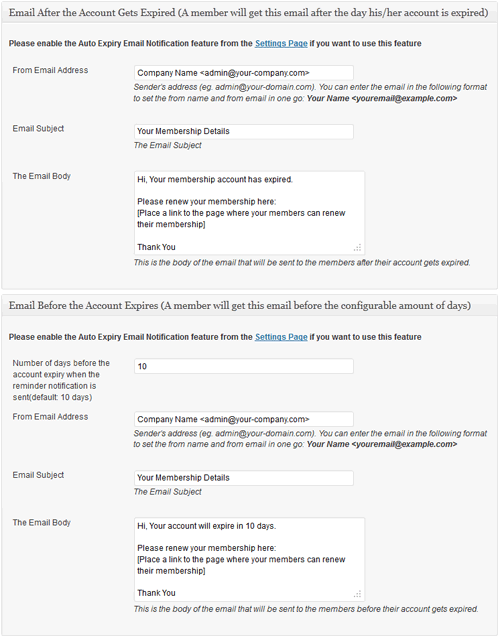
WP eMember can notify your members whose account is about to be expired or has just expired. You can use this feature to automatically prompt your members to renew their membership or take some other actions.

Do the following to use this feature:

  1. Enable the auto expiry email feature by checking the “Enable Auto Expiry Email Notification” checkbox in the eMember settings menu
  2. Customize the email from address, subject and the body.
  3. Save everything

Member account expiry notification email

Filed Under: Design & Usage Tagged With: auto expiry email, WP eMember

WP eMember and ClickBank Integration

Note: We are discontinuing the Clickbank integration due to a lack of usage. Please use any of our PayPal or Stripe integration for membership payments.

ClickBank Integration Instructions For Membership Payment

Step 1) Enable the “Instant Notification Service” in your ClickBank account by going to the following section:

My Account -> My Sites -> Advanced Tools

Step 2)  Take note of the “Secret Key” that you specify when requesting the “Instant Notification Service” in step 1.

Specify this secret key in eMember’s “ClickBank Secret Key” settings field (You can find it under the “Gateway Settings” tab of eMember settings menu).

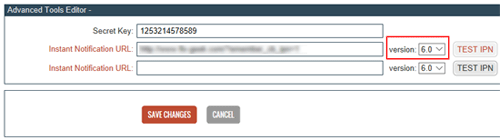
Step 3) When your request for IPN gets approved by Clickbank, take the URL value shown in eMember’s ClickBank Instant Notification URL Value field and use it in Your ClickBank account settings (You will specify it in the Instant Notification URL field of your Clickbank account).

clickbank-ipn-notification-url-value

Use the URL value shown in there and select IPN v6.0.

It is important to choose the correct IPN version number (see the screenshot below):

clickbank-ipn-settings-ipn-version-6

Step 4) Finally, when you create a product and place the payment button on a WordPress post or page, do the following:

Add the “membership_level_id” variable in your ClickBank button code. The value of the “membership_level_id” variable should be set to whatever the membership level ID this product corresponds to (example: if this is a payment for membership level 1 then use 1 as the value).

The following is an example of how it should look (given that membership level ID of the product is 1):

<input name="membership_level_id" type="hidden" value="1" />

Example Clickbank Button Code

<form action="http://item.vendor.pay.clickbank.net" method="post"> 
<input name="membership_level_id" type="hidden" value="1" /> 
<input src="https://www.example.com/uploads/pay-button.gif" type="image" /> 
</form>

When someone makes a payment using this button, the plugin will create a membership account with the appropriate membership level (Level ID 1 in the above example) and send the customer a “Prompt to complete the registration” email.

Creating a Thank You Page

You should create a generic thank you page for your membership site. Explain what the user can expect next in this “Thank You” page.

Instruct your users to check their email and click on the link to complete the paid membership registration.

The following is an example of the type of message you should put on your thank you page:

You will receive an email shortly which will contain the details of this transaction.

You will also receive an email containing a special link. Click on that link in the email to complete your paid membership registration.

Filed Under: Integration Tagged With: Clickbank integration, membership payment

Free Members Must Confirm Their Email Address

Usually you just send the visitors who are after a free membership to the “Registration” page and they can signup for a free membership (signing up for a free membership has no restriction). If you want to make it so they need to confirm their email address before they can create a free account (similar to what happens for the paid membership) then you can achieve that using one of the following two methods (use the one that suits your setup).

How the Registration Process Works with This Feature

When the Free Members Must Confirm Email feature is enabled, the registration process follows these steps:

  1. Member Fills Out the Pre-Registration Form
    The user fills out the pre-registration form on your site to initiate the registration process.
  2. Prompt to Complete Registration Email Sent
    After submission, the system sends an email to the provided address containing a unique link for completing the registration.
  3. Member Completes the Registration
    The user must click the unique link in their email to complete the registration and verify their email address.

How to Enable This Feature

Note: you only need to use one of the following two methods (there is no need to follow both of them).

Method 1

Go to the settings menu of the WP eMember plugin and check the “Free Members Must Confirm Email Address” field. When this option is checked, the standard registration form gets replaced with with a small registration initiation form for email verification (the user will see the full registration form after the verification). When a user fills in this email verification form (name and email address) a unique registration link is sent to the specified email address. Users will only be able to register for a free member account after they click on the unique registration link sent to their email address.

Method 2

In this method you simply need to add in one extra step before the registration.

Create a NEW WordPress page with the desired name (example: Free Membership) then place the following shortcode on that page:

[free_rego_with_email_confirmation]

Now, you can place a link on your “Join Us” page to this newly created page to start sending potential visitors. When they fill in the form created by the above shortcode they will receive an email which will let them complete the free membership registration after they click on the link sent to them via email.

Using with a Particular Membership Level

You can also use this shortcode with a particular membership level. This is useful if you want to offer multiple free membership levels.

So for example, if you wanted to use it for membership level ID 2 then you could use the following shortcode:

[free_rego_with_email_confirmation level=2]

Redirecting to a Page

You can also setup a redirection with this shortcode so that the users get redirected to a page after they submit the form. Use the “redirect_to” parameter in the shortcode to specify a page URL where you want to redirect the users after they submit the free registration confirmation form.

Example shortcode usage below:

[free_rego_with_email_confirmation redirect_to="http://example.com/page-after-submitting-form"]

Note/F.A.Q

We get asked the following question a lot on this “Free member must confirm email” topic:

Q. Can we still use the full registration form for free membership or why can’t I see the full registration form?

A. It’s important to note that this process does not replace the full registration form. The member will still need to complete the full form, including selecting a username and password. This feature simply adds a verification step beforehand to ensure the email address is confirmed.

In summary, when a visitor fills out the pre-registration form and clicks the confirmation link sent via email, they will then be able to complete the full registration form and become a free member.

Filed Under: Design & Usage Tagged With: confirm email address, WP eMember

API – Creating A Member Account Using HTTP GET or POST

This documentation is only for developers. If you are not a developer with good PHP coding skills then you have no need to read this.

WP eMember plugin has an API that allows you to create a member account using a standard HTTP GET or POST request.

Enabling the API

If you want to use this API then you need to enable it from the settings menu of the plugin first.

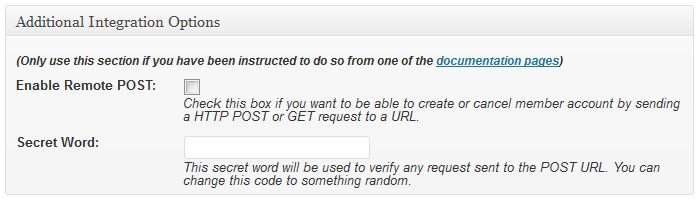
Go to the settings menu then scroll down to the “Additional Integration Options” section to find the option.

The following is a screenshot of this section in the settings menu:


It is very important that you do not reveal the Secret Word/API key to anyone else.

Using the API

Once you enable it, you can start to send HTTP request to the following URL to create member account remotely or from another software:

http://www.example.com/wp-content/plugins/wp-eMember/api/create.php

You need a minimum of 5 pieces of information to create a member account using a HTTP request. These are:

  • Secret Word/API Key (you specified it in the settings menu of the plugin)
  • First Name
  • Last Name
  • Email Address
  • Membership Level ID

Optionally, you can pass in the following data with the request (if you do not pass these, a randomly generated value will be used for these)

  • username
  • password

1. Creating Member Account Using  HTTP GET request

In order to create a member account via HTTP GET use the following format:

http://www.example.com/wp-content/plugins/wp-eMember/api/create.php?secret_key=XX&first_name=XX&last_name=XX&email=XX&membership_level_id=XX

Replace the ‘example.com’ and ‘XX’ with the appropriate values.

PHP Code Example:The following is an example of how to construct this link using PHP:

$secret_key = "6bd39ewe43a7bb";
$first_name= "Jon";
$last_name= "Doe";
$email= "[email protected]";
$membership_level_id= "1";
$prepared_data = "?secret_key=".$secret_key."&first_name=".$first_name."&last_name=". $last_name."&email=".$email."&membership_level_id=".$membership_level_id;
$get_url = "http://www.example.com/wp-content/plugins/wp-eMember/api/create.php".$prepared_data;
// Execute this GET Request
file_get_contents($get_url);

2. Creating Member Account Using  HTTP POST request

To create a member account via HTTP POST use the following format:

<form method="post" action="http://www.example.com/wp-content/plugins/wp-eMmeber/api/create.php">
<input type="hidden" name="secret_key" value="XX">
<input type="hidden" name="first_name" value="XX">
<input type="hidden" name="last_name" value="XX">
<input type="hidden" name="email" value="XX">
<input type="hidden" name="membership_level_id" value="XX">
<input type=submit value="Submit Post">
</form>

Replace the ‘example.com’ and ‘XX’ with the appropriate value.

Passing Additional Field Values

You can optionally pass additional field values using the following parameters in your request:

  • phone
  • address_street
  • address_city
  • address_state
  • address_zipcode
  • country
  • gender
  • company_name

Filed Under: Additional Resources, Integration Tagged With: 3rd party integration, API, Integration

Create a Registration Form for a Particular Membership Level

WP eMember uses ONE registration form for all kinds of membership registration. This way you don’t have to create multiple pages with different registration forms and confuse your customers. Full details of how eMember does this is explained here.

Occasionally, you may need to create a registration form for a particular membership level for a special reason. For example,  give backdoor entrance to your paid membership site to some special people (this way they won’t have to pay)

Create a Registration Form for a Specific Level

Create a new WordPress page. Then use the following shortcode on this page. It will place a registration form for a particular membership level:

[wp_eMember_registration_form_for level=1]

1 is the membership level ID in this example. Change it to the actual membership level ID value for your system.

Now, when a user registers using this form, he will be signing up for that particular membership level that you specified in the shortcode.

You can also hide this special registration page from the standard WordPress navigation menu.

Filed Under: Additional Resources Tagged With: backdoor registration form, Membership Level, registration form

How to Use Google First Click Free Feature with Your Membership Site

Implementing Google’s First Click Free (FCF) for your content allows you to include your restricted content in Google’s main search index. WP eMember has an option that allows you to enable the Google first click free feature on your membership site.

What is Google First Click Free Feature?

  • Read the details of First Click Free feature from Google’s site
  • More details from the Google Webmaster Central Blog

What You Need to be Aware of?

  • When you use this feature a visitor (non-member) can see your protected content if they follow a link from Google’s Search result. So yes, you are somewhat compromising the security of your protected content.
  • All users who click a Google search result to arrive at your site should be allowed to see the full text of the content they’re trying to access.
  • The page displayed to all users who visit from Google must be identical to the content that is shown to Googlebot.
  • We implemented this feature following exactly what Google recommended and we intend to keep it this way (it is good idea to follow Google’s policies if you don’t want to get your site banned).
If you are uncomfortable with any of the above then DO NOT use this feature.

How Do You Enable it in eMember?

  1. Go to the settings menu of eMember and check the “Enable Google First Click Free Feature” field to enable this feature.
  2. Wait for Google to index your protected content.
Now, when a user follows a Google search result and lands on your protected article, WP eMember will display the full content of the protected article to this user. If the user clicks on any other link on your site then the normal protection rules are applied as usual.

Filed Under: Design & Usage Tagged With: Google First Click Free, WordPress membership, WP eMember

WP eMember Frequently Asked Questions (FAQ)

  • Does this plugin work with the latest version of WordPress?

Yes, all of our plugins work with the latest version of WordPress. The plugin is always kept upto date to work with the latest version of WordPress. So in the future you will always have a membership plugin that works with the latest WordPress updates.

  • Are there any ongoing fees for WP eMember plugin?

No, the WP eMember plugin is a one time purchase software.

  • Why buy a premium WordPress plugin?

See the why buy a premium WordPress plugin page.

  • Does this product integrate with WordPress’s user system?

Yes, the WP eMember can create a WordPress user log-in with the same details as the membership when the customer registers.

  • How does the member get the registration link after a purchase is made?

The member is email out a link to complete the registration process after they have completed their payment.

  • Can a customer sign up for a recurring membership if they do not have a PayPal account?

The standard PayPal subscription payment requires a PayPal account for all recurring payments. However, you can enable the enhanced recurring billing feature in your PayPal merchant account which will let your customers pay for subscription using a credit card. Your customers can sign up for a PayPal account (if they don’t have one already) when they go to make the purchase.

  • What type of license does the WP eMember have, can I use this plugin on more than one site?

Read the WP eMemeber Licensing Details.

  • Can I translate the WP eMember plugins in to my own language?

Yes, You can translate the front end of the plugin (the information that the customer sees). You can read more about this here.

  • If I buy the WP eStore, WP eMember and WP Affiliate plugins and activate and setup all 3, will I be able to run a membership site that charged a monthly RECURRING price with the affiliate program, giving the affiliate commission each month the member is signed up?

Yes

  • Is there a limit to the membership levels or members I can have?

No, there is not a limit on membership levels or the number of members you can have.

  • What forum plugin can I use with the eMember?

WP eMember will work with any forum plugin that utilizes the WordPress’s user roles. eMember has a feature for keeping the members in sync with WordPress users. BBPress and SimplePress seems to be the popular choice at the moment and our customers have been using those with eMember.

  • What payment gateways can I use for my membership site?

The WP eMember can be integrated with PayPal and ClickBank in a standalone setup. You can also integrate eMember with WP eStore which allows you to use any of the Payment Gateways offered by the eStore plugin. Read more on this on our Documentation site.

  •  What AutoResponders can the WP eMember integrate with?

The WP eMember can integrate with AWeber, MailChimp, GetResponse autoresponders.

  • Can I protect only a section of a post and have some teaser content that everyone can see?

Yes you can protect just a section of a post or page. There are a few options on how you can do this, for more information on these options go here.

  • Can I drip content to my members?

Read this document for more information about the drip content feature

  • Can I use one user database to handle member login from multiple different WordPress installs?

No, this is not a supported feature of WordPress. There are some hacks out there but we do not support these hacks.

  • If I change membership plugins do my members have to recreate their recurring payments again?

Yes, PayPal does not allow you to modify a recurring payment once it is established.

  • Can I have it so members have to be approved by the admin after they sign up for a membership before they can view the content? 

Yes

  • Can I have both free and paid memberships at the same time?

Yes, you can have both free and paid memberships for your membership site.

  • Can I have a trial period with the WP eMember?

Yes, you simply create a subscription payment option with trial period.

  • If a membership level expires will it automatically transition to the free membership level?

You can allow your users to downgrade to a free membership level:
http://www.tipsandtricks-hq.com/forum/topic/wp-emember-downgrade-member-level-from-premium-to-free

  • Does eMembers signup process replace the default registration process used by Buddypress/Wordpress?

Yes, it is better to have one registration and log-in process for the whole site (you can still use them if you like but I think it may be confusing for your users to have to remember different login pages).

Filed Under: Additional Resources Tagged With: FAQ, WP eMember

How to create a Video Membership Site with Complete Protection to Your Videos

With General Protection feature of WP eMember you can easily secure your videos from anonymous visitors. Here is how you do it:

  1. Create a post/page in WordPress.
  2. Embed the video on the post/page that you want to offer to the members of a particular membership level. (If you don’t know how to configure the basic membership settings using WP eMember please watch the video tutorial here).
  1. Go to WP eMember->Membership Level->Manage Content Protection section under WP Dashboard. In this section you can set which pages/posts you don’t want the anonymous visitors to see. In this case you can set protection to the post/page you just created and grant access to this post/page for a certain membership level (Detailed explanation can be found here).
  1. Now whenever any member from that particular membership level (the one you granted access to) logs in, the member will be able to view the content of the page (in this case: the video you embedded on that page). Any other anonymous visitors will be asked to log in when they stumble upon that post/page.

This will be good enough for most users but if you want to add another layer of protection for your super secret videos then continue reading.

Ultimate Video Lockdown

The key is to use Amazon S3’s private/protected file option.

To add complete protection to your videos we recommend you use the following two service/product with eMember:

  • Amazon S3 Account
  • WP Lightbox Ultimate Plugin

Amazon S3 has an option where you can make a video file private (If you are selling video content on your site then you should be using Amazon S3). Amazon S3’s private/protected video can only be retrieved by an application using a secure API so there is no way for anyone to go directly to the URL of the file and download it.

The WP Lightbox Ultimate plugin has an option that can use the secure amazon s3 API and allows you to embed private/protected Amazon S3 videos on a WordPress post or page.

The following steps will ensure the complete protection of your videos:

Step 1: Upload your videos to Amazon S3 and make the files private/protected so no one can retrieve the file without the secure API (only you know the API access keys).

Step 2: Embed the private video on your WordPress post or page using the WP Lightbox Ultimate Plugin. You can directly embed the private/protected video on the page (no lightbox) or embed it using the lightbox option (the video will play in a lightbox).

Step 3: Protect the WordPress post or Page using eMember so only members with the correct permission can see the content of the page.

The following video explains how this protected/private Amazon S3 video works with the Lightbox Ultimate plugin:

WP eMember

Another Method of Creating a Video Membership Site

Check the limiting access to video content tutorial to learn another method of offering videos to your members.

Filed Under: Design & Usage Tagged With: online course, video membership site, video protection, WordPress membership

Using eMember with Another Plugin That Uses the WordPress User Roles

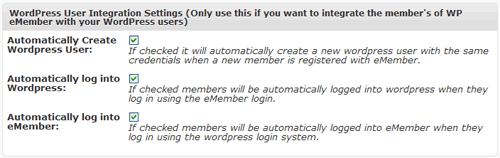
If you need to use eMember with another WordPress plugin that uses the WordPress user’s role (example: a forum plugin) then you need to check the fields in the  “WordPress User Integration Settings” section of the eMember’s settings menu.

WordPress User Integration Settings

WP eMember does not create WordPress user entry by default.

We prefer not to modify or add data to a core WordPress database table. So eMember uses it’s own database table to store membership account details. Most of our customers who create a membership site using WordPress prefer this clean approach where your core WordPress user database table doesn’t get cluttered.

However, some projects will require the creation of WordPress user so that you can use WordPress’s role and capabilities with another plugin. Checking the “Automatically Create WordPress User” checkbox will make it so whenever someone signs up via eMember it will automatically create a corresponding WordPress user in the background with the role you specify in the membership level of eMember.

The WP eMember plugin will work as a gatekeeper. After a user registers for a membership account using eMember, the plugin will create a WordPress user with the specified Role in the background. It will also keep the user’s details in sync. When a member logs into eMember, he/she will automatically get logged into the WordPress user system in the background and other plugin(s) can then do stuff based on that WordPress user’s role.

Mass Import All WP User Accounts into eMember

If you already have a lot of WP User accounts that you want to import into eMember then you can do that from the following interface of eMember:

WP eMember -> Members -> Import WP Users

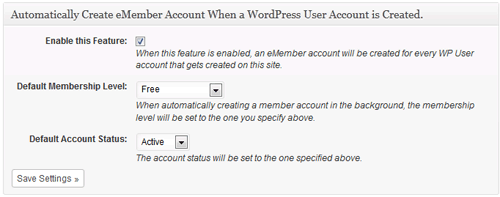
Auto Create an eMember Account When a WP User is Created by Another Plugin

If you have another WordPress plugin that creates WP User account and you want to automatically create an eMember user account for them then you can do that too.

Go to the following interface of eMember and enable the feature (see the following screenshot):

WP eMember -> Admin Functions

Creating WP User Accounts for Your Existing ‘eMembers’

If you have an established site where there are a number of existing members within your WP eMember plugin, this section will demonstrate how you can create corresponding WP user accounts. This features works well for those admin that wish to now use another plugin that relies on the WP user functionality.

  1. Click on the WP eMember Admin Functions menu.
  2. Scroll down until you find the section titled ‘Create WordPress User Account for the members that do not have one‘.
  3. If you wish to create WP User accounts for existing eMembers, click the appropriate button.
  4. WP User accounts will now be created for all your eMembers (that did not already have a WP User account).

Considerations when using this Feature:

  • User accounts will be created for every eMember user that does not have a corresponding WordPress account already
  • The WordPress user accounts will be created with the same details from eMember but the password will be set to “changeme” (The users who are getting a new WP user record will have to change the password to their liking from the edit profile page).

creating-wp-user-accounts-for-existing-emembers

Filed Under: Integration

WP eMember Protection – How to Enable Site Wide Protection

WP eMember has a site wide page protection feature. Depending on your site’s content you may want to use the site wide content protection feature so only logged in members can see any part of your WordPress site.

Video Tutorial

Enabling Site-wide Protection

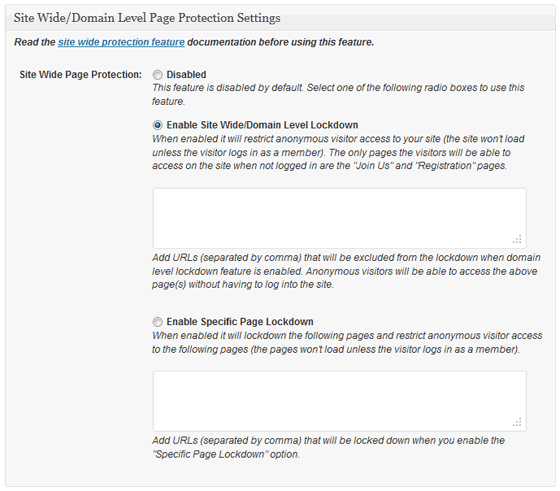
Simply go to the WP eMember settings and look  for the section titled “Site Wide/Domain Level Page Protection Settings” to enable this feature.

Site Wide/Domain Level Page Protection Settings

When the “Enable Site Wide/Domain Level Lockdown” option is checked, it will restrict anonymous visitor access to your WordPress site (the site won’t even load unless the visitor logs in as a member). The only page the visitor will be able to access on the site when not logged in is the “Join Us” page.

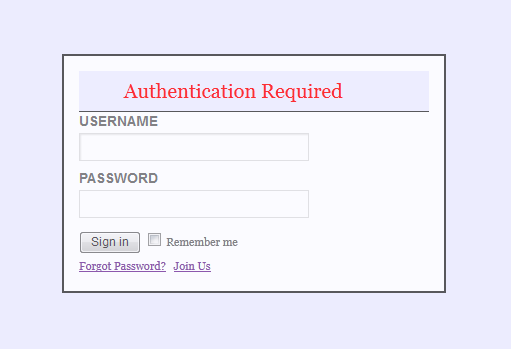
When you use this option anyone trying to access your WordPress site will be greeted with the following screen:

Prompt to anonymous visitors when they try to access locked down page

The only action available to the visitor is either to log in as a member or signup for a membership.

Lockdown Specific Pages

There is also an option to lockdown some pages selectively by using the “Enable Specific Page Lockdown” option. You can also specify a URL pattern to lock every page that matches that pattern. For example if you specify /some-category/ then all the following pages will be locked down:

www.example.com/some-category/an-example-permalink
www.example.com/some-category/sub-category/another-example-permalink
www.example.com/test1/test2/some-category/another-example-permalink

This technique is very useful when you want to lockdown a group of pages on your WordPress site.

Filed Under: Design & Usage

  • « Previous Page
  • 1
  • …
  • 5
  • 6
  • 7
  • 8
  • 9
  • 10
  • Next Page »

Get the WP eMember Plugin

Get WP eMember

Categories

  • Additional Resources
  • Content Protection
  • Design & Usage
  • eMember Addon
  • Installation
  • Integration
  • License
  • Testing
  • Uncategorized
  • Video Tutorial

Recent Comments

  • admin on Giving a WordPress Admin User Access to All Protected Content
  • Ramona Hapjke on Giving a WordPress Admin User Access to All Protected Content
  • admin on Overview of the Available Content Protection Methods
  • Ramona Hapke on Overview of the Available Content Protection Methods
  • admin on Giving Other WordPress User Roles Access to Your WP eMember Admin Dashboard

Featured WordPress Plugins

WP Express Checkout Plugin
wordpress_estore_icon
wordpress membership plugin icon
wordpress_affiliate_plugin_icon

Copyright © 2026 | WP Membership Plugin